Step 1: Insert the Image:
- Open your Google Slides presentation.
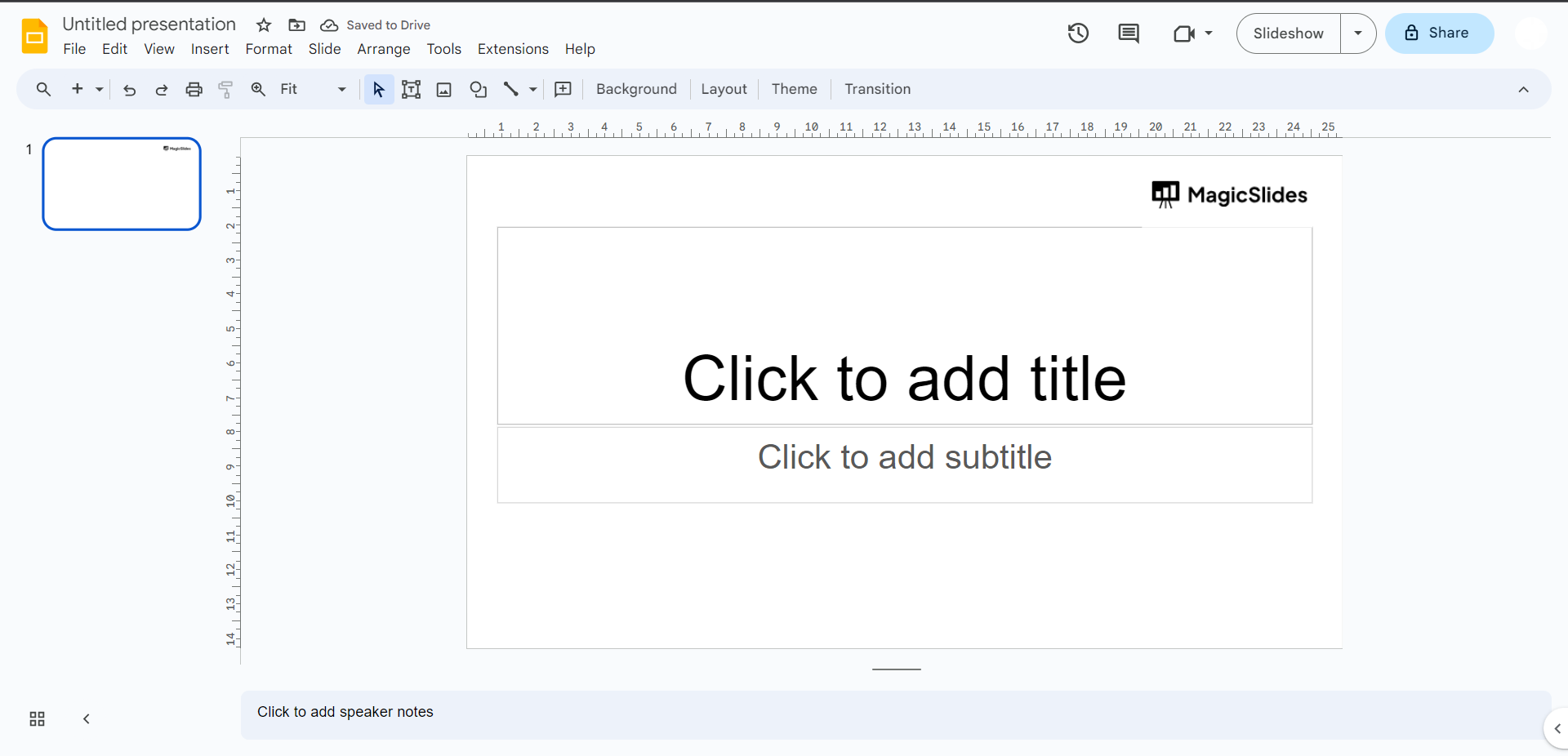
- Click on the slide where you want to insert the masked image.
- Go to the "Insert" menu and choose "Image."
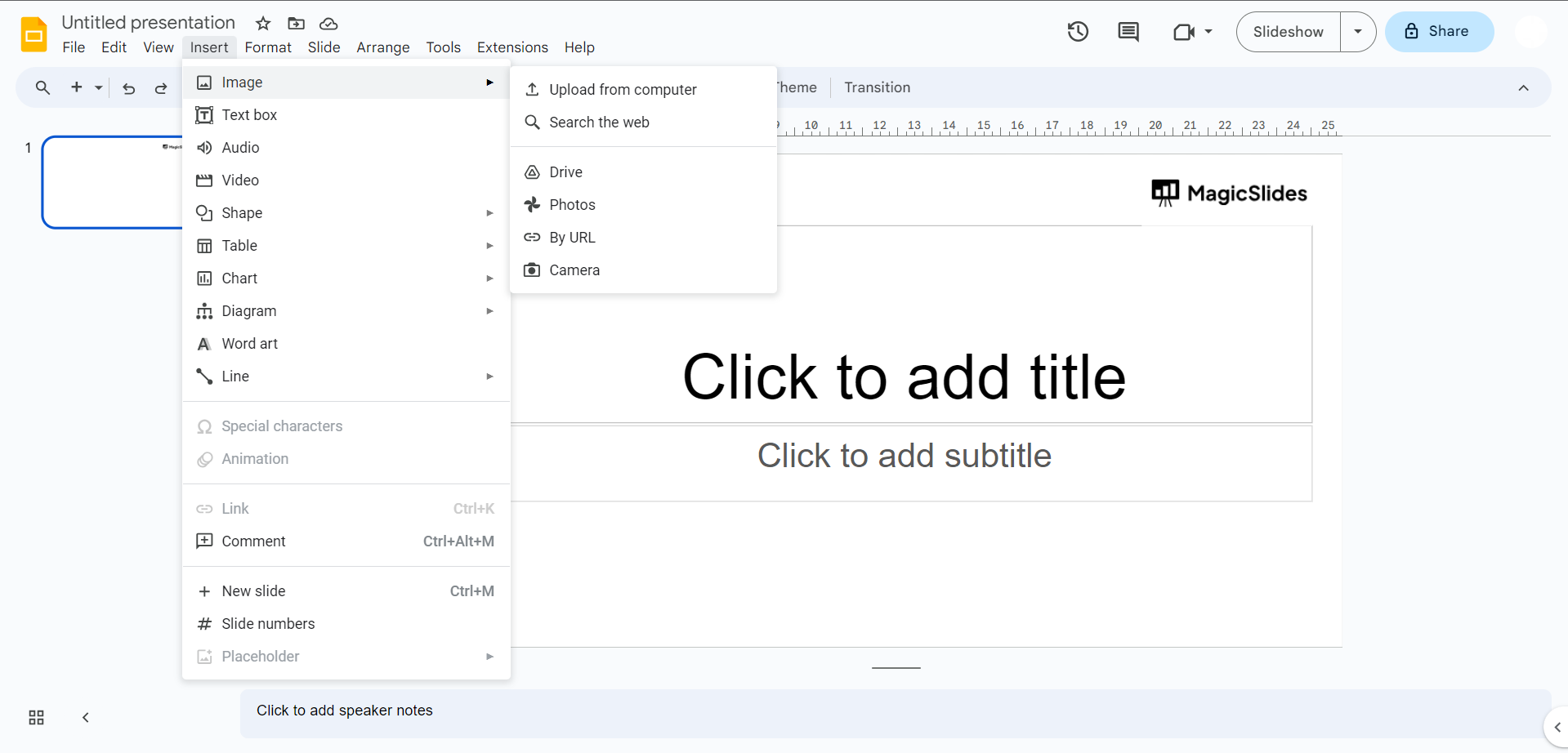
- Upload or select the image you want to mask.
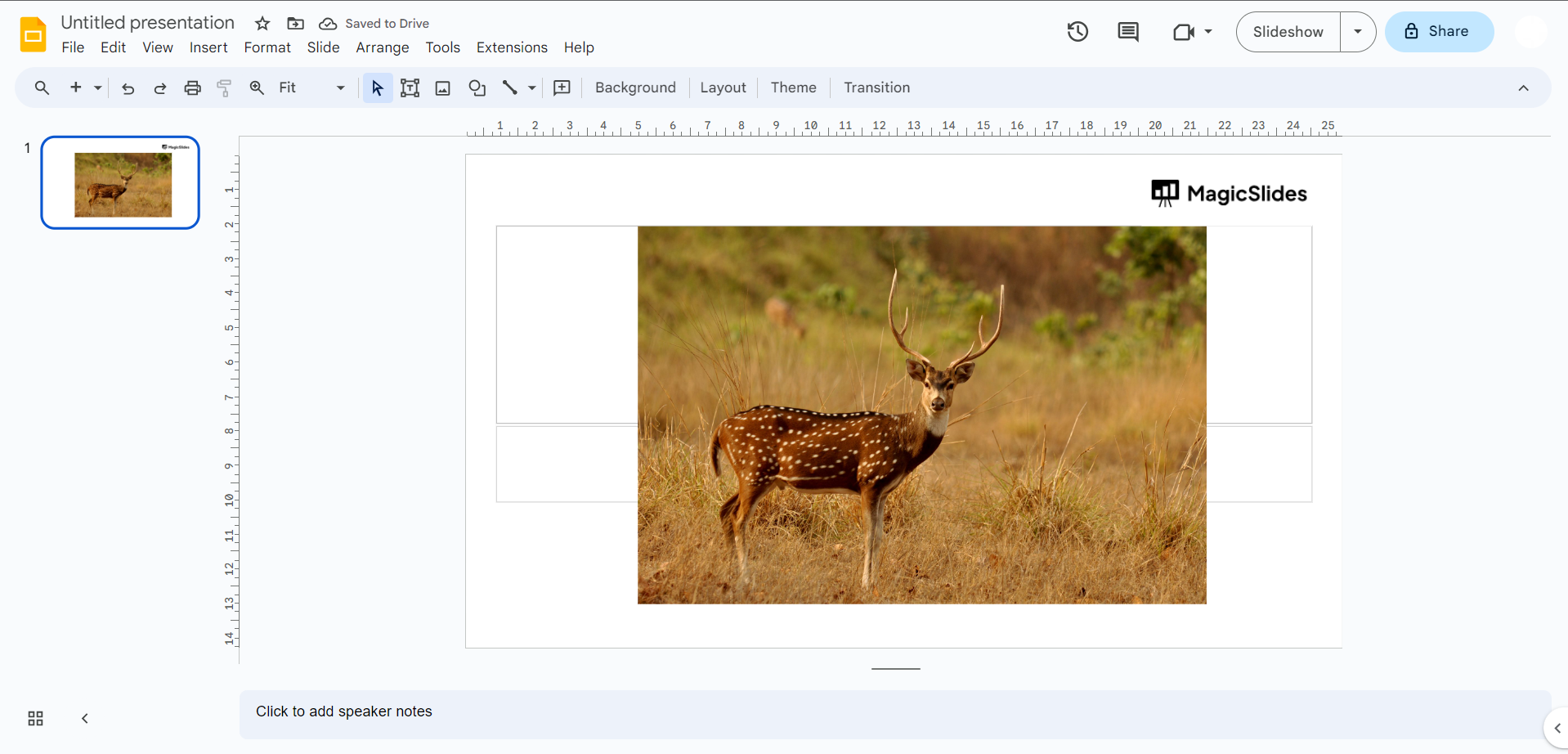
Step 2: Position the Image:
- Resize and adjust the shape to cover the desired portion of the image you want to mask.
Step 3: Crop the Image:
- Position and resize the shape until the image underneath is masked according to your preferenceby clicking on the dropdown from crop button when the image is selected.
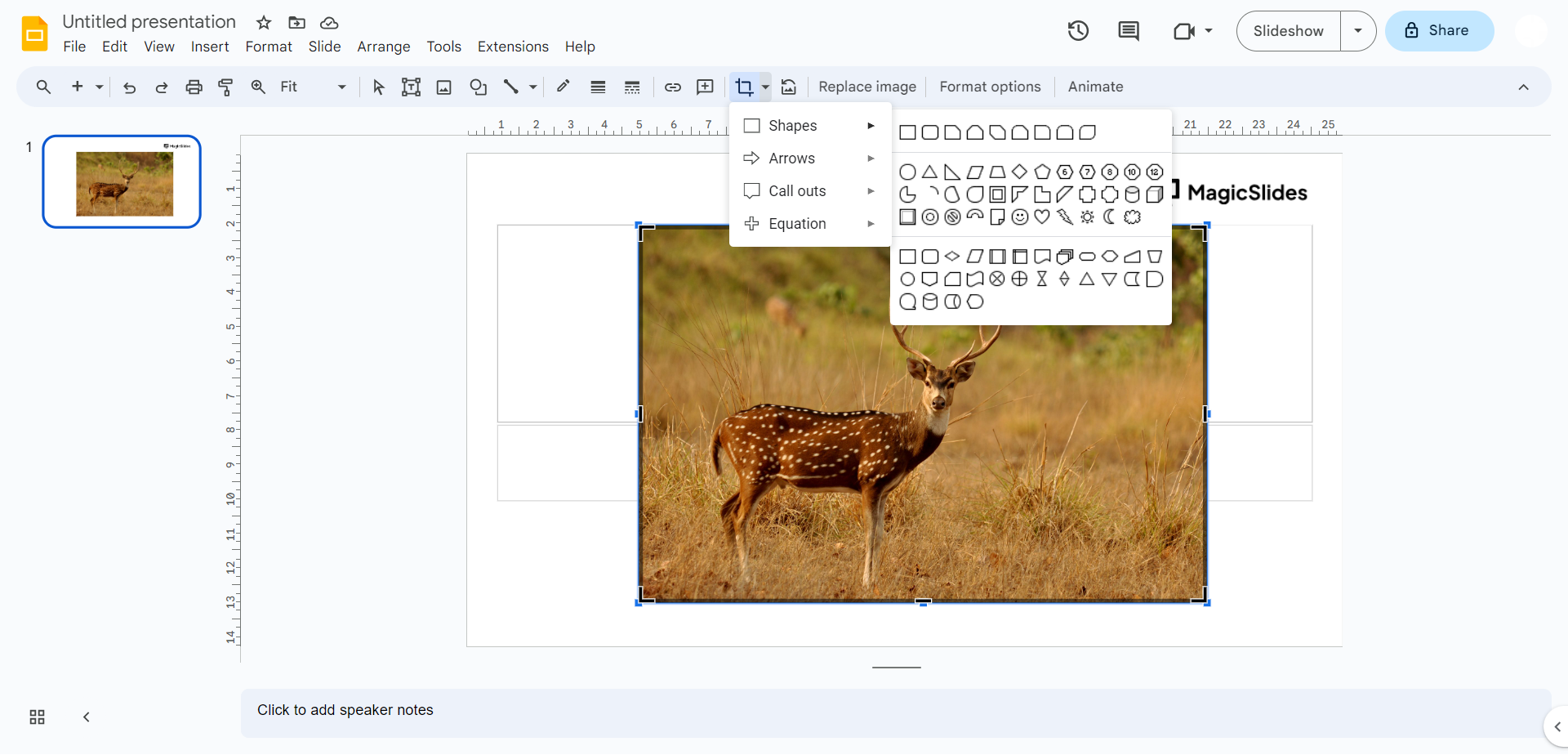
- Now reselect the crop symbol to apply the changes, the image will be masked now.
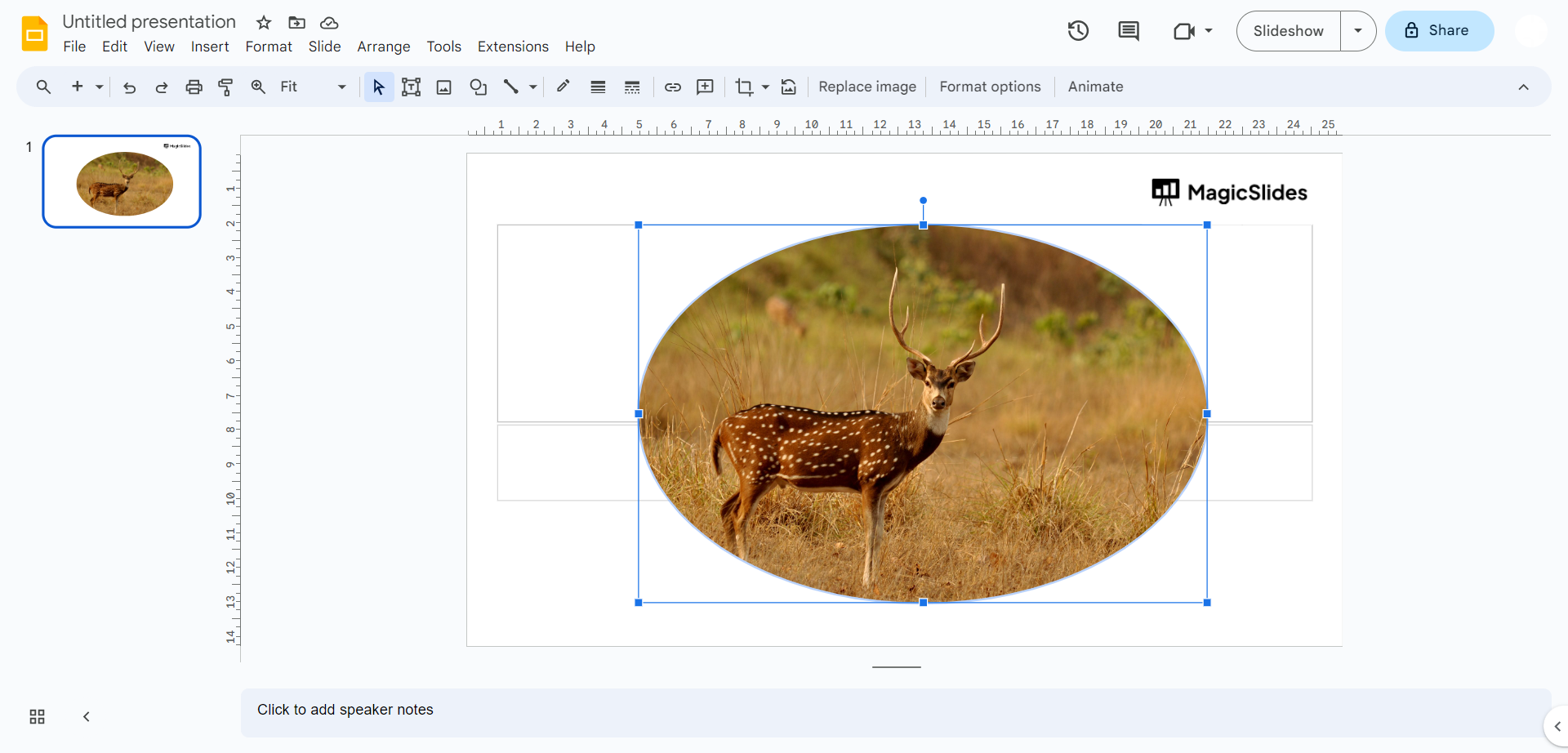
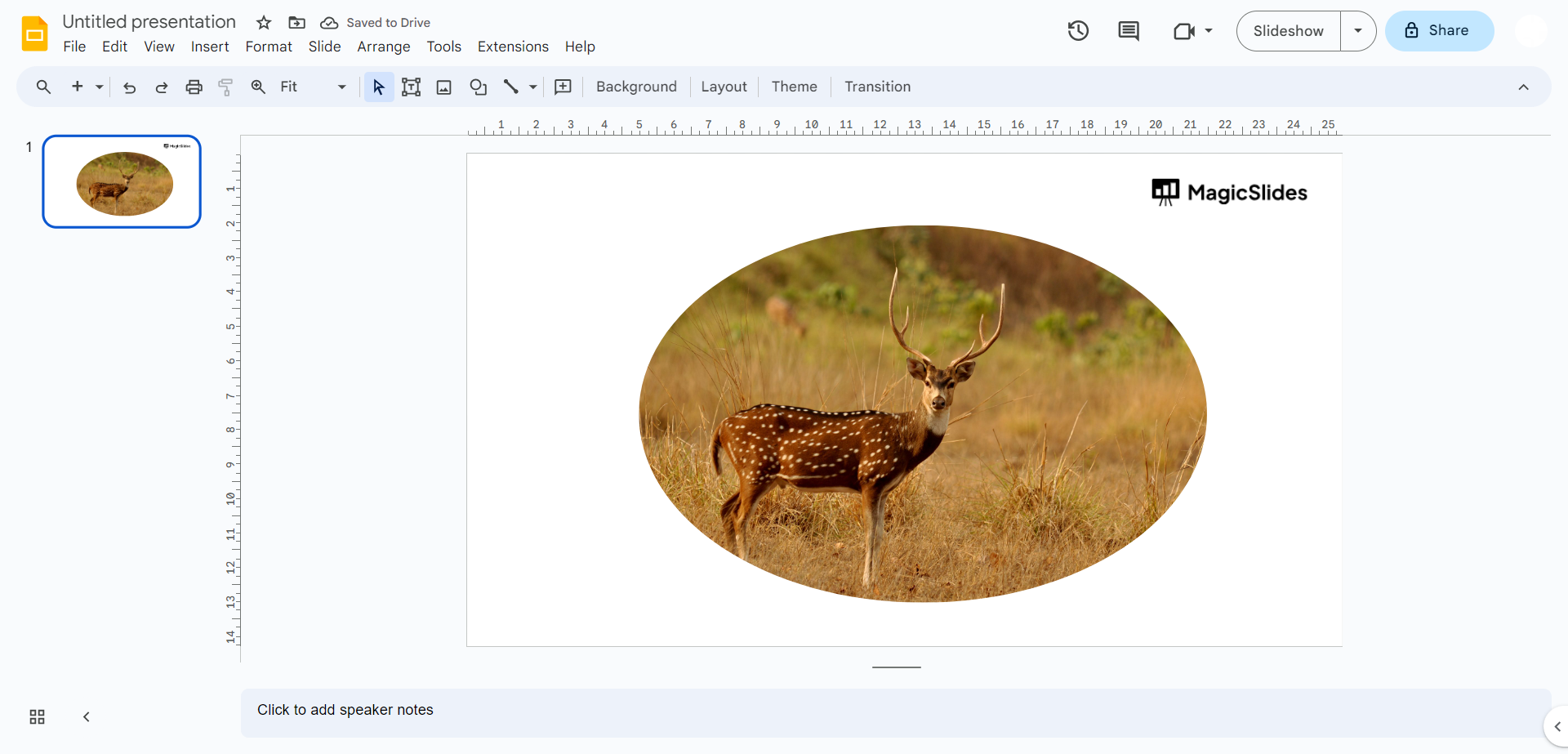
- Click any where on the slide to deselect and the image is masked now!
Leave a Reply