In our digital age, QR codes have become a ubiquitous tool for quick and seamless information sharing. If you're looking to simplify the process of sharing your Google Forms, incorporating a QR code is the perfect solution. In this guide, we'll walk you through the steps of creating a QR code for your Google Form, making data collection and feedback acquisition more accessible than ever.
How to make QR code for Google Forms
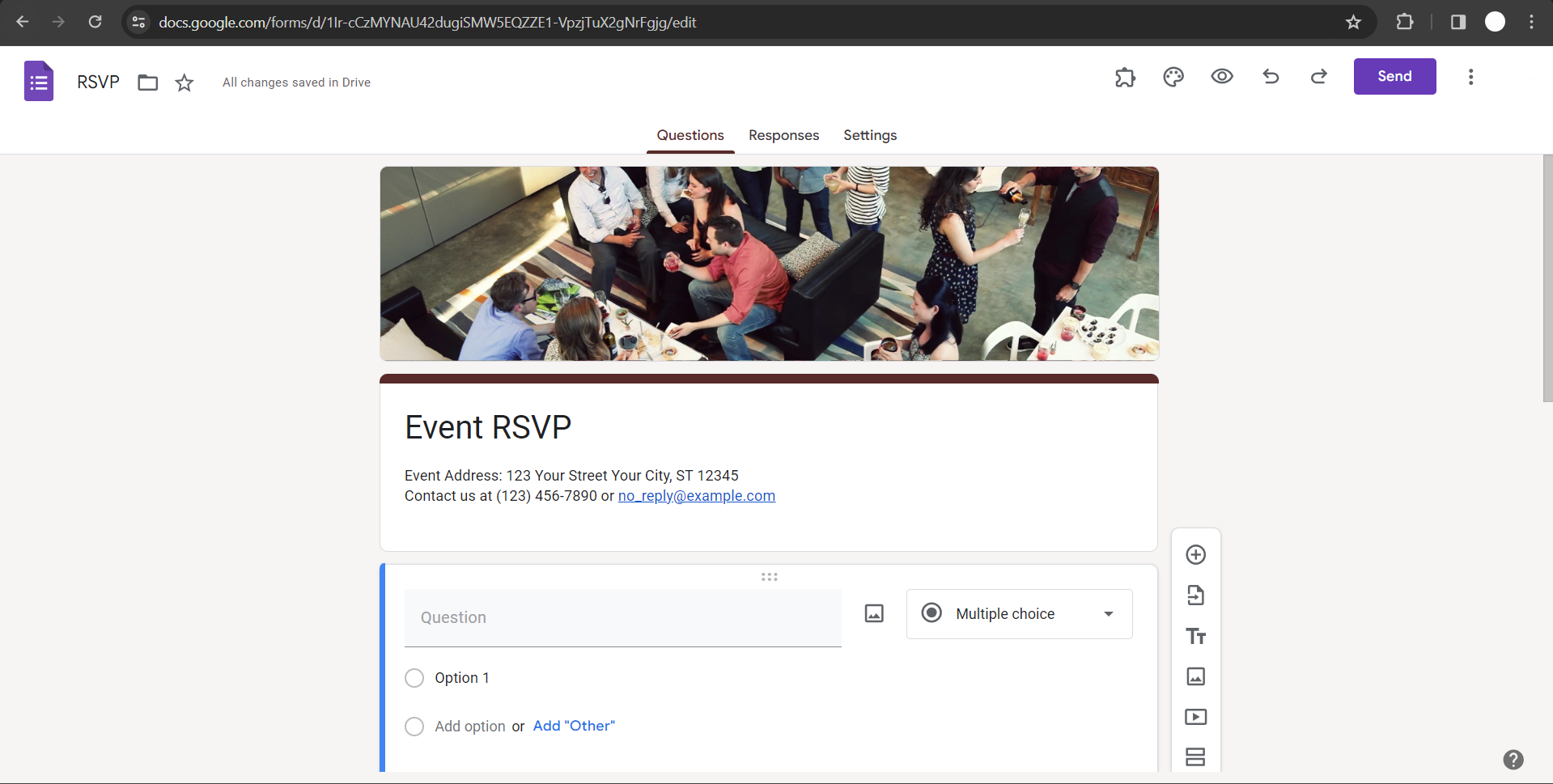
Step 1: Create Your Google Form
Begin by crafting your Google Form with questions, sections, and settings tailored to your data collection needs. Ensure your form is finalized before proceeding to the next steps.
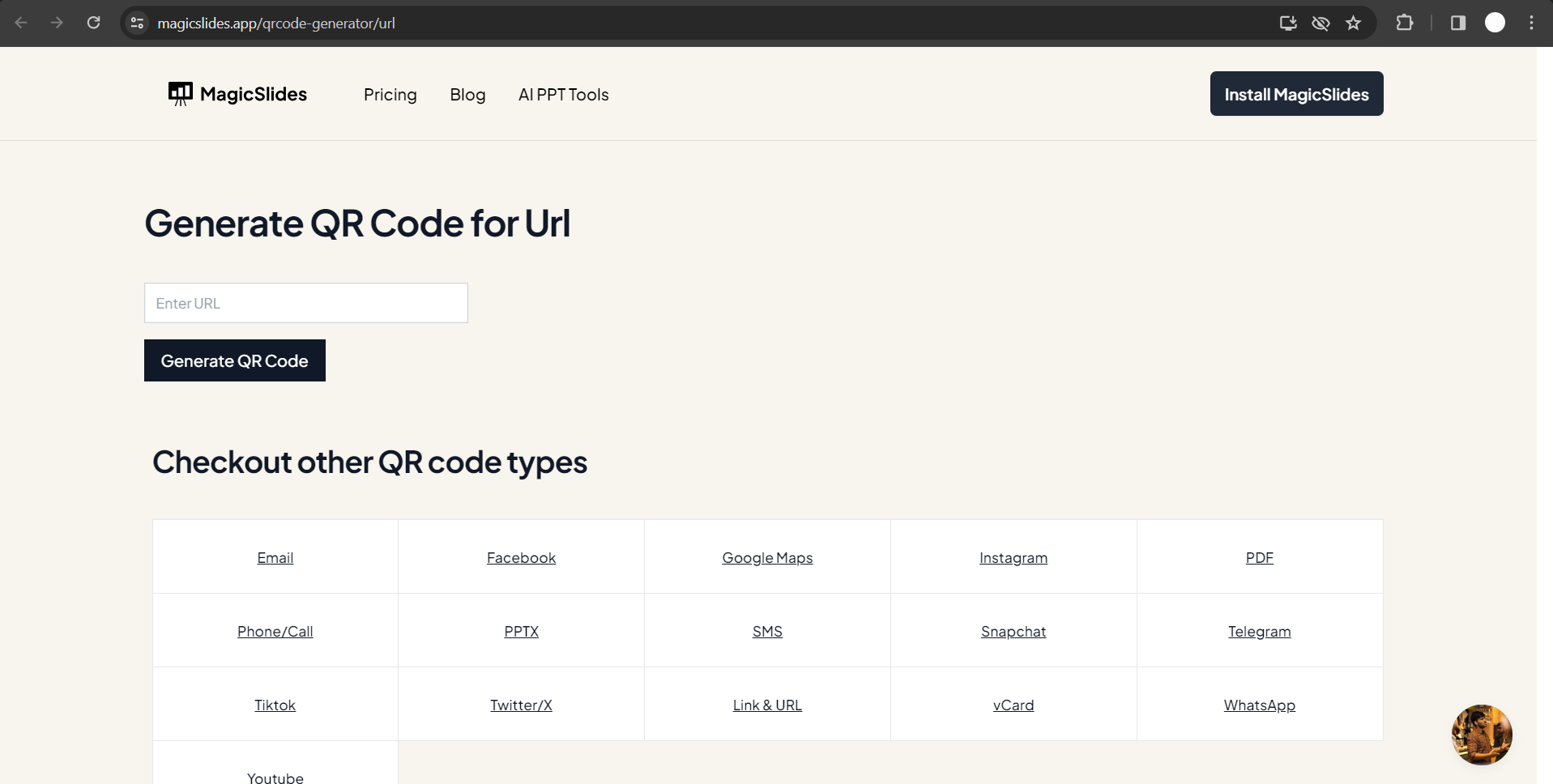
Step 2: Access MagicSlides QR Code Generator
Visit MagicSlides QR Code Generator to access the free tool. This user-friendly platform simplifies the process of generating QR codes for various purposes, including linking to your Google Form.
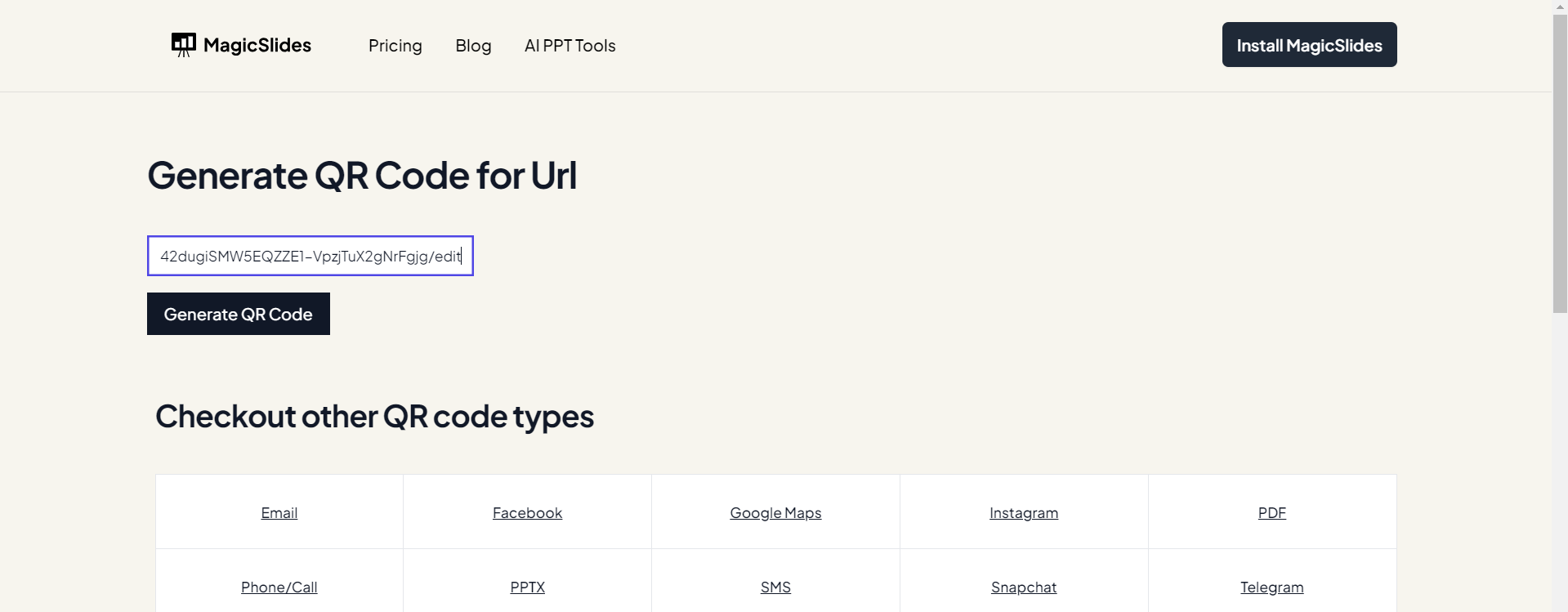
Step 3: Paste Google Form URL
Copy the URL of your finalized Google Form. Paste this URL into the designated field on the MagicSlides QR Code Generator page.
Step 4: Customize QR Code Settings (Optional)
MagicSlides allows you to customize your QR code by choosing colors, adding a logo, or adjusting the size. Tailor the appearance of your QR code to align with your brand or preferences.
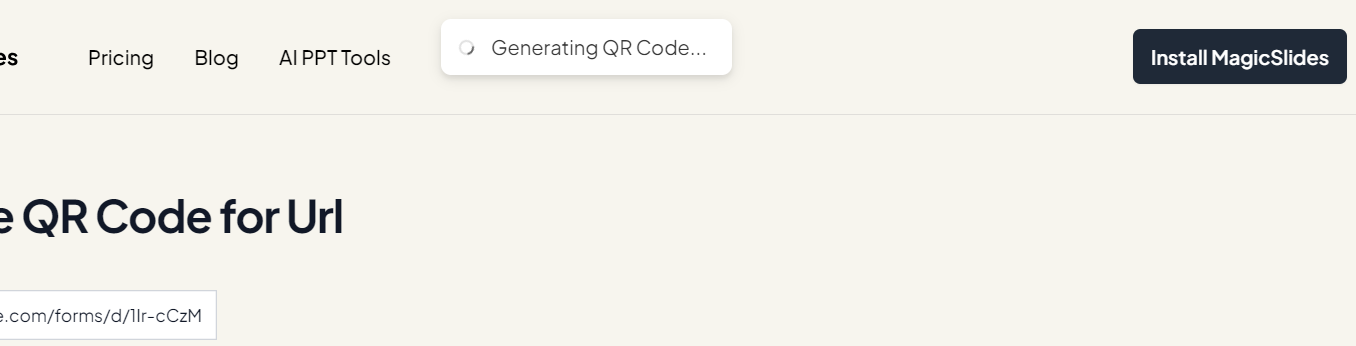
Step 5: Generate QR Code
Click the "Generate" button on the MagicSlides QR Code Generator. Your customized QR code for the Google Form URL will be instantly generated and ready for download.
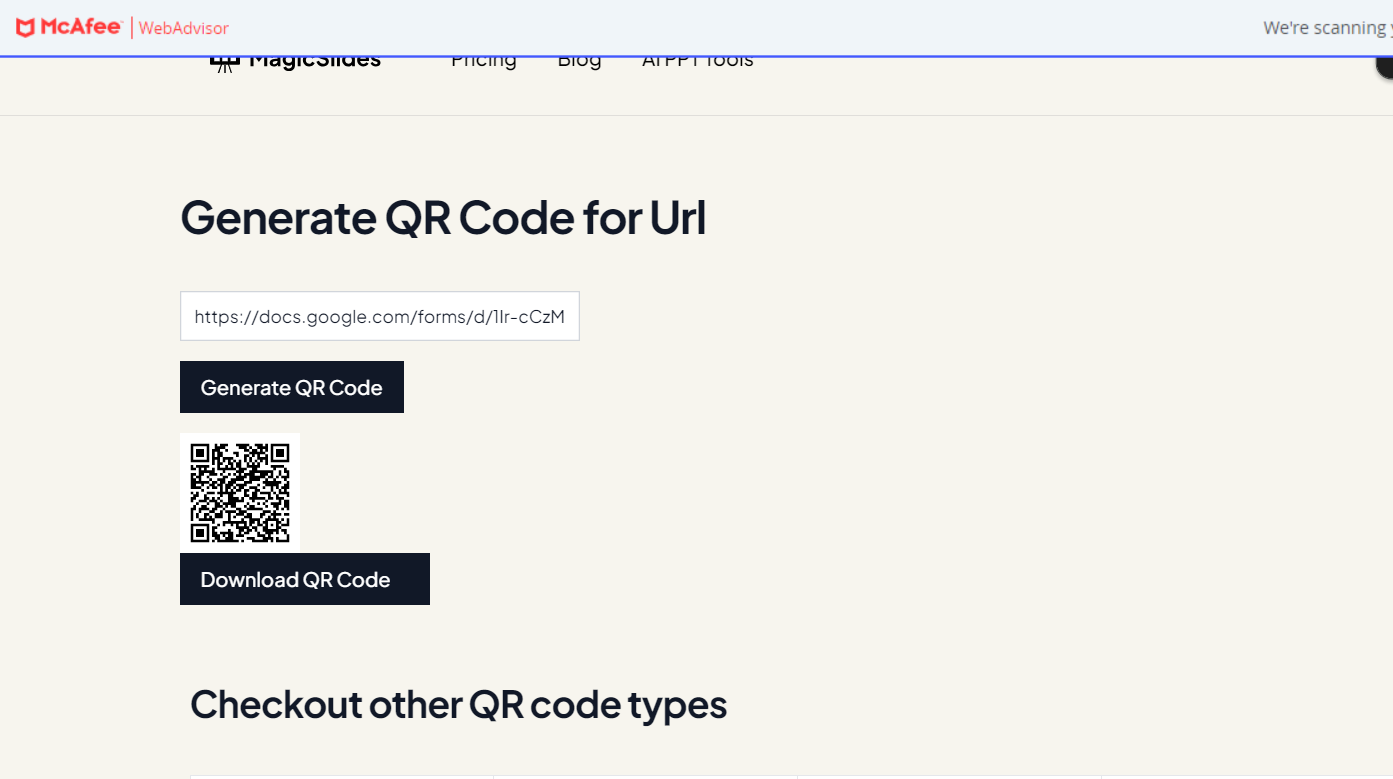
Step 6: Download and Share
Download the QR code to your device. You can now incorporate this QR code into various materials such as posters, flyers, or presentations to effortlessly direct users to your Google Form.
Conclusion:
Incorporating QR codes into your Google Forms is a game-changer, streamlining the process of data collection and feedback gathering. By following these simple steps and utilizing the MagicSlides QR Code Generator, you can effortlessly create customized QR codes that enhance the accessibility and engagement of your forms. Whether you're an educator, business professional, or event organizer, integrating QR codes into your data collection strategy is a savvy move in our fast-paced digital world.
Frequently Asked Questions:
Can I use any QR code generator, or is MagicSlides specifically recommended for Google Forms?
While various generators work, MagicSlides is user-friendly and offers customization, making it a preferred choice.
Are there limitations on the size or complexity of Google Forms that can be linked using QR codes?
No limitations. QR codes efficiently link to Google Forms, regardless of size or complexity.
Can I modify the QR code's appearance to match my brand using MagicSlides?
No MagicSlides QR code cannot be modified, but you get the simplest QR Code possible in less than a second for your Google form.
Is it possible to track responses or gather analytics through QR codes linked to Google Forms?
Google Forms itself provides response tracking; however, QR codes themselves do not offer analytics.
Leave a Reply