How to Loop Google Slide Animations
Looping animations in Google Slides can make your presentations more dynamic and engaging.
Whether you want continuous movement for emphasis or a seamless looping effect, Google Slides offers simple ways to achieve this using slide transitions and auto-play settings.
Follow this step-by-step guide to loop animations in Google Slides.
https://www.guidejar.com/embed/74084e61-6de0-496c-bf11-ecdc63d878b2?type=1&controls=on
Steps to Loop Animations in Google Slides
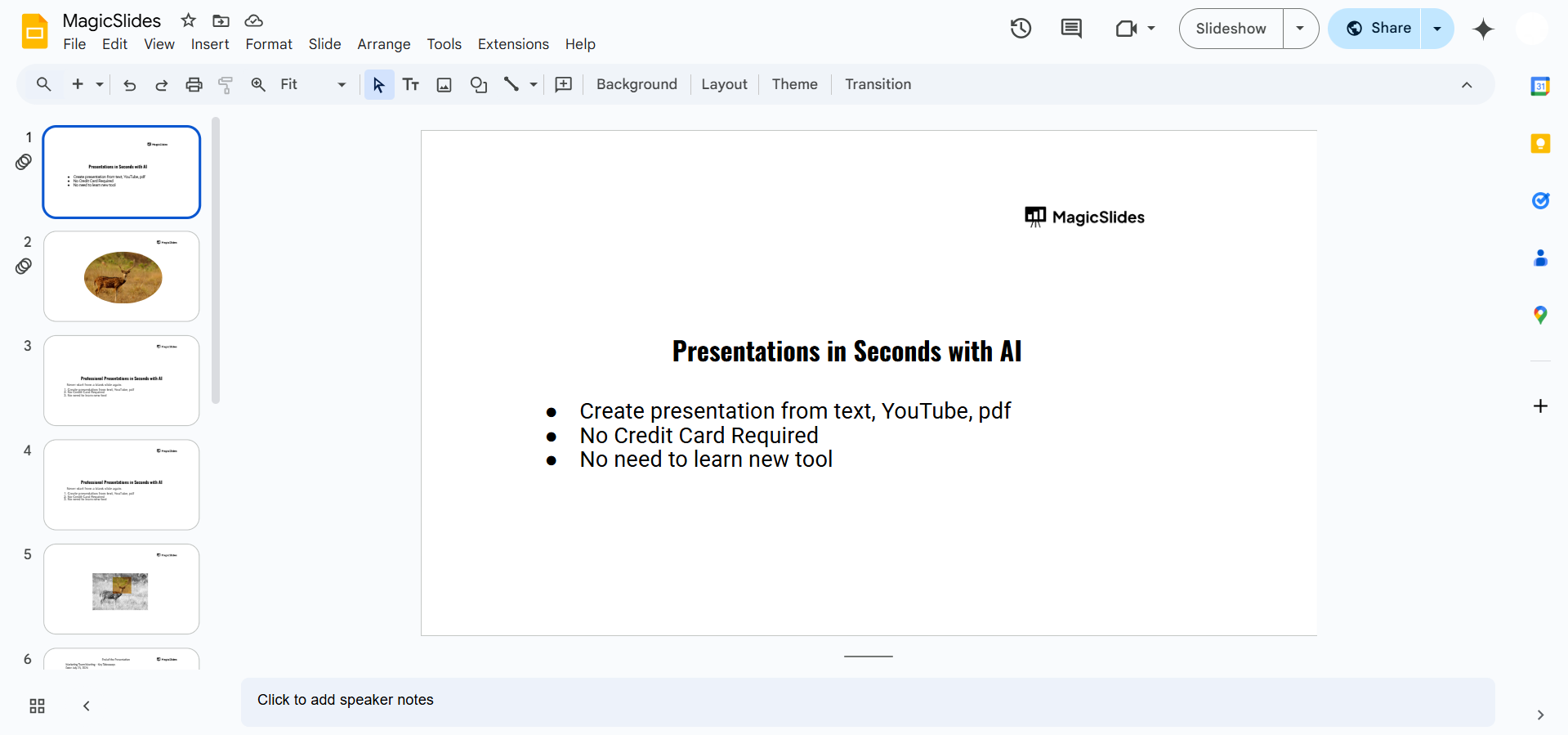
Step 1: Open Your Google Slides Presentation
Go to Google Slides and log in. Open an existing presentation or create a new one where you want to loop animations.
Step 2: Add Animations to Your Slide
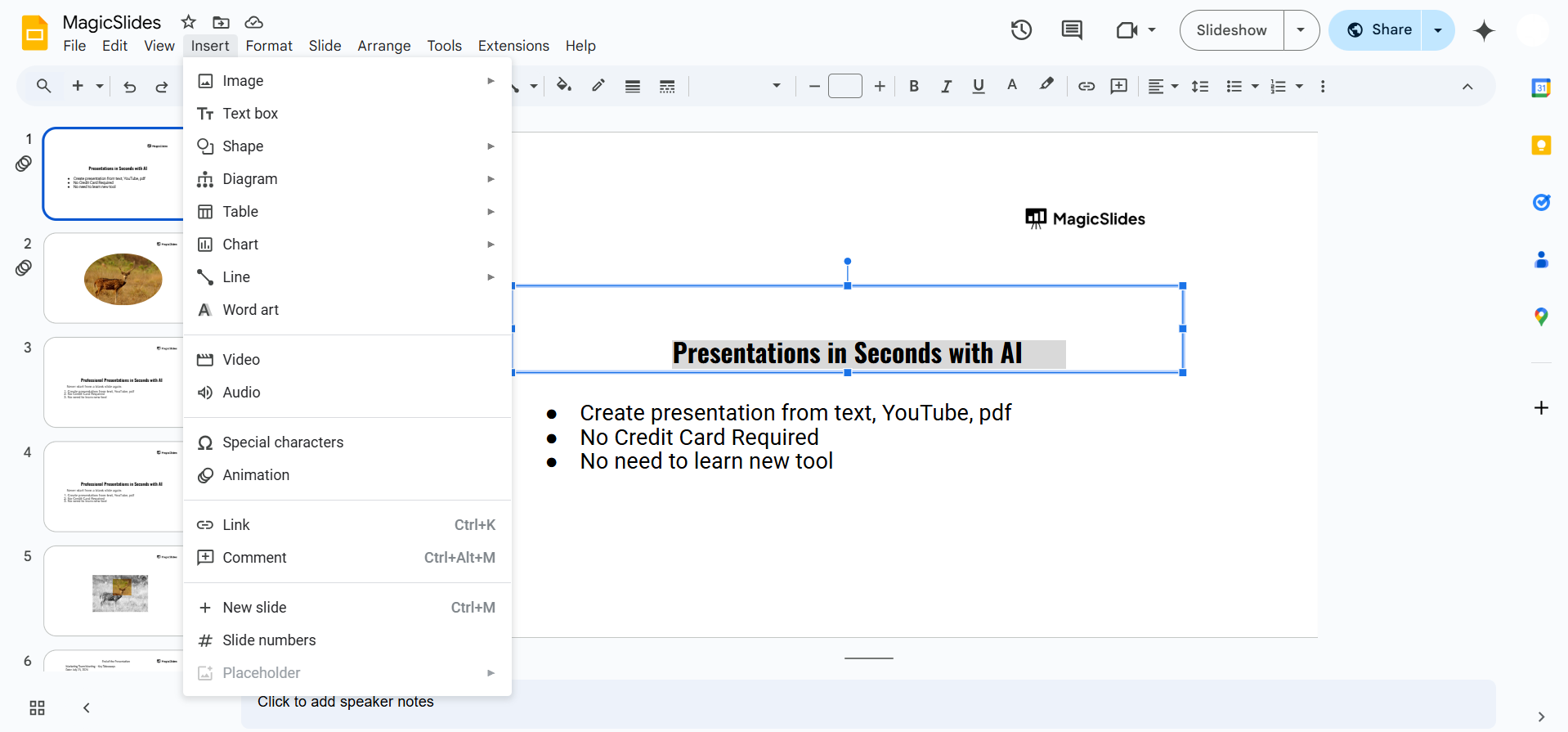
Click on the object (text, image, or shape) you want to animate. Go to "Insert" > "Animation" (or click "View" > "Motion" in newer versions).
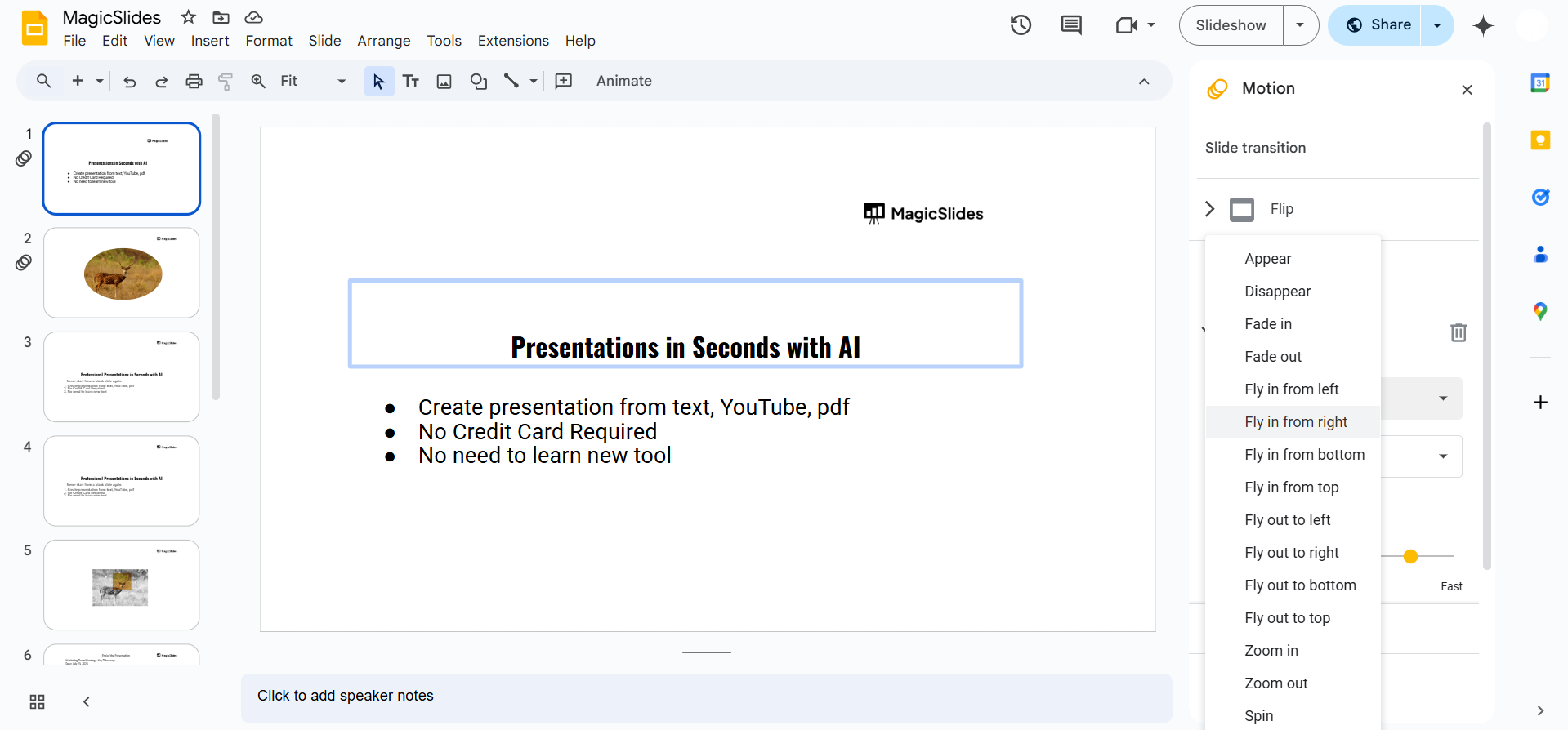
Choose an animation effect (e.g., fade in, zoom, spin) from the "Animation pane."
Set the animation to play automatically by selecting "After previous" in the timing settings.
Step 3: Enable Auto-Advance for Continuous Playback
Click on "File" > "Publish to the web." In the pop-up window, check "Start slideshow as soon as the player loads."
Select "Restart the slideshow after the last slide." Click "Publish" and copy the generated link.
Step 4: Use Duplicate Slides for a Seamless Loop (Optional)
If Google Slides does not allow looping of a single animation, duplicate the slide.
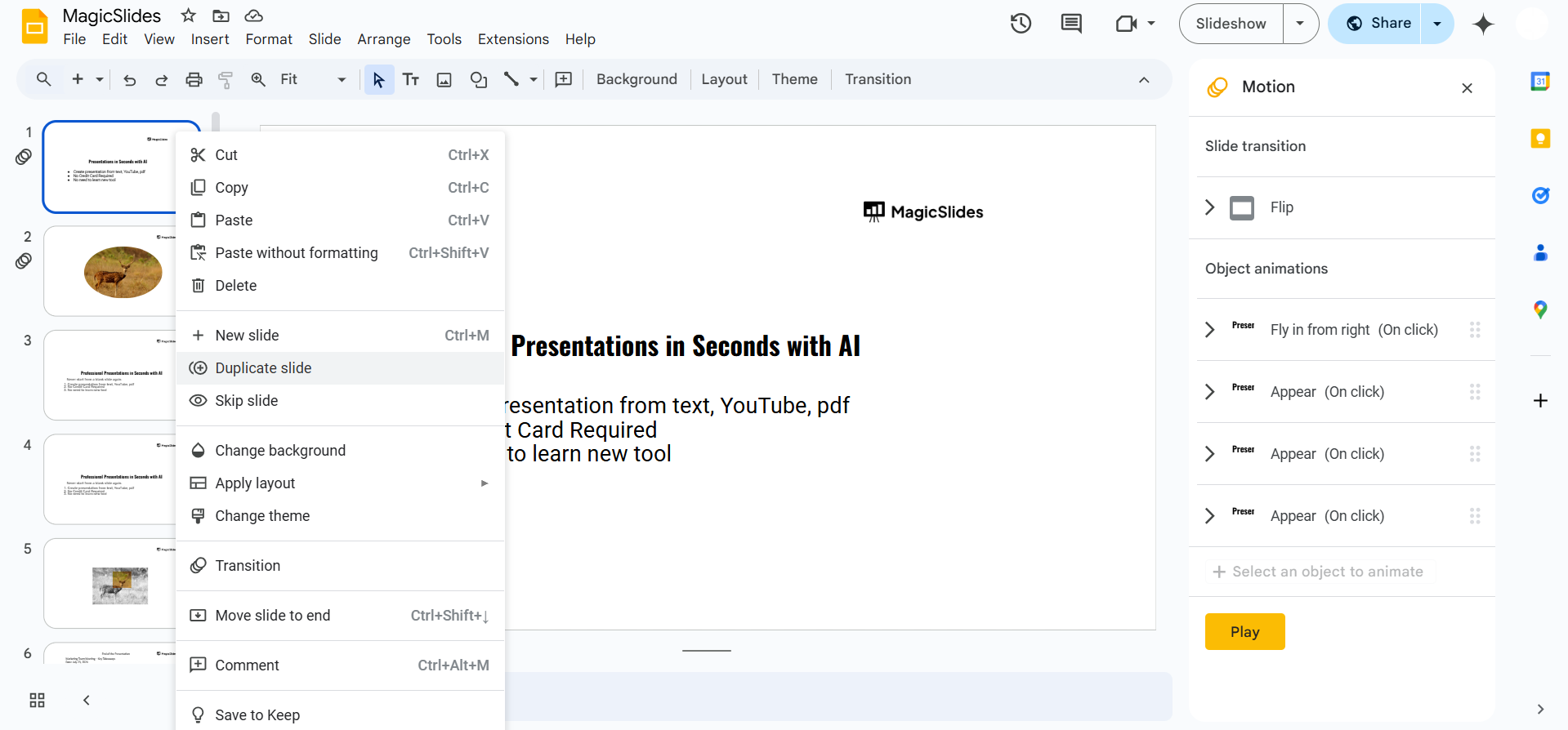
Adjust the animations so that when the slide advances, the animation effect continues smoothly. Set auto-advance timing (e.g., 1-2 seconds) for seamless looping.
Step 5: Play and Test Your Looping Animation
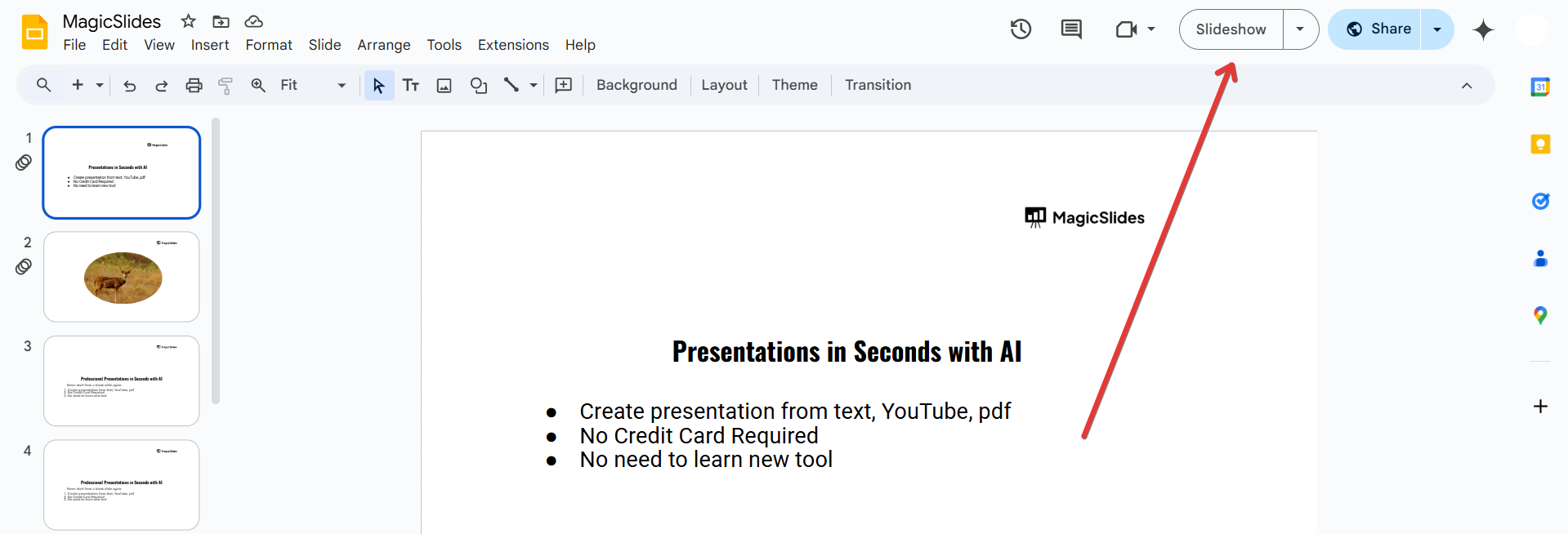
Click "Present" to preview how your looping animations work. If needed, tweak the timing and transitions for a smoother experience.
Conclusion
Looping animations in Google Slides can make your presentations more interactive and visually appealing.
Whether for business, education, or creative purposes, using auto-advance and animation settings allows you to create an engaging looping effect effortlessly.
FAQs on Looping Google Slide Animations
Can I loop a single animation without switching slides?
No, Google Slides does not support infinite animation loops on a single slide. However, you can duplicate the slide for a continuous effect.
How do I stop a looped slideshow?
Press the Esc key or click anywhere on the screen to exit the looped presentation.
Will looping animations work when I download the slides as a video?
No, looping animations only work in presentation mode. When exporting as a video, animations will play only once.
Now you know how to loop animations in Google Slides for an engaging and dynamic presentation! 🚀
Leave a Reply