Securing your PowerPoint presentation is essential, especially when sharing sensitive information. By restricting access and locking editing capabilities, you can control who can view and modify your content. In this step-by-step guide, we’ll walk you through the process of locking your PowerPoint presentation, ensuring your data remains secure.
How to Lock a PowerPoint from Editing?
To initiate the process, open Microsoft PowerPoint on your computer. Once launched, open the presentation you wish to secure by selecting File > Info.
Open PowerPoint
Begin by opening the Microsoft PowerPoint application on your computer.
Open the Presentation
Navigate to the specific presentation you want to lock and open it within PowerPoint.
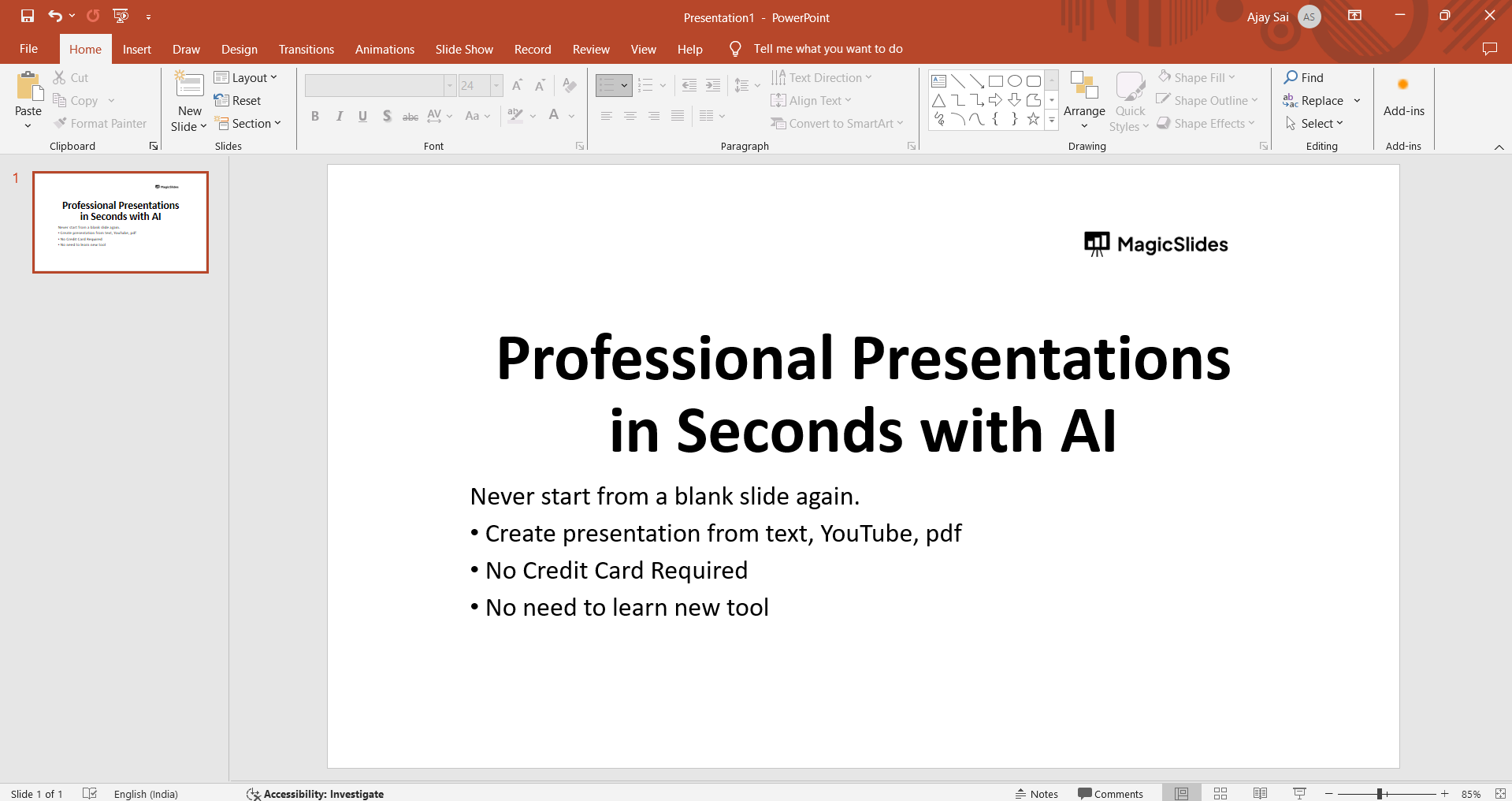
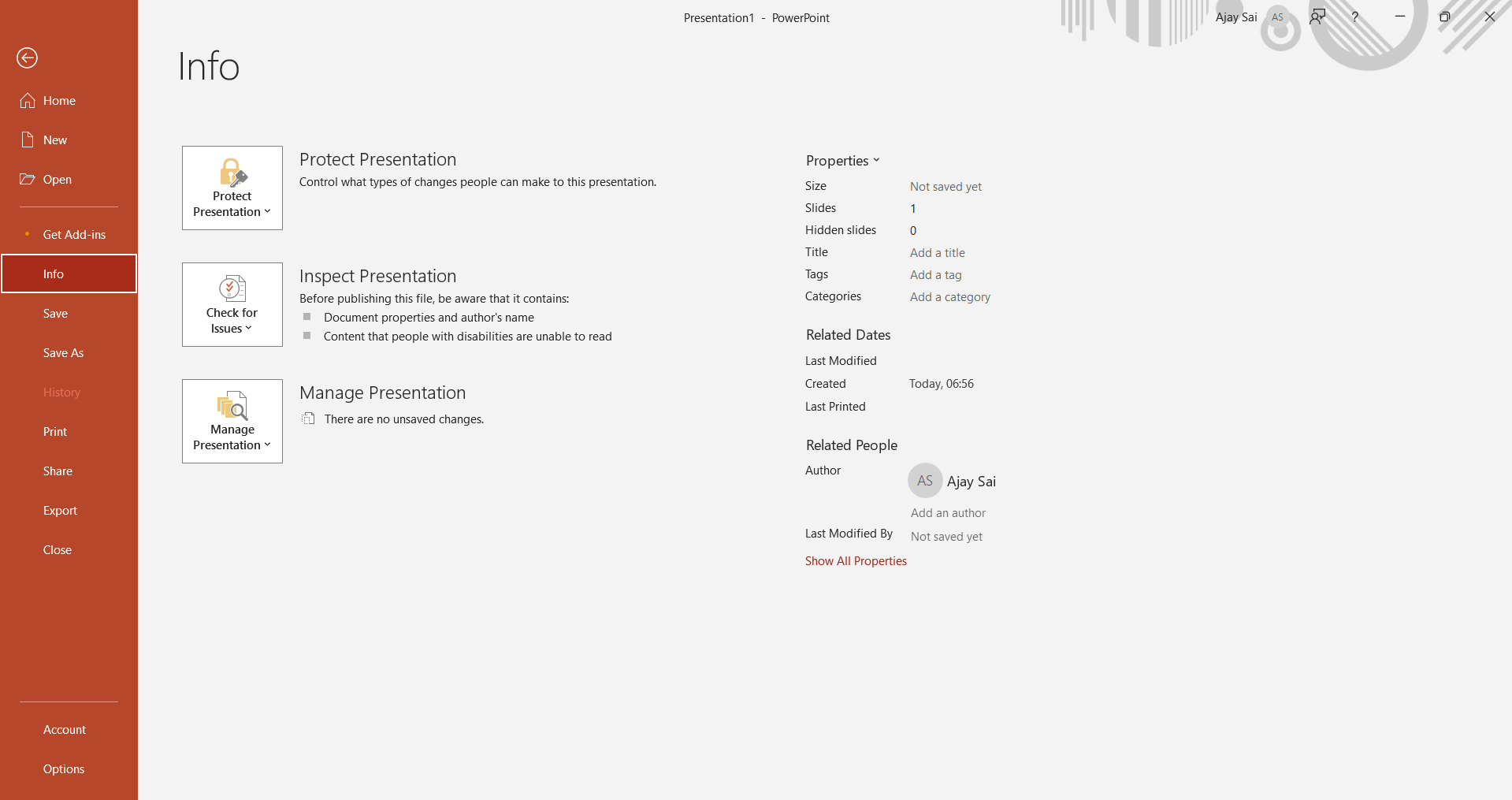
Select File > Info
Within your open presentation, locate and select File > Info from the menu options.
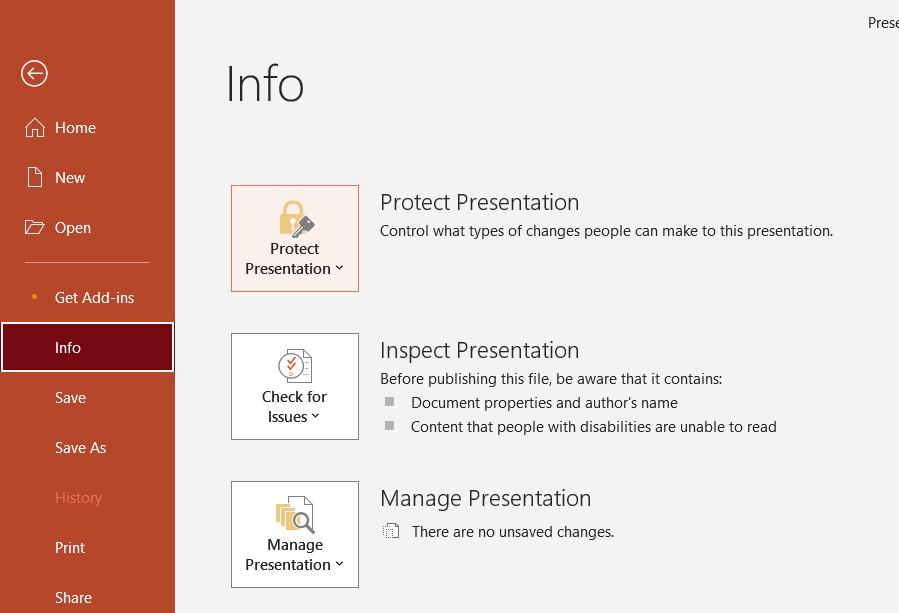
Select Protect Presentation
In the Info tab, choose Protect Presentation. Point to Restrict Access and then select Restricted Access.
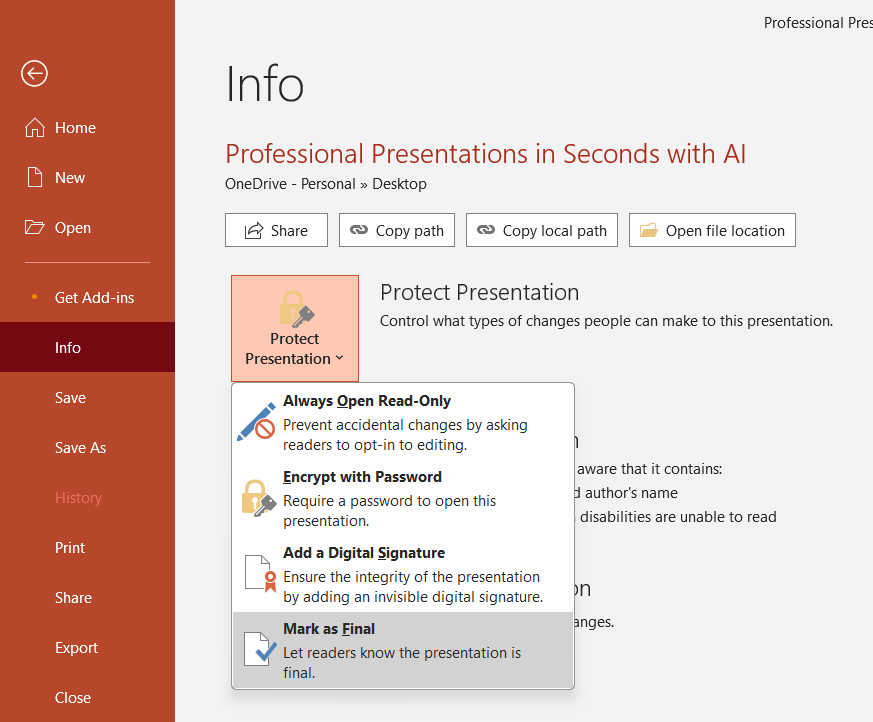
Set Restricted Access
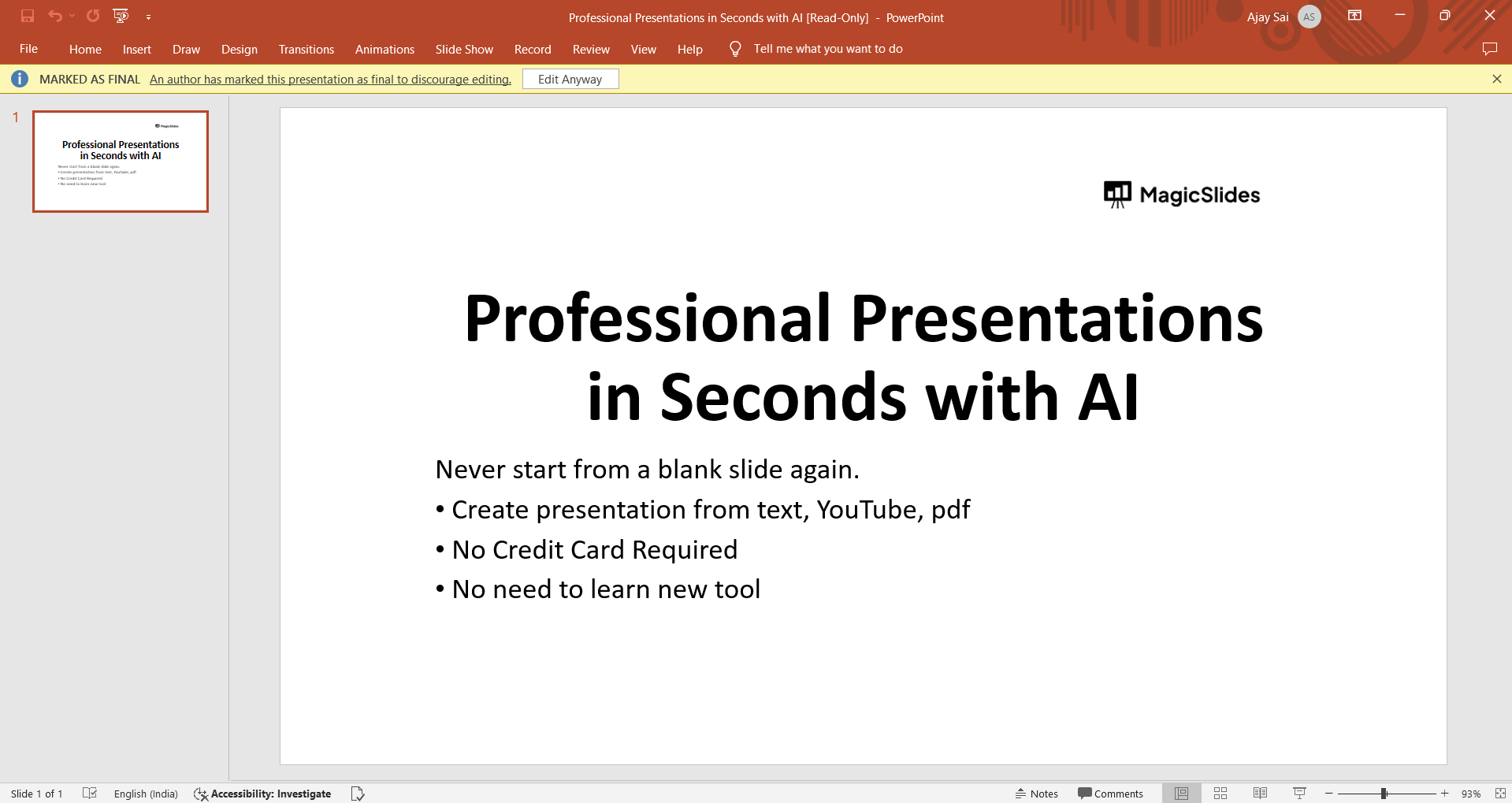
In the Permission dialog box, choose Restrict permission to this presentation. Assign access levels for each user, differentiating between read and change access or you can choose mark as final copy it will work the same and prevents from editing.
Select OK
After assigning permission levels, click OK. The Message Bar will appear, indicating that the presentation is now rights-managed.
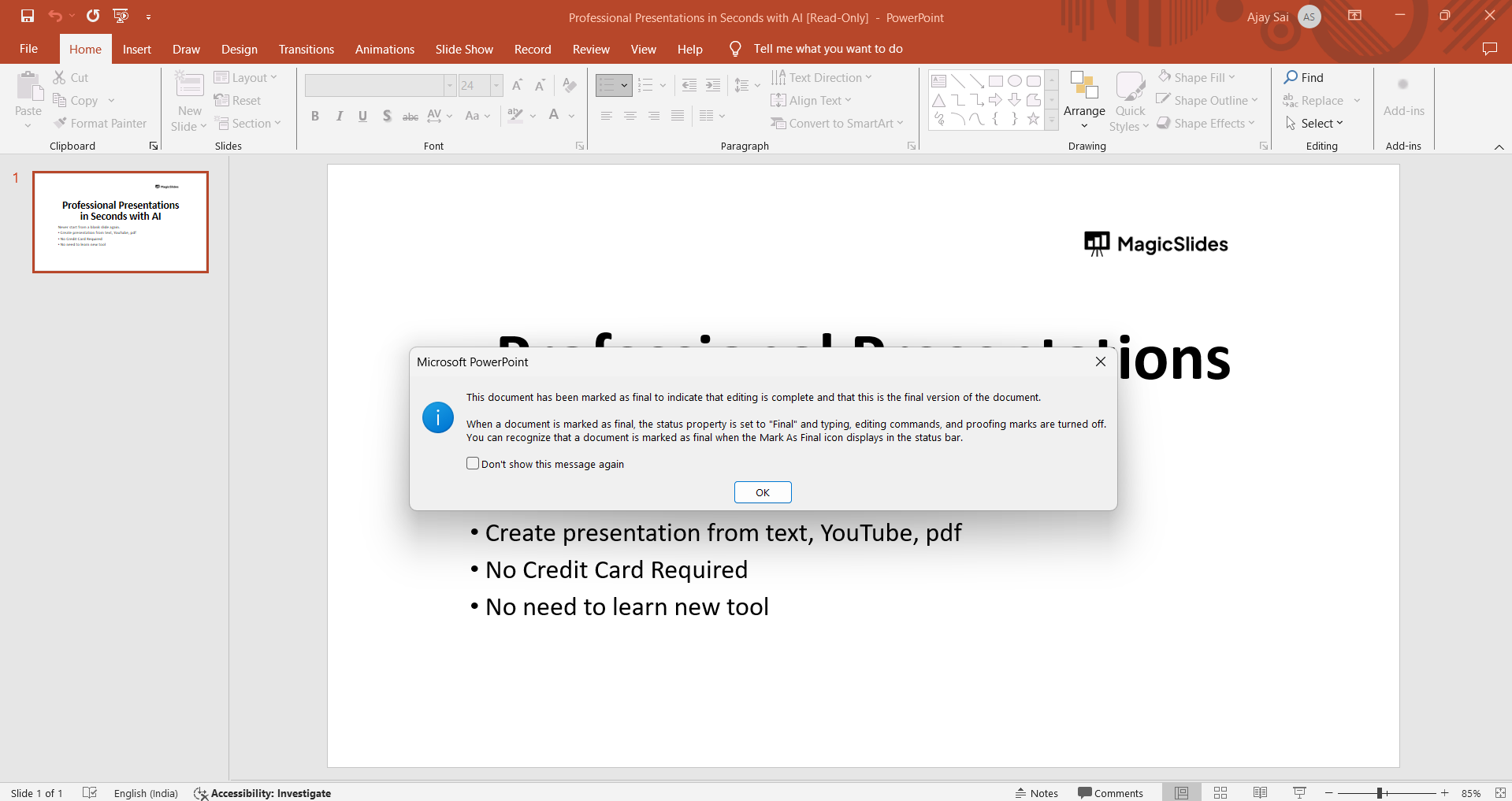
Make Changes if Needed
If necessary, select Change Permission from the Message Bar to make any access permission adjustments.
Create Professional Presentations Faster with Instant Solution
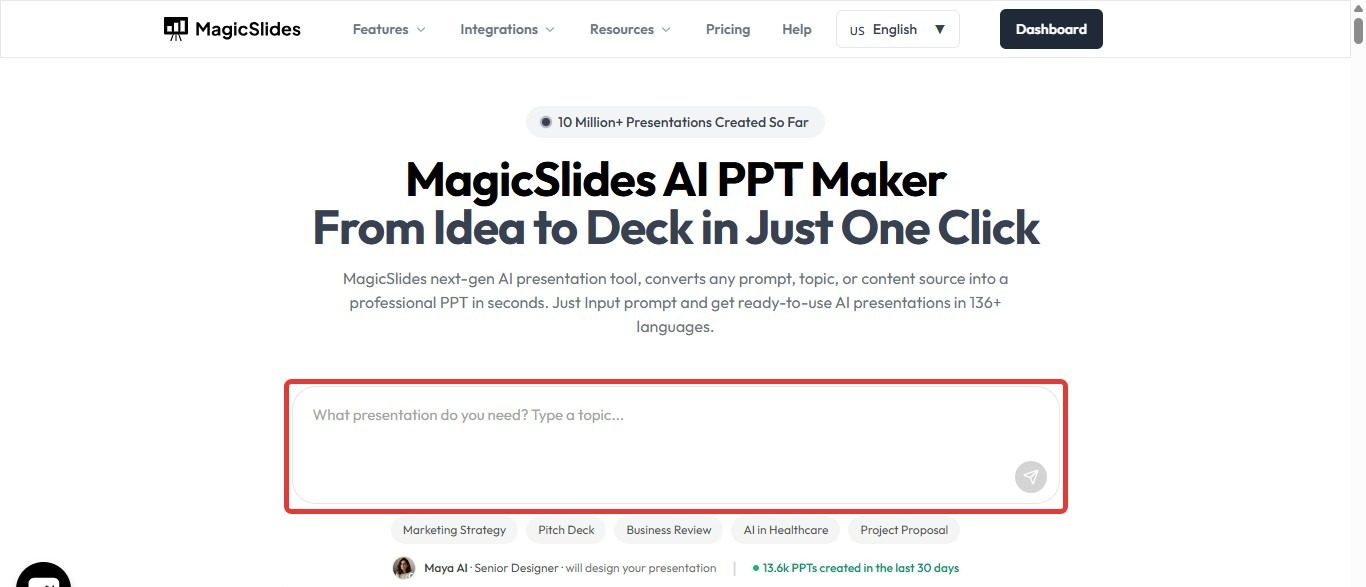
While locking a PowerPoint presentation helps protect your content from unauthorized edits, creating high-quality presentations can still take a significant amount of time. If you’re looking to speed up the presentation creation process, MagicSlides can help. MagicSlides is an AI Presentation Tool that can generate complete slide decks from topics, documents, URLs, PDFs, YouTube videos, and more.
Instead of building slides manually, you can create professional-looking presentations in minutes and then use PowerPoint’s protection features to secure the final file before sharing it. Whether you’re creating business reports, educational presentations, or client proposals, MagicSlides can help you save time while maintaining a polished and professional design.
Conclusion
Your presentation is now secure, and access is restricted according to the permissions you’ve set. Locking your PowerPoint presentation ensures that your content remains confidential and controlled, providing peace of mind when sharing your valuable information.
FAQs about Locking PowerPoint Presentations
Can I change permissions after I’ve locked the presentation?
Yes, you can modify access permissions by selecting Change Permission from the Message Bar.
How do I give full control permission to a specific user?
In the Permission dialog box, choose More Options and then select Full Control from the Access Level list for the desired user.
Can I restrict access to specific sections of my presentation?
No, the access restriction applies to the entire presentation, not specific sections.
Can users with read access still view my notes and comments?
Yes, users with read access can view notes and comments in the presentation.
Is there a way to remove access restrictions later?
Yes, by selecting Change Permission from the Message Bar, you can make adjustments to access permissions.
Leave a Reply