Enhance your Google Slides presentations with the dynamic charm of GIFs! In this guide, we'll walk you through the simple steps to embed a GIF seamlessly into your slides, adding a dash of movement and vibrancy to your content.
how to embed a gif in google slides
1. Search for the Desired GIF:
- Begin by finding the perfect GIF for your presentation. Platforms like Giphy or Freepik offer a vast selection.
2. Copy the GIF Image Address:
- Right-click on the chosen GIF, then select "Copy Image Address" to capture the link needed for embedding.
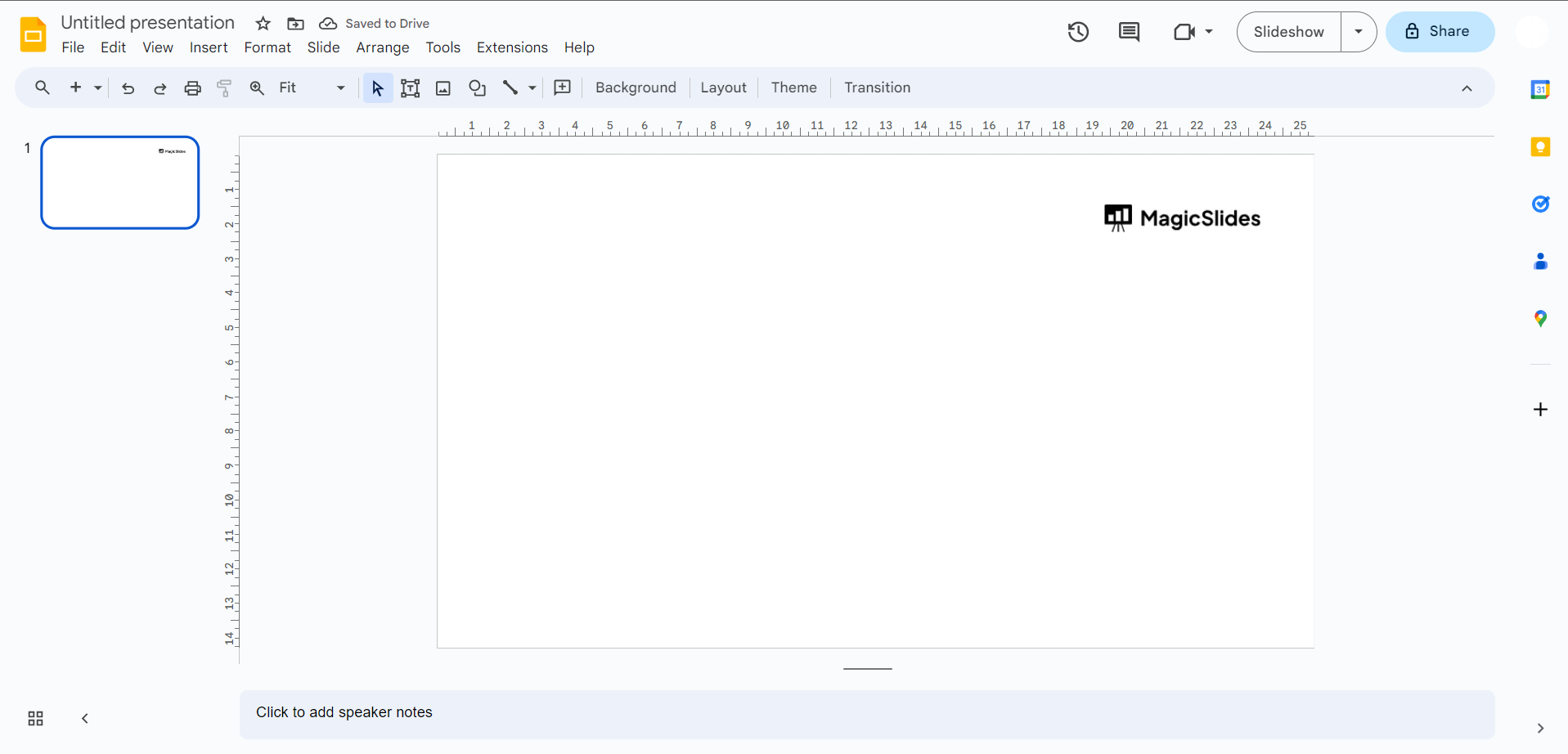
3. Open Your Google Slides Theme:
- Navigate to your Google Slides presentation where you want to incorporate the GIF.
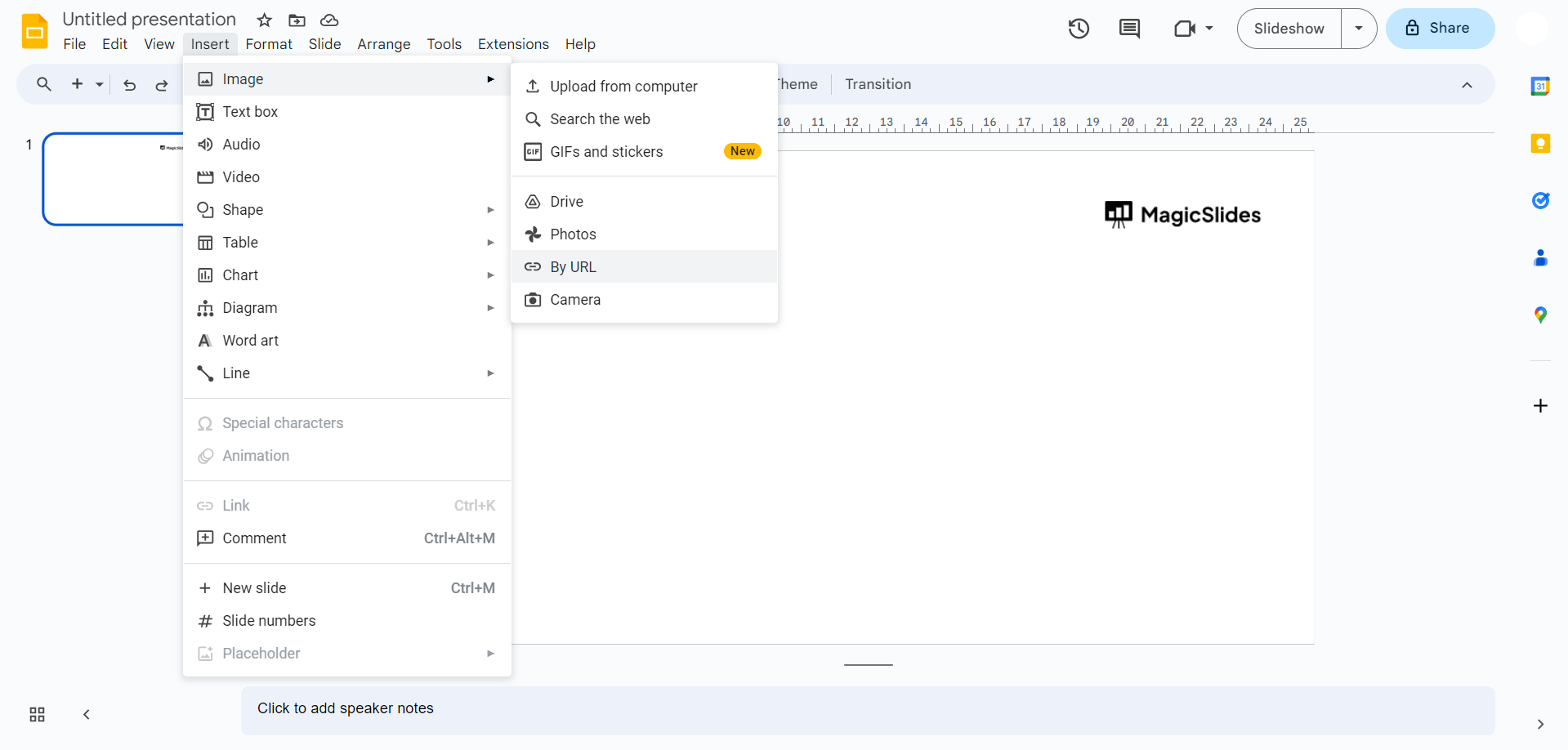
4. Insert Image by URL:
- Access the "Insert" menu, choose "Image," and then opt for "By URL."
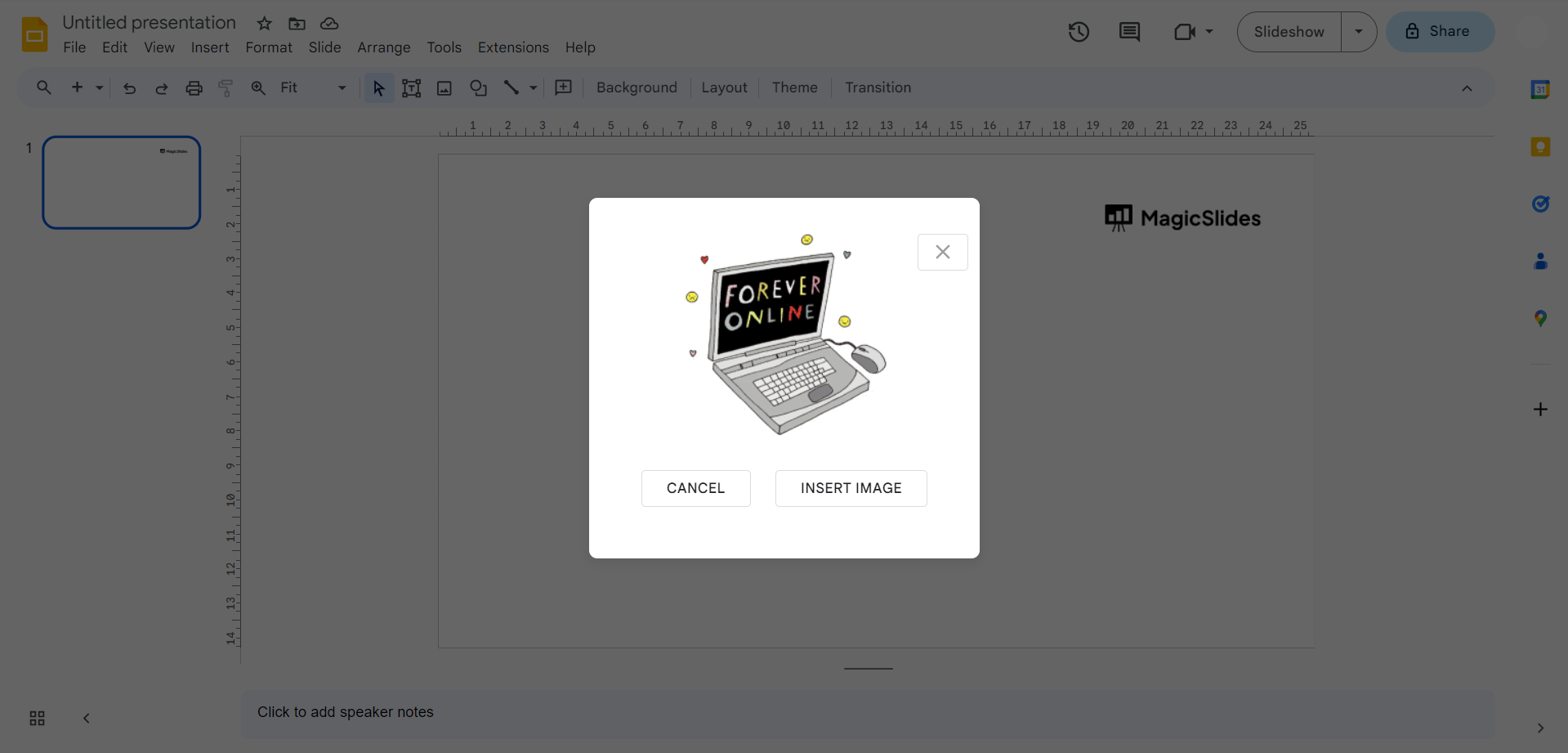
5. Paste the GIF Link:
- Paste the copied link (Ctrl V or Cmd V on Mac) into the provided field.
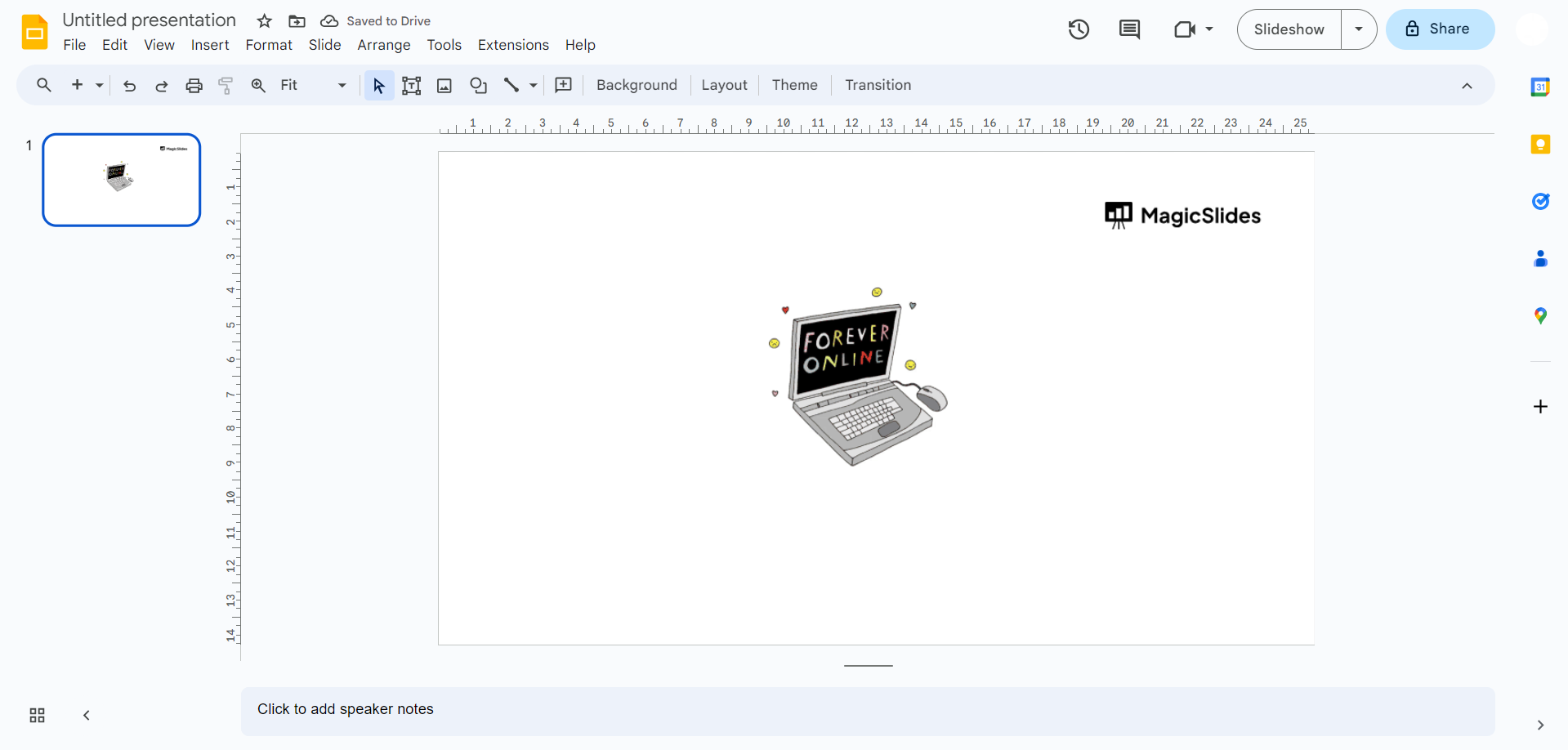
6. Adjust Image Placement:
- Move the GIF to your desired location on the slide, ensuring it complements your content.
7. Resize the GIF:
- If needed, click on the GIF image to reveal an outline. Click and drag any of the blue squares while holding down the Shift key to resize proportionally.
Conclusion:
Experiment with different GIFs to find the perfect animated touch for your content. Elevate your slideshows and captivate your audience with this engaging feature!
Frequently Asked Questions:
Q1: Can I use any GIF from the internet in my Google Slides presentation?A: Yes, you can use any GIF you find online. Ensure it's relevant and aligns with your content.
Q2: What if I can't find the "Copy Image Address" option when right-clicking on a GIF?A: If the option is unavailable, look for "Copy Image URL" or "Copy Image Link" and use that instead.
Q3: Is it possible to control the size of the embedded GIF in Google Slides?A: Absolutely! Click on the GIF, press Shift, and drag the blue squares to resize proportionally.
Leave a Reply