Creating a template in Google Slides is an efficient way to streamline your presentation creation process, especially if you frequently work with specific themes, branding, or designs. Whether you’re preparing for a business meeting, educational seminar, or personal project, having a ready-made template can save time while ensuring consistency and professionalism.
In this guide, we’ll walk you through the steps to create a customized template in Google Slides, offering tips along the way to help you get the most out of this powerful tool.
Why Does a User Create Template in Google Slides?
Before diving into the steps, it’s important to understand why creating a template is beneficial:
Consistency: Templates help maintain uniformity in slide layouts, fonts, and colors, which is crucial for branding and professionalism.
Efficiency: Instead of starting from scratch each time, a template lets you begin with a fully prepared layout, reducing preparation time.
Collaboration: Teams working on the same project can use a single template to ensure that everyone’s presentations look cohesive.
How to Create Template in Google Slides?
Follow the steps below and create multiple Google Slides templates quickly.
Step 1. Open Google Slides and Create a New Presentation
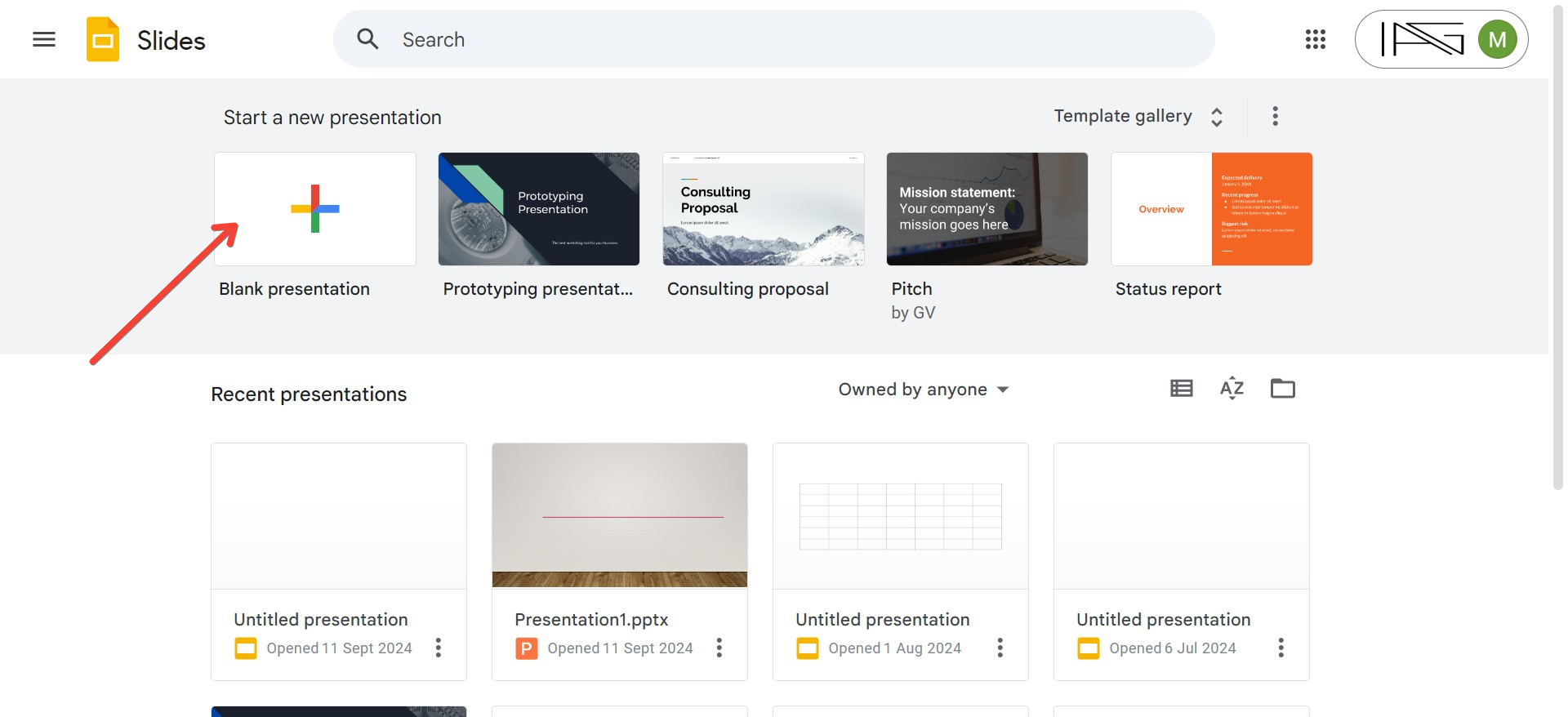
Go to Google Slides and sign in using your Google account.
Click the “+” (blank) slide button to open a new presentation.
Step 2. Access the Slide Master
To create a template, you need to work with the Master Slides, which govern the overall design of your presentation.
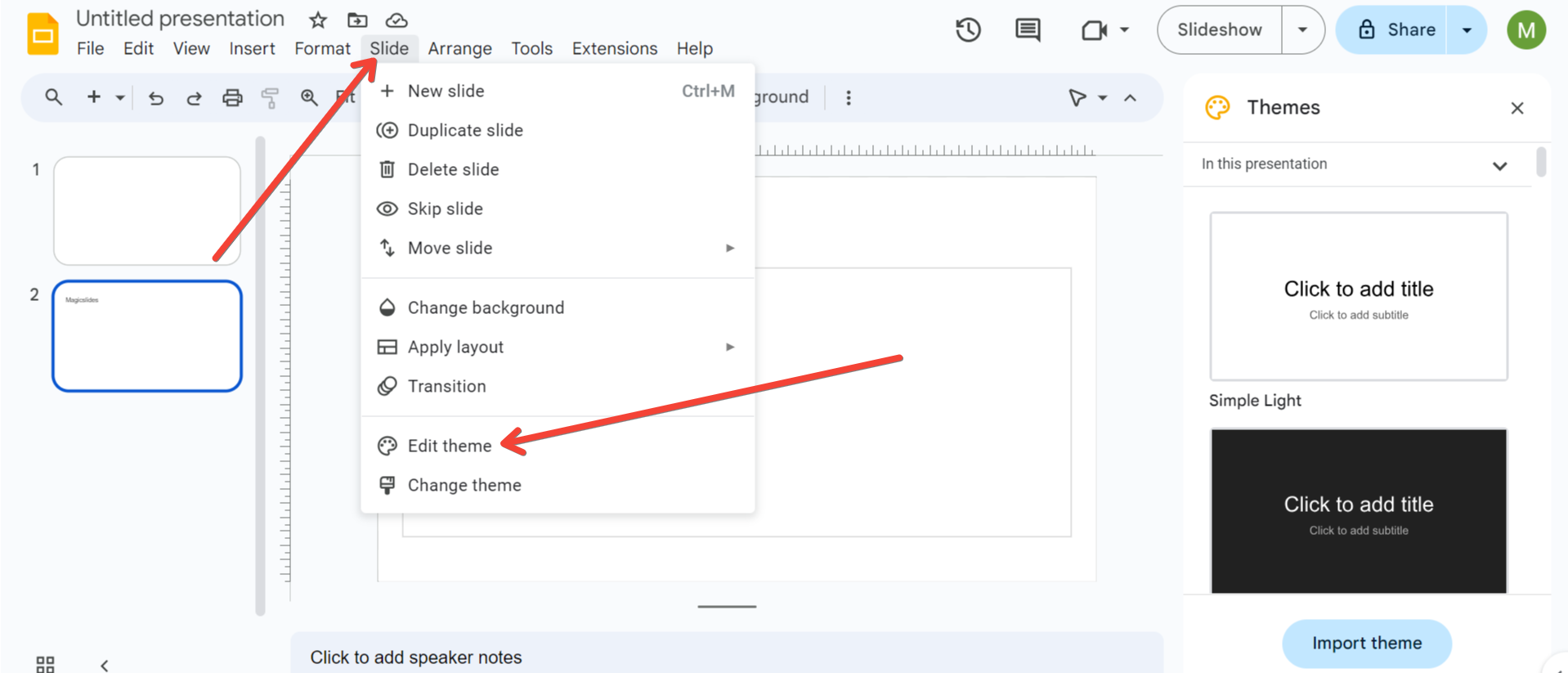
In the top toolbar, go to “Slide” and select “Edit theme” (this will open the master slide editor).
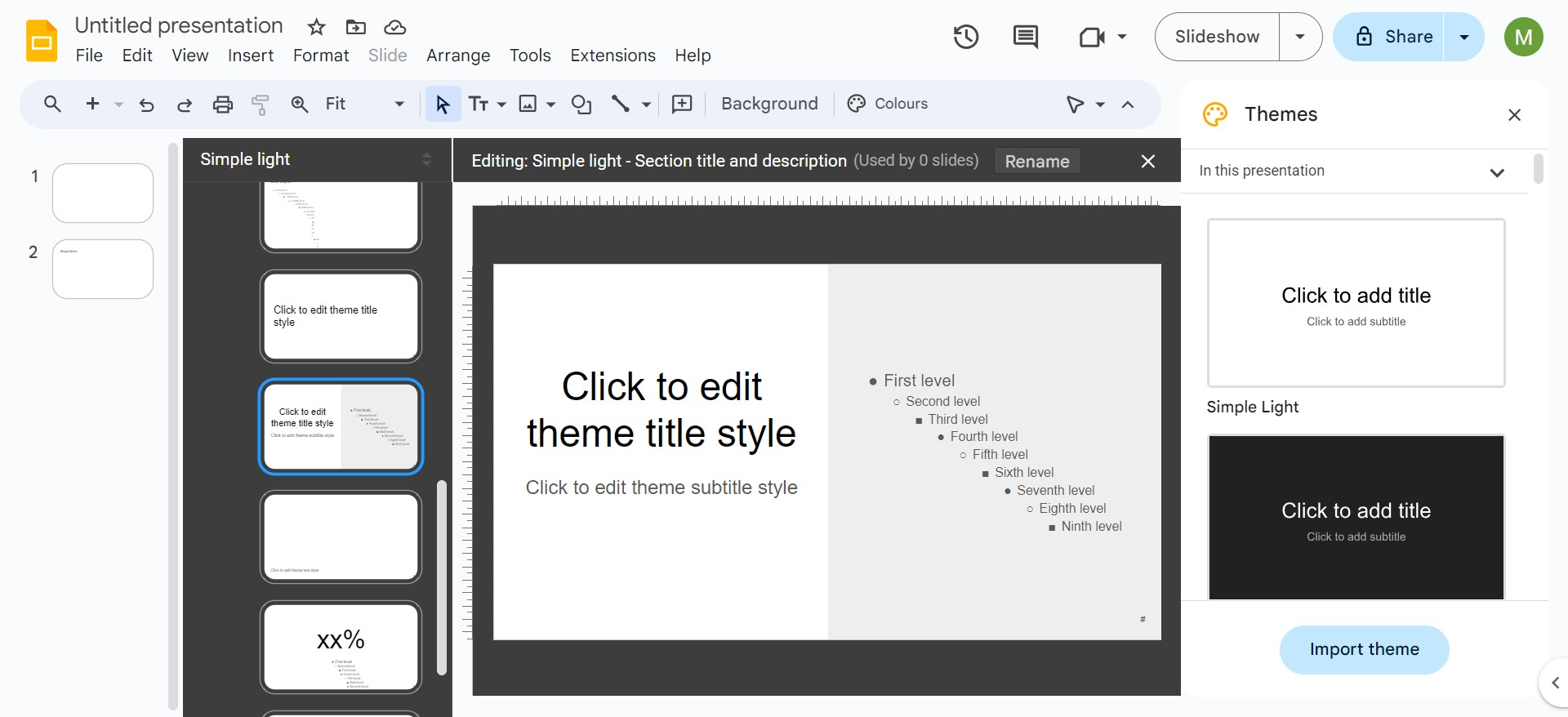
Tip: The slide master is where you define global styles, such as fonts, colors, and layouts. Changes made here will reflect on all slides based on the master template.
The topmost slide in the master editor is the Master Slide itself, which controls universal elements like background, text styles, and logo placement across all layouts.
Set the Background: You can set a custom background color or image. To do this, click on “Background” and choose a color or upload an image.
Choose Fonts: Click on the text boxes in the master slide to select fonts and adjust sizes, colors, and alignment. Ensure you’re using a legible font, especially for titles and body text.
Add a Logo or Branding: If your template needs a logo or other branded element, add it here so it appears on every slide. Simply drag and drop or use the “Insert” > “Image” function to add graphics.
Tip: For consistency, place your logo in the same location on each slide (e.g., the bottom left or top right). This helps reinforce brand identity while keeping the layout clean.
Step 4. Create Slide Layouts
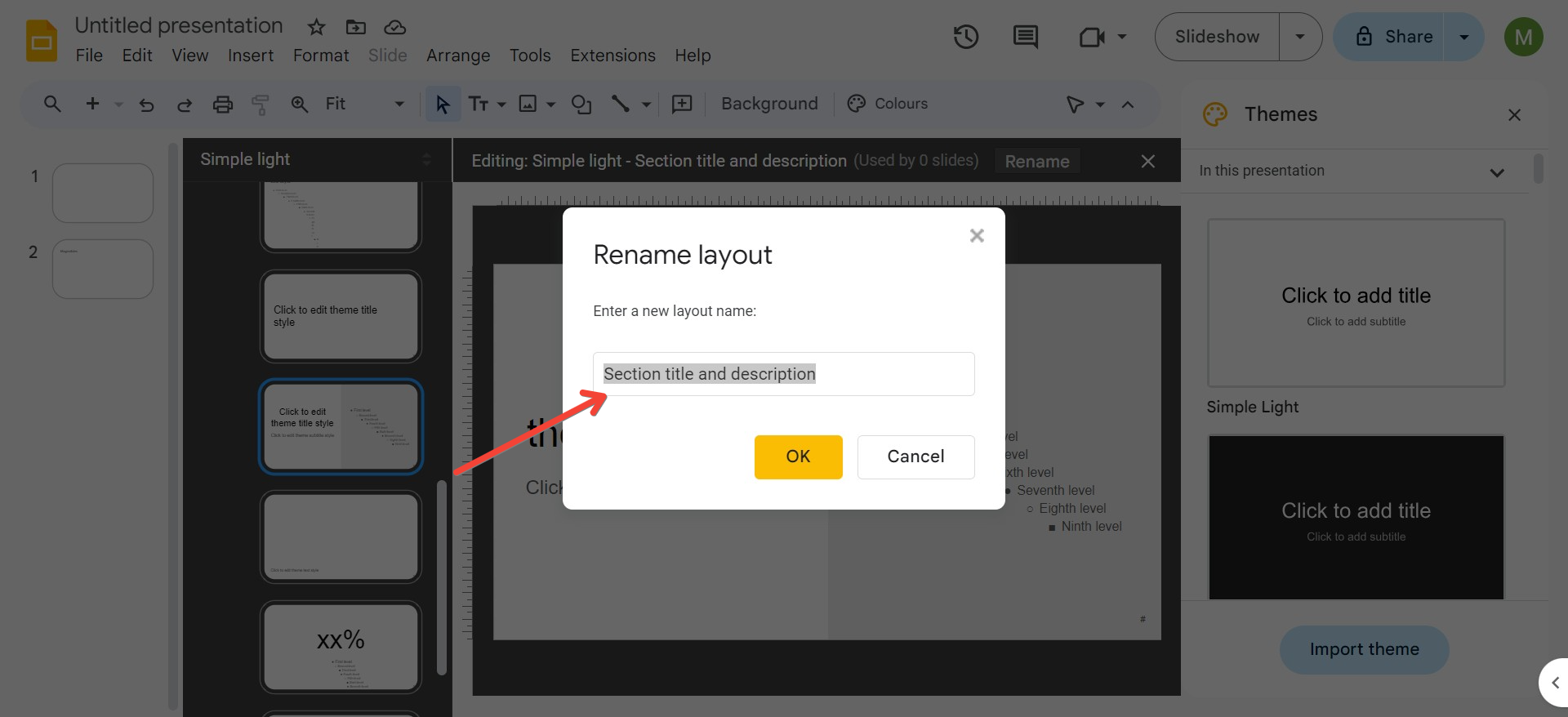
Beneath the master slide, you’ll see several different layouts (e.g., title slide, content slide, section break, etc.). You can modify these existing layouts or create new ones to suit your needs.
Edit Existing Layouts: Click on any layout to customize it. For example, you can:
Tip: To save time, focus on modifying just the most commonly used layouts like Title, Title & Content, and Section Headers.
Adjust the placement of text boxes and images.
Change the background, font, or color scheme.
Add placeholders for images or text that will need to be filled out later.
Add New Layouts: If the default options don’t meet your needs, you can create new layouts by clicking the “+” icon at the top of the master editor.
Tip: Consider creating unique layouts for specific use cases (e.g., comparison slides, data-heavy slides, or team introduction slides).
Once you create a new layout, customize it the same way you would with any other layout (adjusting text boxes, backgrounds, fonts, etc.).
Step 5. Save Your Template
Once you’re satisfied with your template, you’ll want to save it so it’s easily reusable.
Exit the master slide editor by clicking “X” in the upper-right corner of the slide master panel.
Save your presentation as a template by either:
Tip: You can also share the template with your team. To do this, go to “File” > “Share” and adjust the sharing settings to allow anyone with the link to make a copy or edit.
Keeping it in Google Drive and making a copy every time you need it.
Download it as a PowerPoint file (.pptx) or save it to your Google Drive for easy access.
Tips for Designing an Effective Google Slides Template
1. Use a Simple Color Scheme
Avoid overwhelming your slides with too many colors. Stick to 2-3 primary colors that align with your brand or theme. Use one color for titles, another for background elements, and a third for highlights. This ensures visual consistency and prevents distractions.
Tip: If you’re unsure about your color choices, tools like Coolors.co can help generate visually pleasing palettes.
2. Choose Readable Fonts
Typography is a crucial part of your template. Choose fonts that are easy to read, even from a distance. Google Slides comes with a variety of font options, so you don’t need to download anything extra. For best practices:
Use sans-serif fonts for body text (e.g., Arial, Lato, Open Sans).
Use decorative fonts sparingly, only for titles or accent elements.
Tip: Stick to a maximum of two fonts (one for headings and one for body text) to keep your slides professional and uncluttered.
3. Incorporate Consistent Imagery
When designing your template, consider adding placeholders for images. This way, each slide can follow a similar visual flow. You can either leave space for images or upload standard placeholder images as guides.
Align images with text to create balanced layouts.
If you’re using a background image, make sure it doesn’t overpower the content. Use transparency to soften it if necessary.
Tip: If you plan to use images in your presentations, make sure to keep the image file sizes optimized. High-resolution images can make your presentation slow to load.
4. Design for Flexibility
Your template should be versatile enough to handle different types of content. For instance, create one layout for heavy text slides and another for image-focused slides. Having this variety helps make your presentations more engaging and adaptable.
Tip: Test your template with a few example slides to ensure it looks good with different types of content (text-heavy, image-heavy, charts, etc.).
5. Include Slide Numbers and Footers
Adding slide numbers and footers can give your presentation a professional touch, especially for long presentations or reports. You can include slide numbers on every layout to ensure they’re consistent across the deck.
Tip: If you’re adding a footer, consider including your company name or URL for branding purposes.
6. Test Responsiveness
Since presentations might be viewed on various devices (laptops, tablets, smartphones), test your template to ensure it looks good on different screen sizes. You can adjust the text size, image placement, and spacing to account for different viewing experiences.
Tip: Keep critical content away from the edges of the slide to ensure it doesn’t get cut off on different screens or projectors.
Supercharge Your Google Slides Templates with MagicSlides
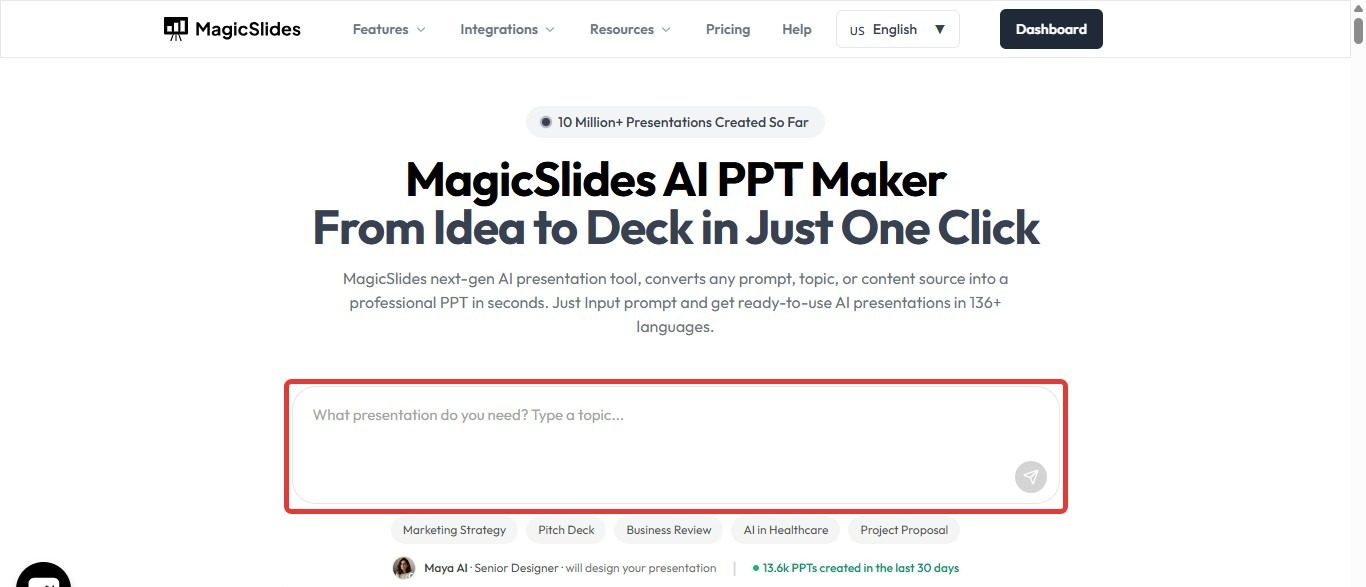
While creating templates manually in Google Slides is effective, it can be time-consuming, especially when you need multiple layouts, consistent branding, or professionally designed visuals. This is where MagicSlides, an AI Presentation Maker Tool, comes in.
Why Use MagicSlides?
MagicSlides leverages AI to automate much of the template creation process. Instead of building each layout from scratch, you can:
Generate Complete Slide Layouts Instantly
Maintain Brand Consistency
Save Time on Revisions
Enhance Creativity
Perform Quick Edits Using AI Chat Feature
Conclusion
Creating a template in Google Slides is a simple yet powerful way to boost your productivity and ensure consistency across your presentations. By following these steps and incorporating the tips provided, you can design a professional, reusable template that suits your needs. Remember, the more effort you put into your template upfront, the less time you’ll need to spend customizing individual slides later on.
With a well-crafted Google Slides template, you’ll be ready to tackle any presentation with confidence!
Leave a Reply