Creating captivating presentations from PDF documents can be a breeze with the right tools. In this step-by-step guide, we'll walk you through the process using the MagicSlides GPT extension for Google Slides. Let's turn your static PDF into a dynamic and engaging presentation!
How to Convert PDFs to Engaging Slides: A Simple Guide
To initiate the conversion process, open Google Slides and create a new blank presentation. If you don't have a Google account, sign up, and sign in to get started.
Step 1: Click on Extensions and MagicSlides GPT
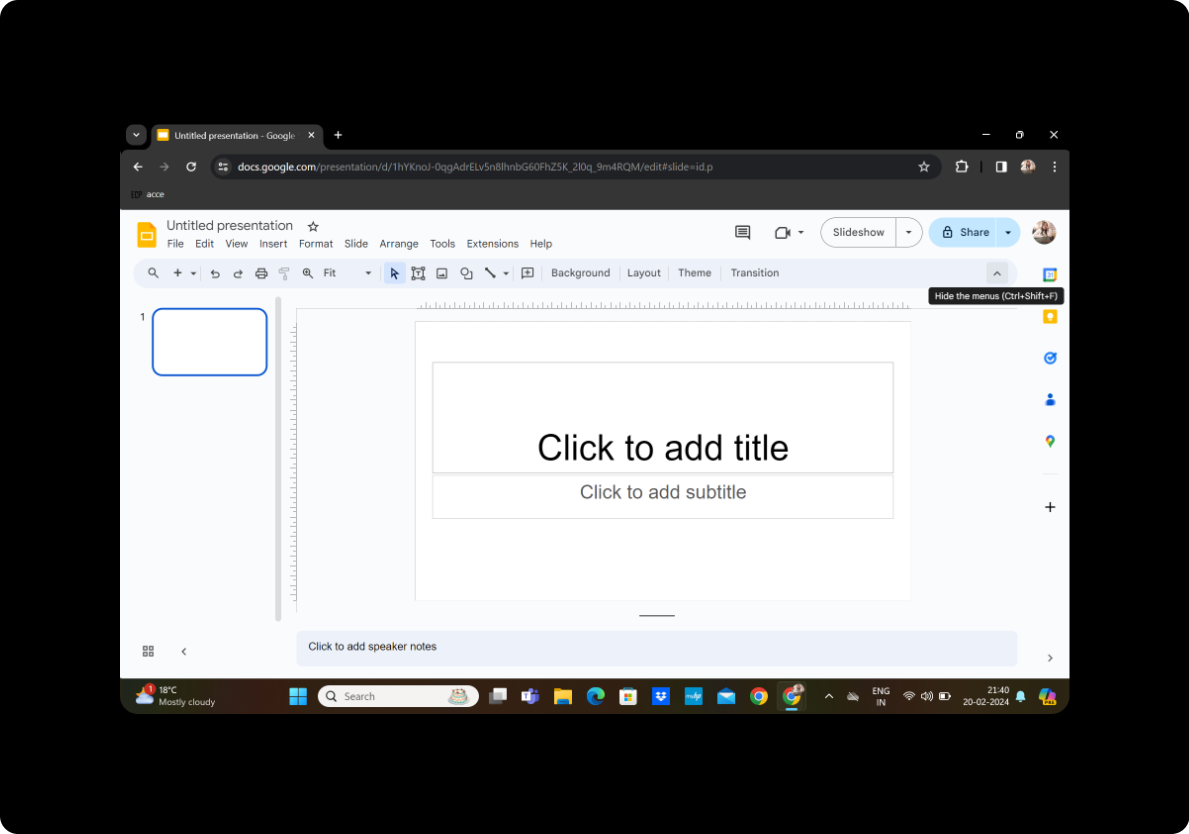
In the Google Slides interface, click on the "Extensions" tab in the toolbar. Locate and select "MagicSlides GPT" to activate the extension.
Step 2: Click on 'PDF/DOCX to PPT'
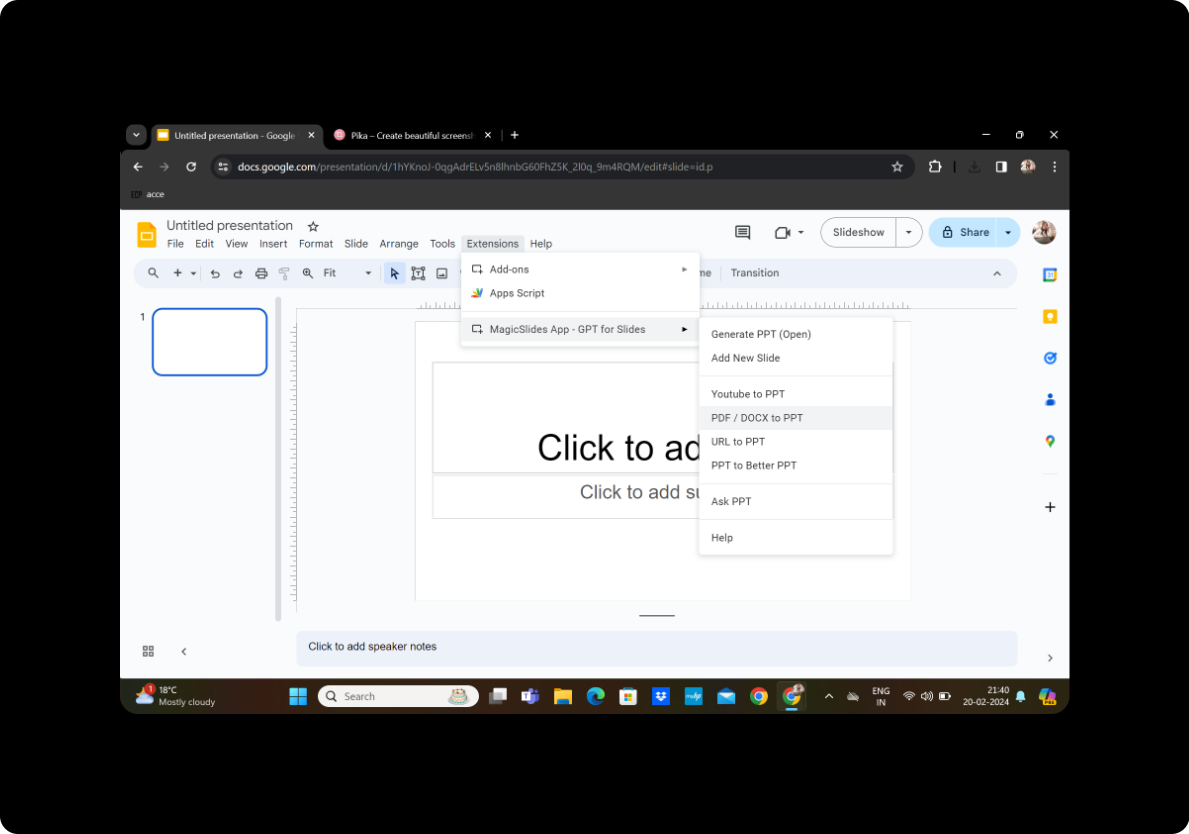
Once MagicSlides GPT is activated, navigate to the 'PDF/DOCX to PPT' option within the extension menu.
Step 3: Upload the PDF and Click on Fetch Transcript
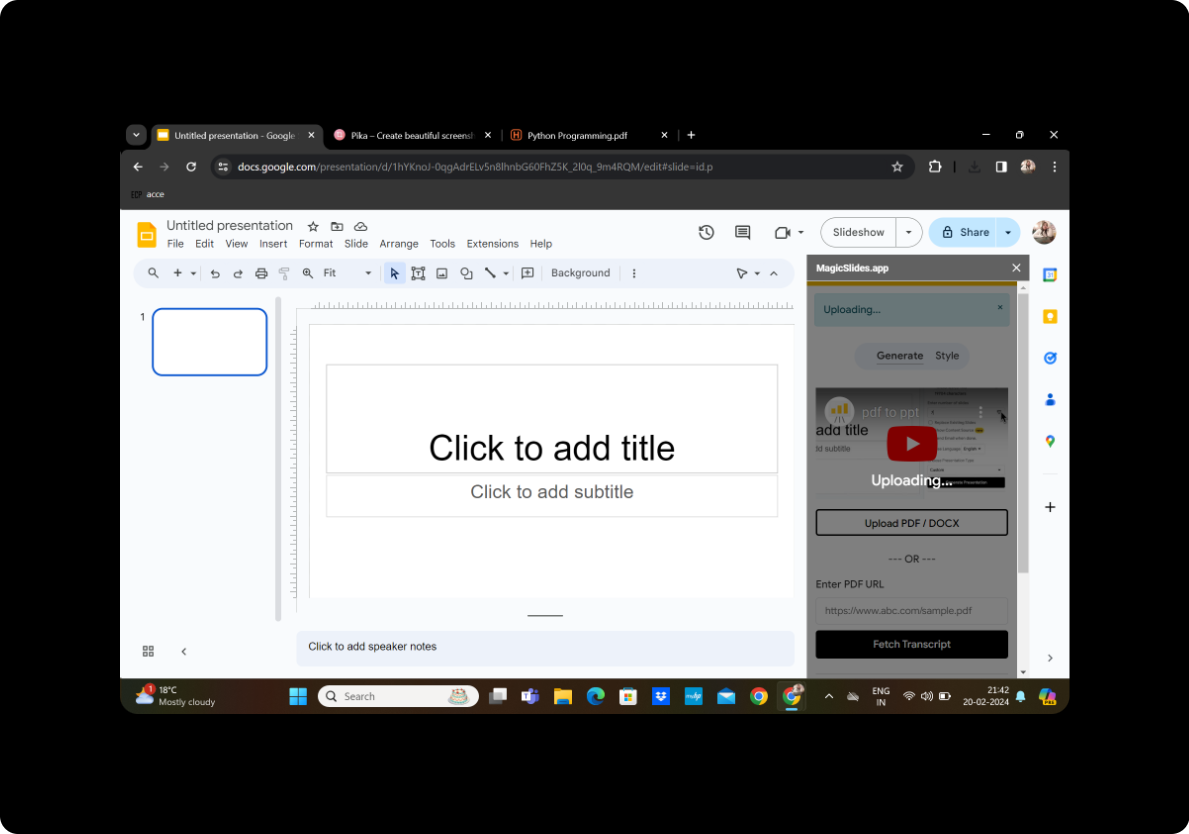
Upload your PDF document and click on 'Fetch Transcript.' MagicSlides GPT will analyze the content and generate a transcript for your presentation.
Step 4: Select the Number of Slides
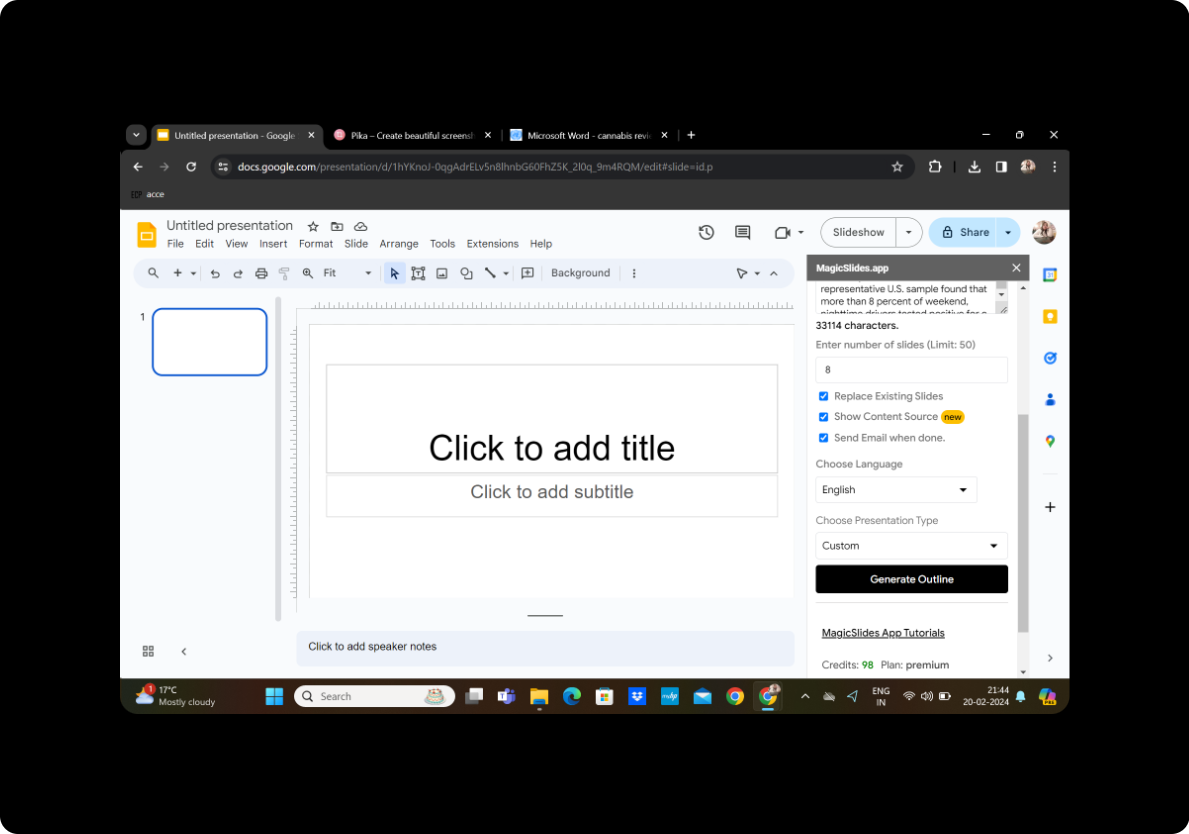
Customize your presentation by choosing the desired number of slides. Adjust this setting based on your content and presentation preferences.
Step 5: Click on Generate Outline
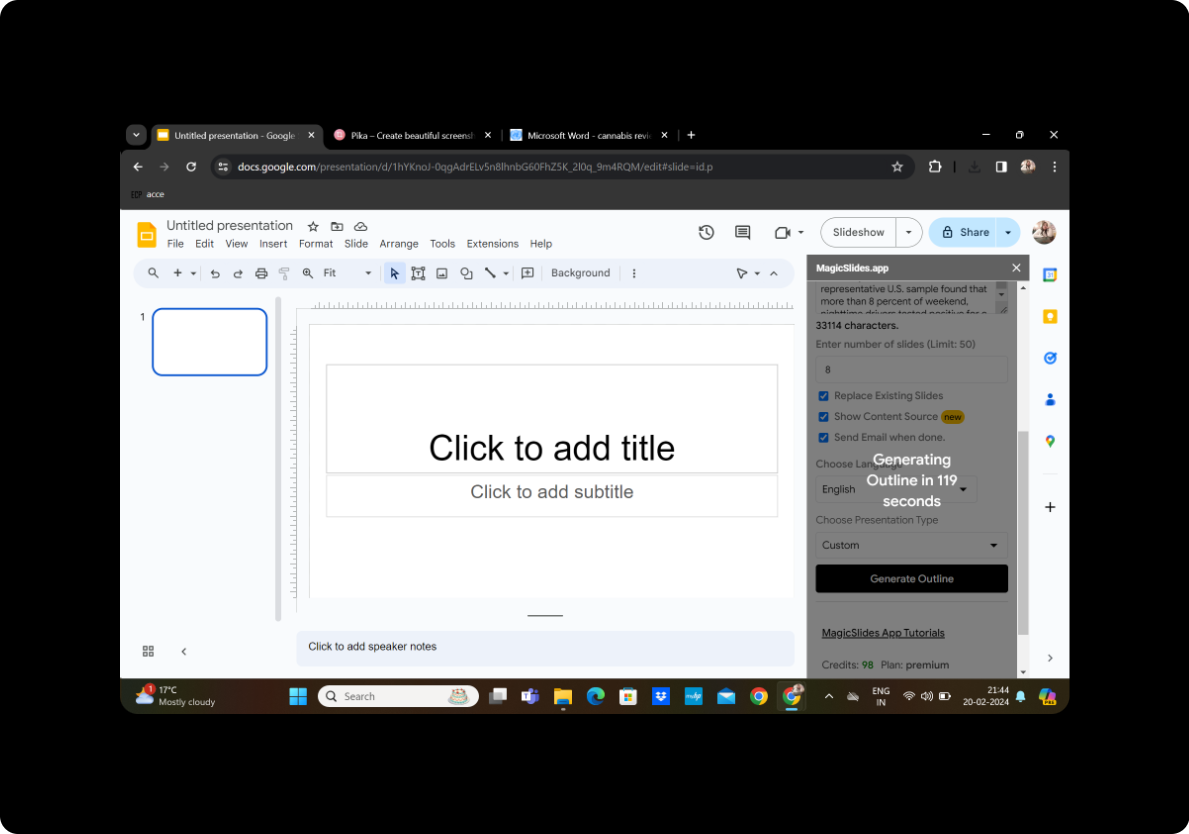
MagicSlides GPT will create an outline based on the content of the PDF. Review the outline and make any necessary adjustments to ensure it aligns with your presentation goals.
Step 6: Click on Generate Presentation
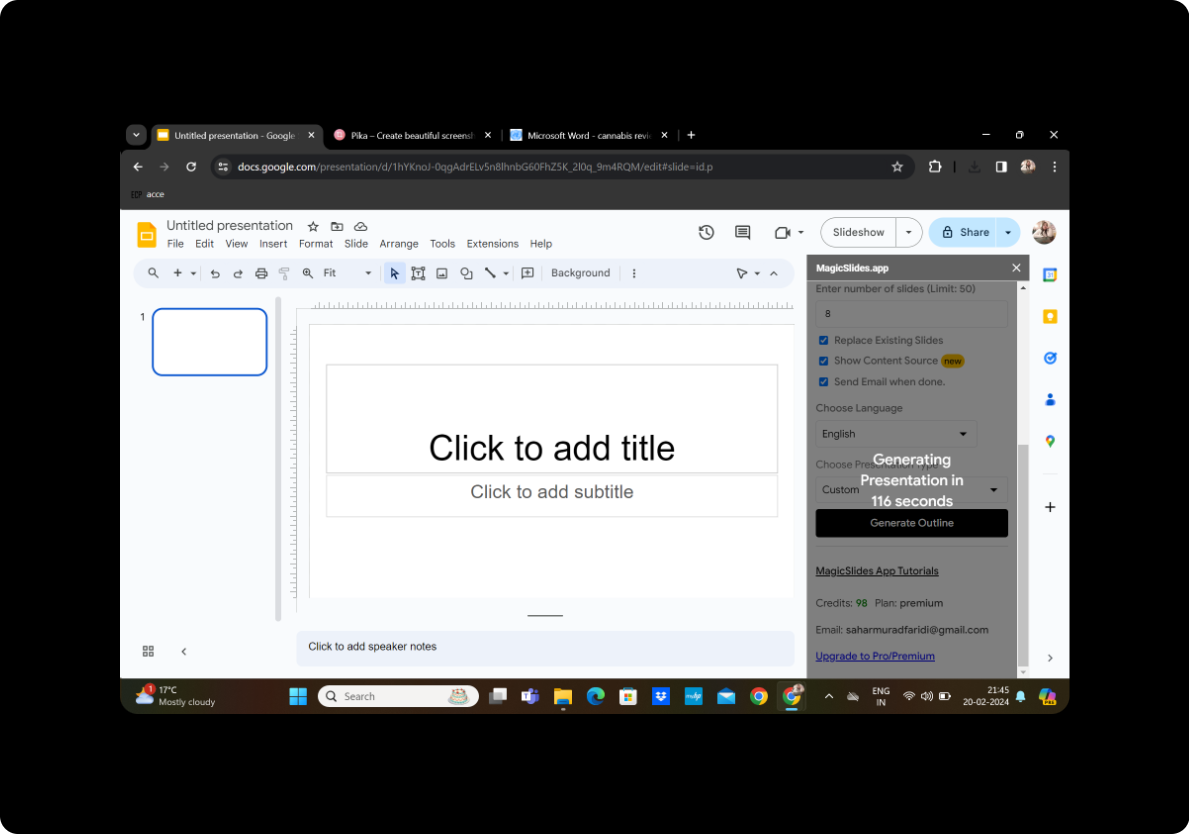
Once satisfied with the outline, click on 'Generate Presentation.' MagicSlides GPT will work its magic to transform the PDF content into a visually engaging presentation.
Step 7: Your Presentation Is Ready
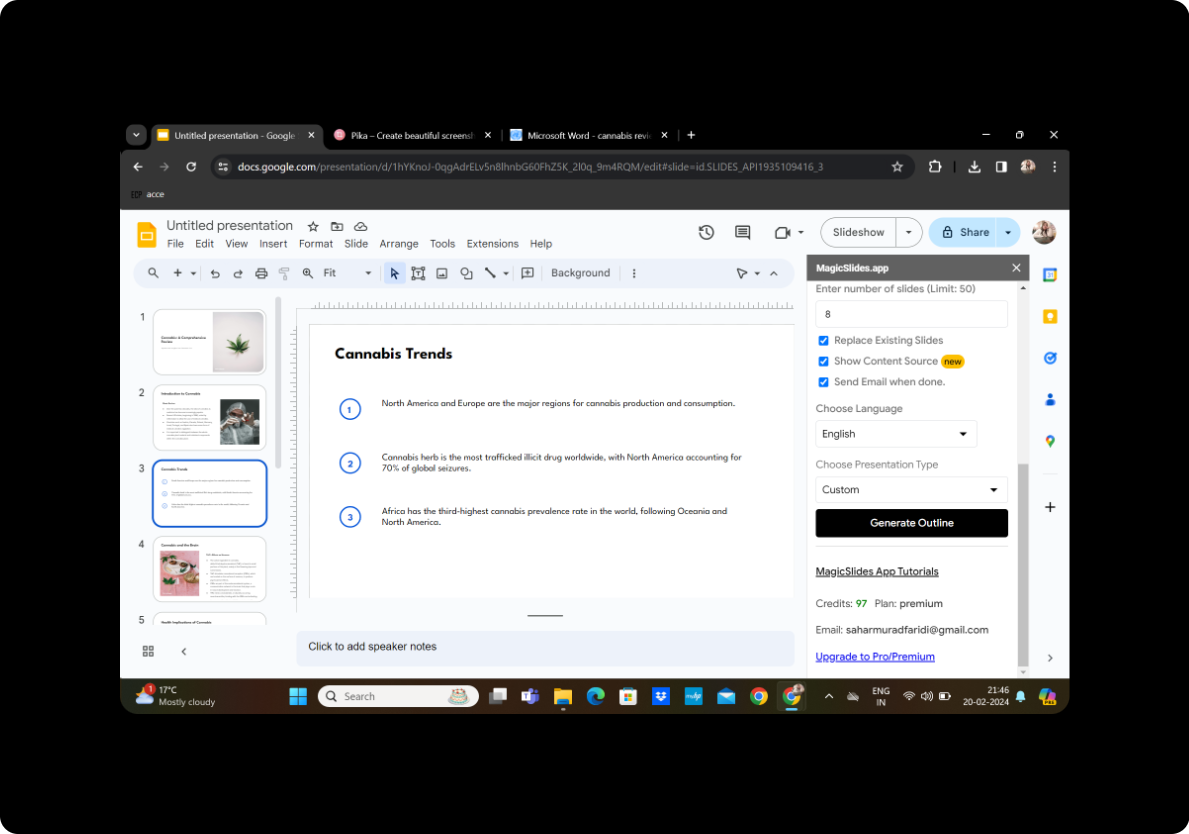
Congratulations! Your presentation is now ready. Review the slides and make any final edits to perfect your engaging presentation.
Conclusion
Converting PDFs into engaging slides doesn't have to be a complicated process. With the user-friendly MagicSlides GPT extension for Google Slides, you can effortlessly transform static documents into dynamic presentations that captivate your audience. Whether you're a student, educator, or professional, this simple guide empowers you to create compelling presentations with ease.
Frequently Asked Questions
Can I customize the design of the slides?
Yes, after generating the presentation, you can customize the design, add visuals, and make any necessary adjustments to enhance the overall aesthetics.
Is MagicSlides GPT free to use?
MagicSlides GPT may offer a free version with basic features, but some advanced functionalities may require a subscription.
Can I convert other document formats besides PDF?
Yes, MagicSlides GPT supports other document formats like DOCX. Simply choose the appropriate option based on your document type.
How accurate is the generated transcript?
The accuracy of the transcript depends on the complexity and clarity of the PDF content. Review the transcript and make corrections if needed.
Can I collaborate with others on the presentation?
Yes, you can share the presentation with others for collaborative editing and feedback using Google Slides' collaboration features.
Leave a Reply