Bullet points are a powerful tool in PowerPoint presentations for organizing content and highlighting key points. Changing the color of bullets can add visual interest and help emphasize important information. In this step-by-step guide, we’ll explore how to easily change the bullet color in PowerPoint, allowing you to customize your slides and create impactful presentations.
Steps to Change Bullet Color in PowerPoint
Step 1: Open Your PowerPoint Presentation
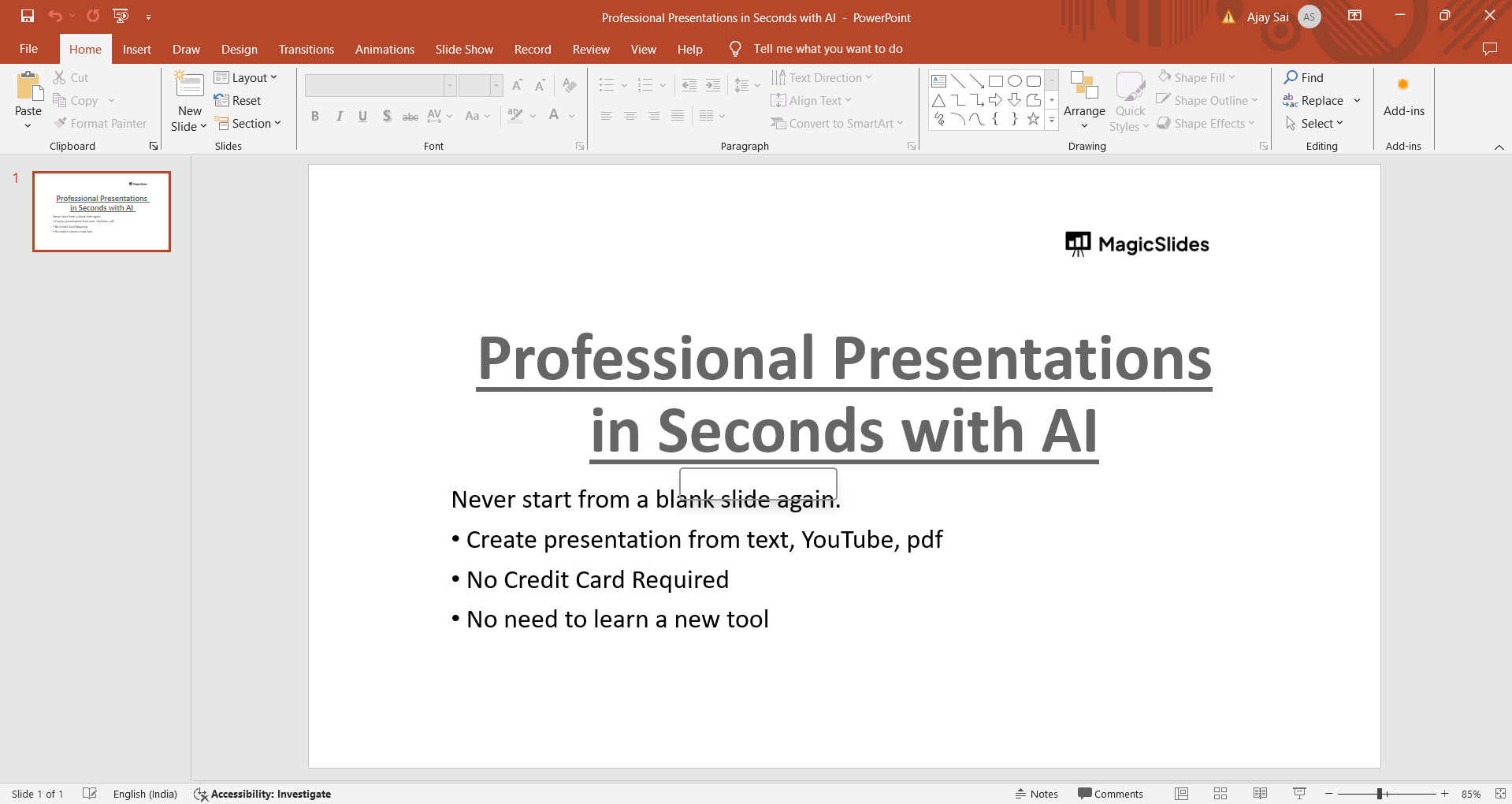
Begin by opening the PowerPoint presentation where you want to change the bullet color. Navigate to the slide containing the bulleted list you want to modify.
Step 2: Select the Bulleted Text
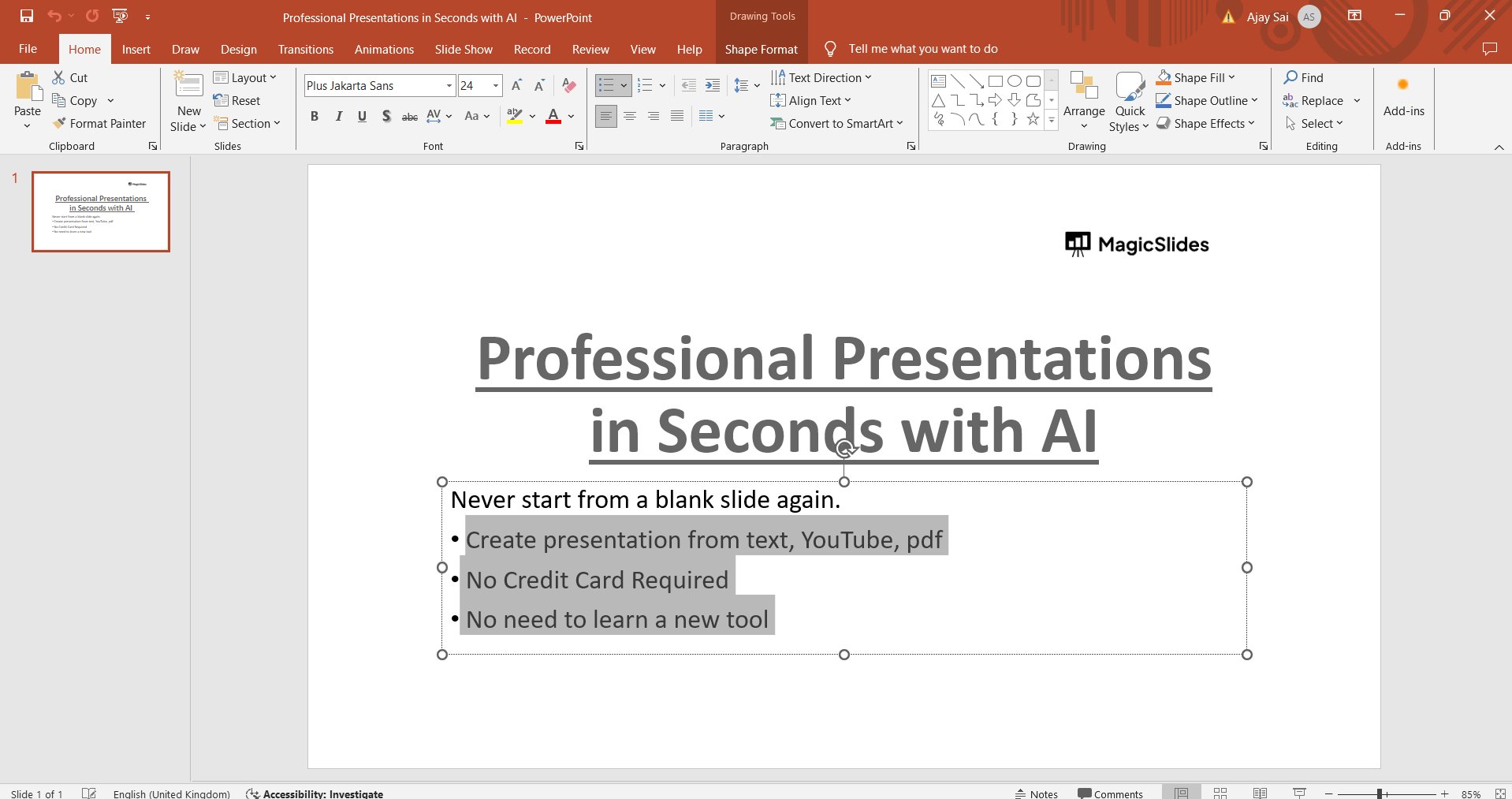
Click on the text box or placeholder containing the bulleted list to select it. Ensure that the insertion point is within the text box.
Step 3: Access the Bullets and Numbering Dialog Box
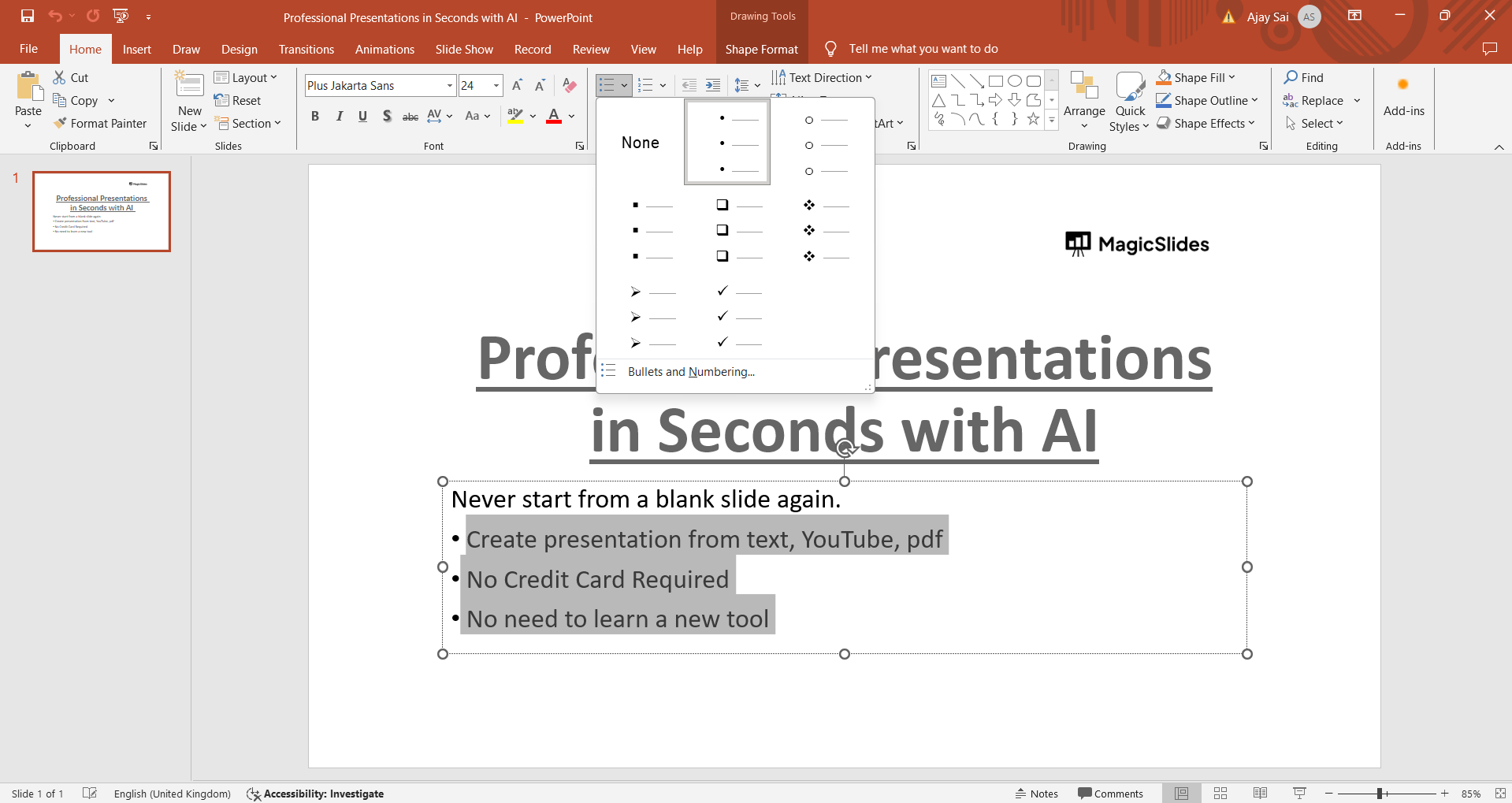
With the text selected, go to the “Home” tab in the PowerPoint ribbon. Locate the “Paragraph” group and click on the small arrow icon in the bottom right corner of the group. This action opens the “Paragraph” dialog box.
Step 4: Change the Bullet Color
In the “Paragraph” dialog box, switch to the “Bullets and Numbering” tab. Here, you can choose a different bullet style if desired. To change the bullet color, click on the “Color” button next to the bullet style dropdown menu.
Step 5: Select a New Color
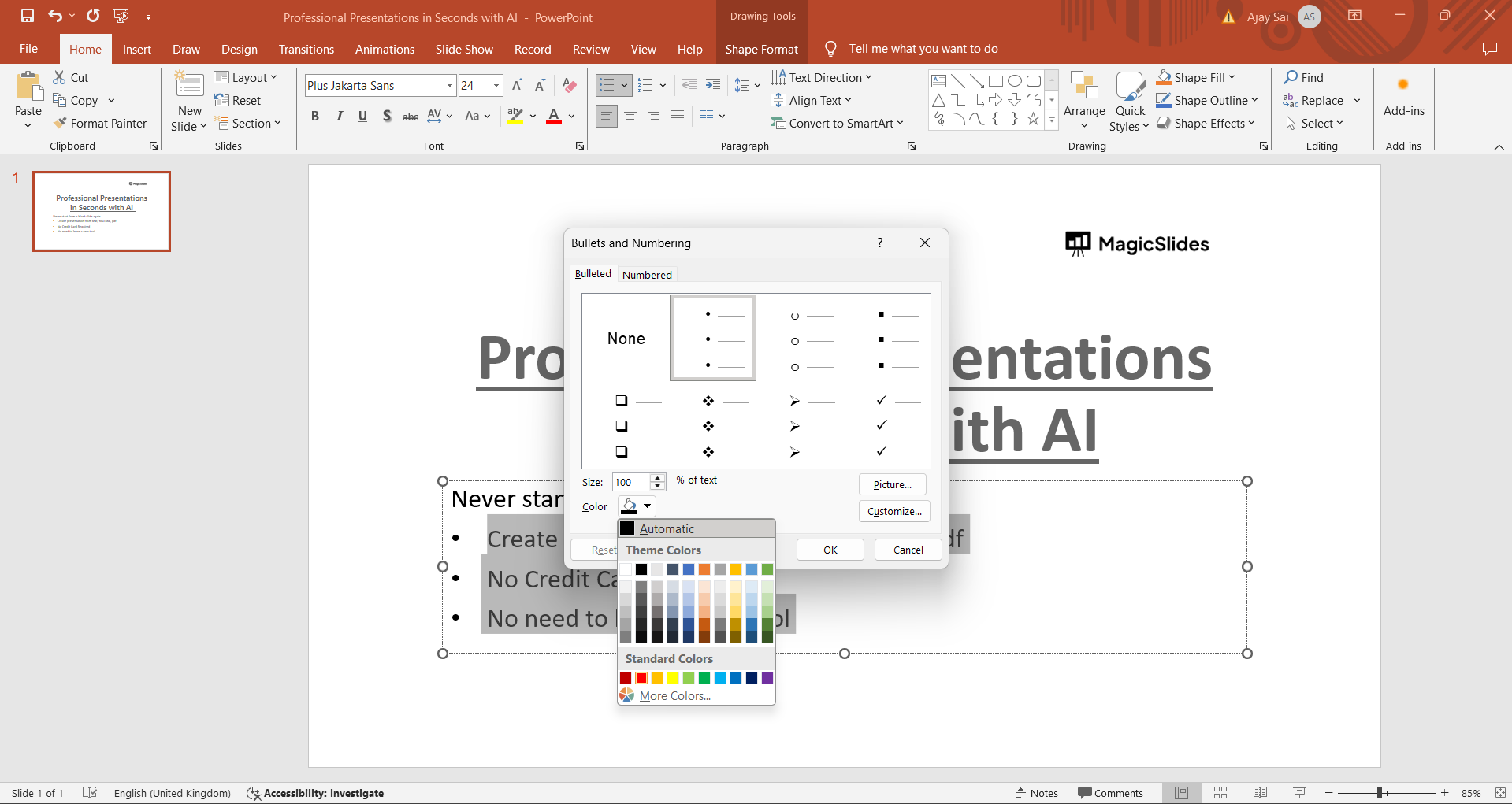
The “Color” button will open a color picker dialog or palette. Choose a color from the available options or use the custom color picker to select a specific shade.
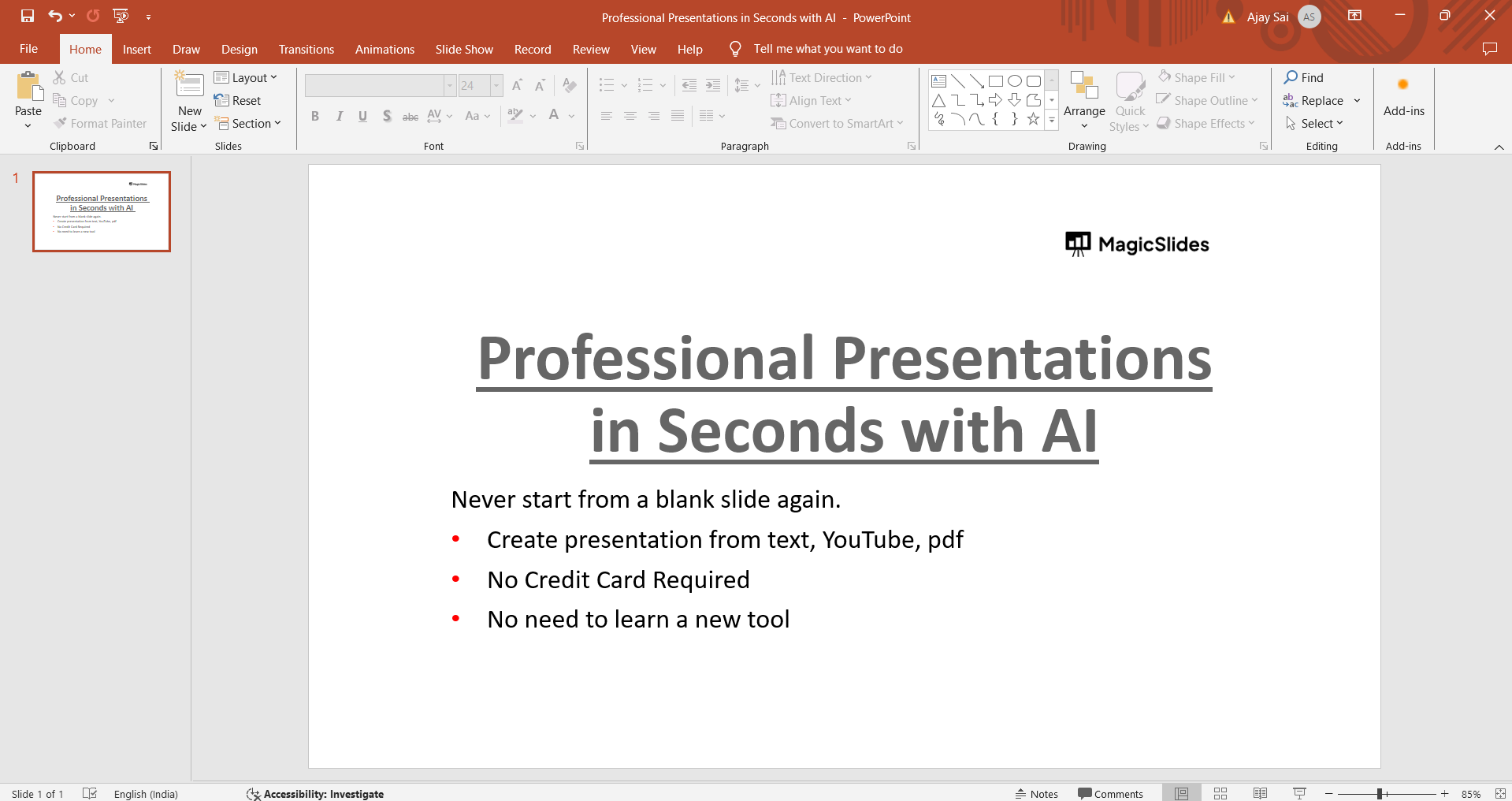
Step 6: Apply the New Bullet Color
Once you’ve selected the desired color, click “OK” to apply it to your bullets. You should see the bullet color change immediately in your PowerPoint slide. In the above picture, you can see we’ve changed the bullet colours from black to red.
Create Stunning Presentations Faster with AI
Want to save hours while creating presentations?

Try MagicSlides AI Presentation Maker, an AI-powered tool that instantly converts text, PDFs, YouTube videos, URLs, and documents into professional PowerPoint presentations in seconds. Whether you’re a student, teacher, marketer, or business professional, MagicSlides helps you create beautifully designed slides without starting from scratch.
Conclusion:
Changing the bullet color in PowerPoint is a simple yet effective way to enhance the visual appeal of your slides and draw attention to important points. By following these straightforward steps, you can easily customize bullet colors to match your presentation theme, create contrast for better readability, or add a touch of creativity to your slides. Incorporate these techniques into your PowerPoint workflow to elevate the impact of your bullet lists and deliver engaging presentations that captivate your audience.
Frequently Asked Questions:
Q1. Can I change bullet colors for individual bullets in a list?
Yes, you can change the color of individual bullets by selecting and formatting them separately.
Q2. Does changing bullet color affect the text color as well?
No, changing the bullet color does not affect the text color. They can be independently customized.
Q3. Can I use custom colors for bullets that match my presentation theme?
Absolutely, you can select custom colors to match your presentation’s color scheme for cohesive design.
Q4. Are there predefined bullet color options, or can I choose any color?
You have the flexibility to choose any color for your bullets, including predefined colors or custom selections.
Leave a Reply