To highlight key points in Google Slides, you can use various techniques that don't necessarily involve animations. Here's a step-by-step guide:
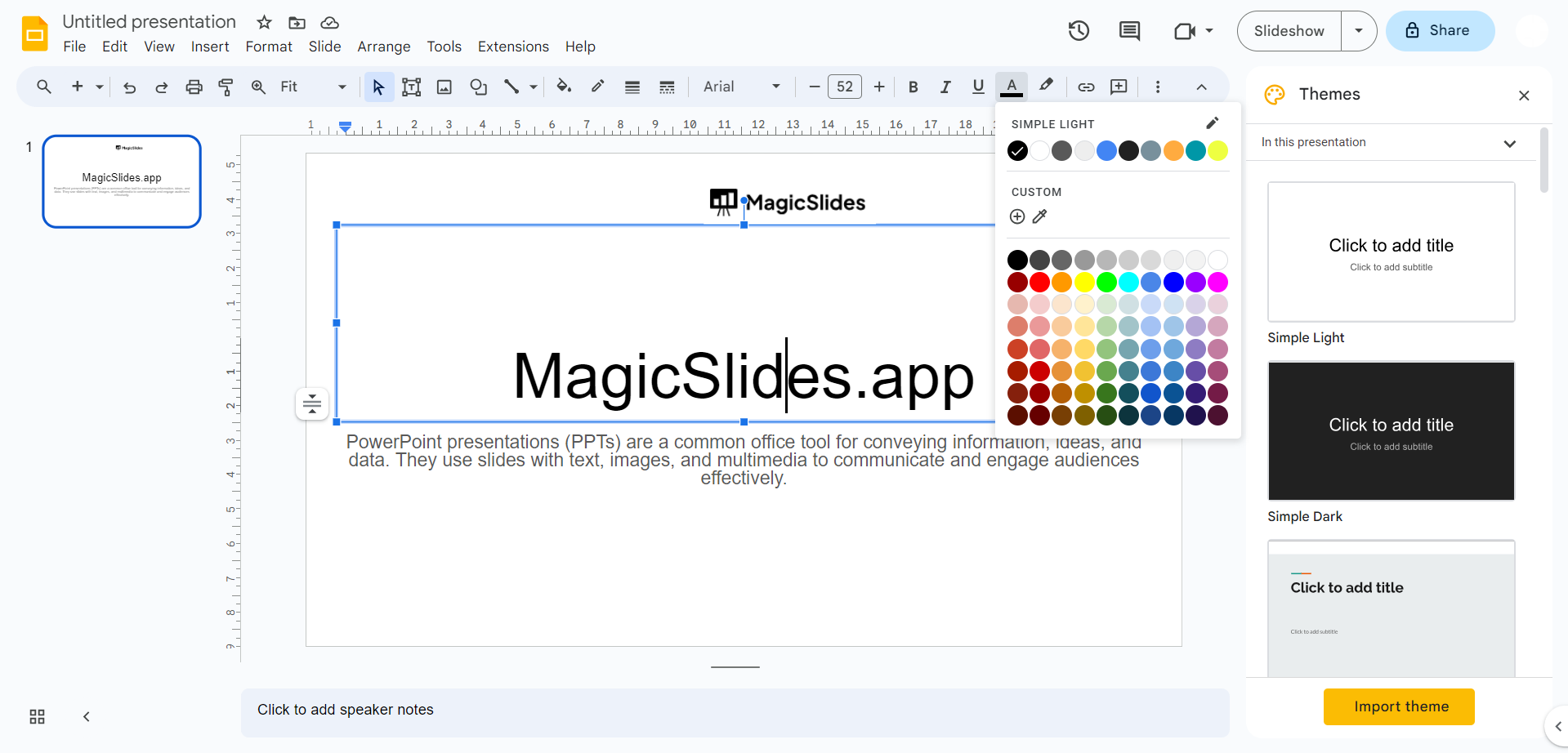
Change Text Color or Bold/Italicize:
- Select the text you want to highlight.
- Use the toolbar at the top to change the text color to a contrasting one or make it bold or italicized for emphasis.
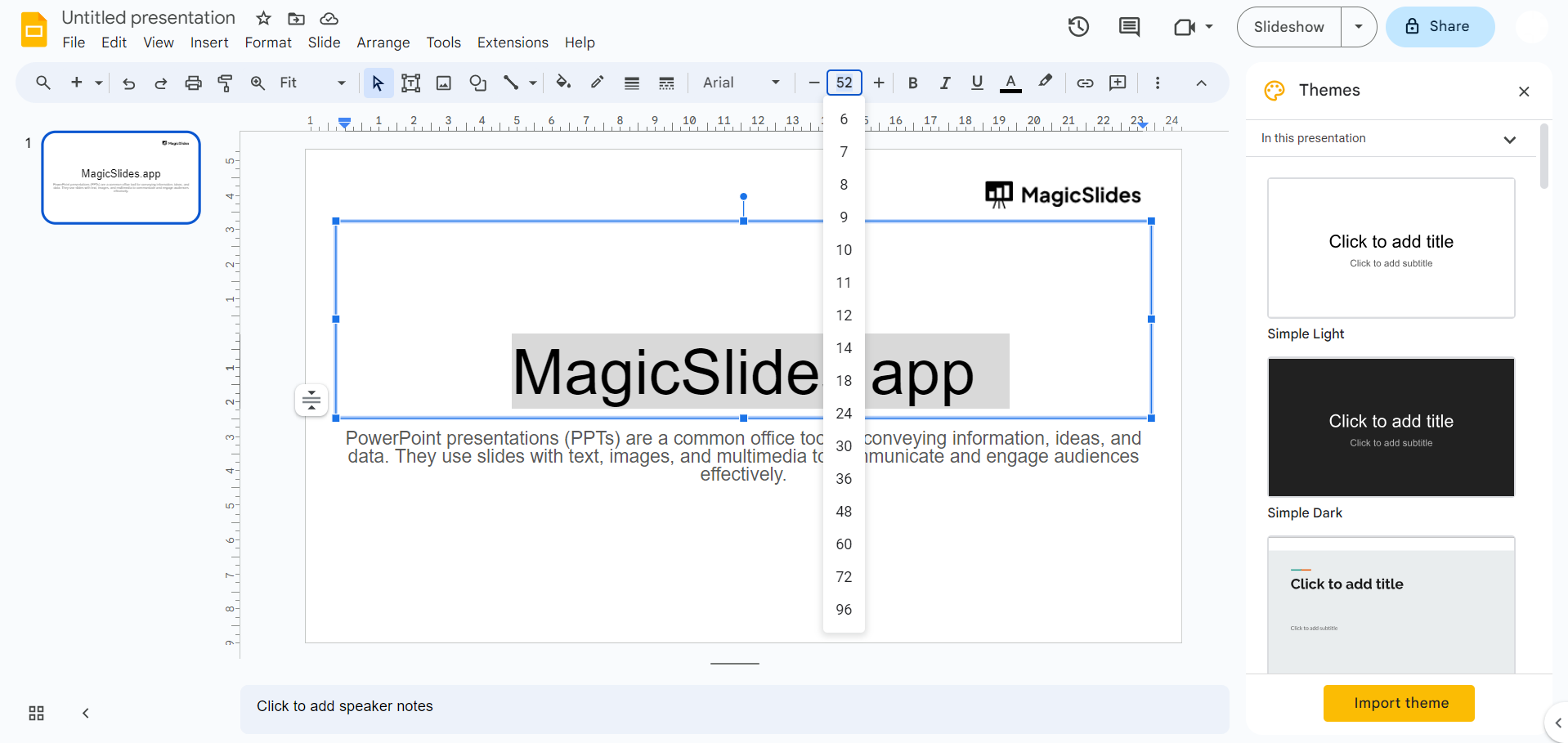
Use Font Size:
- Increase the font size of key points to make them stand out.
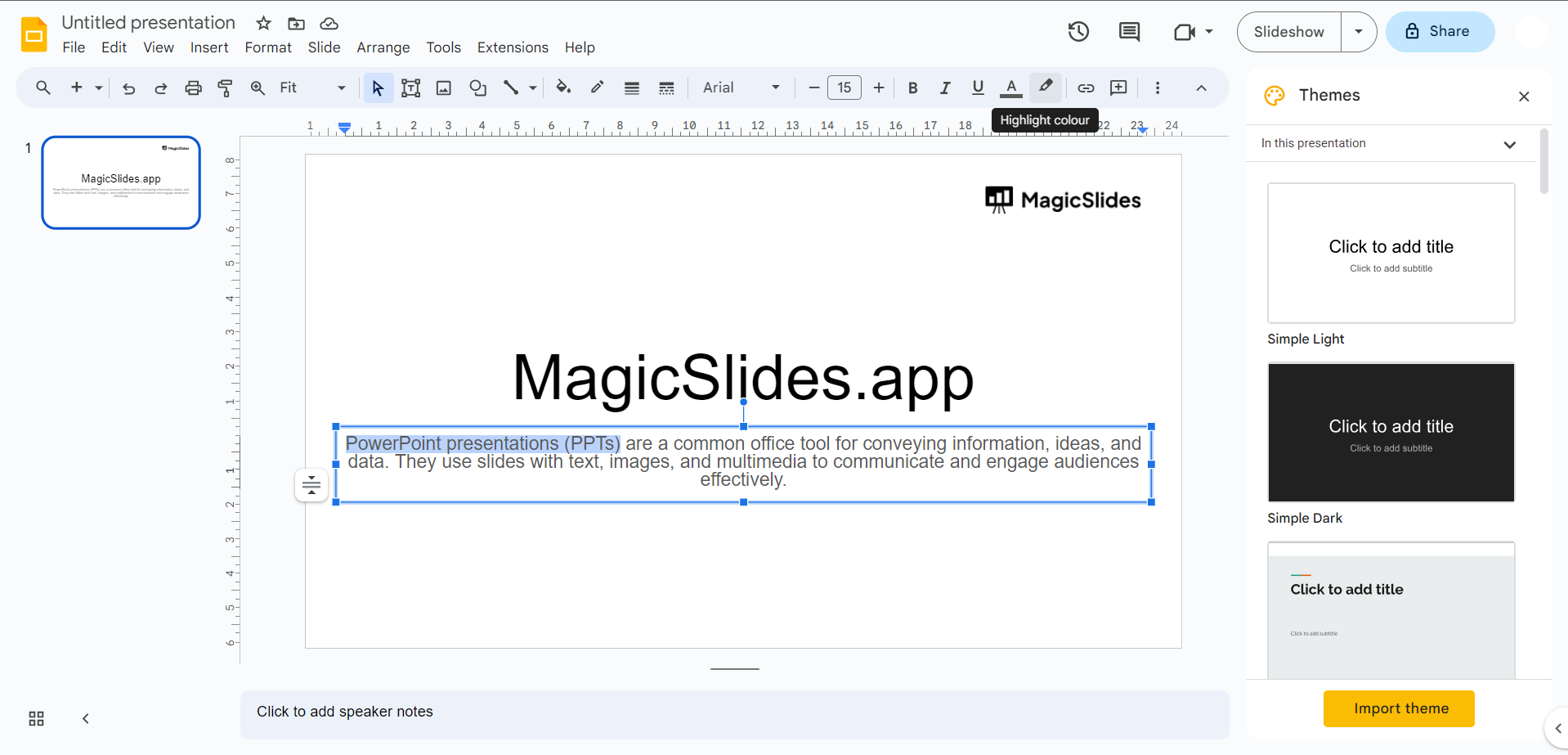
Apply Text Highlighting:
- Select the text you want to highlight.
- Click on the "Text color" icon in the toolbar (looks like a "T" with a color palette).
- Choose a highlight color for the selected text.
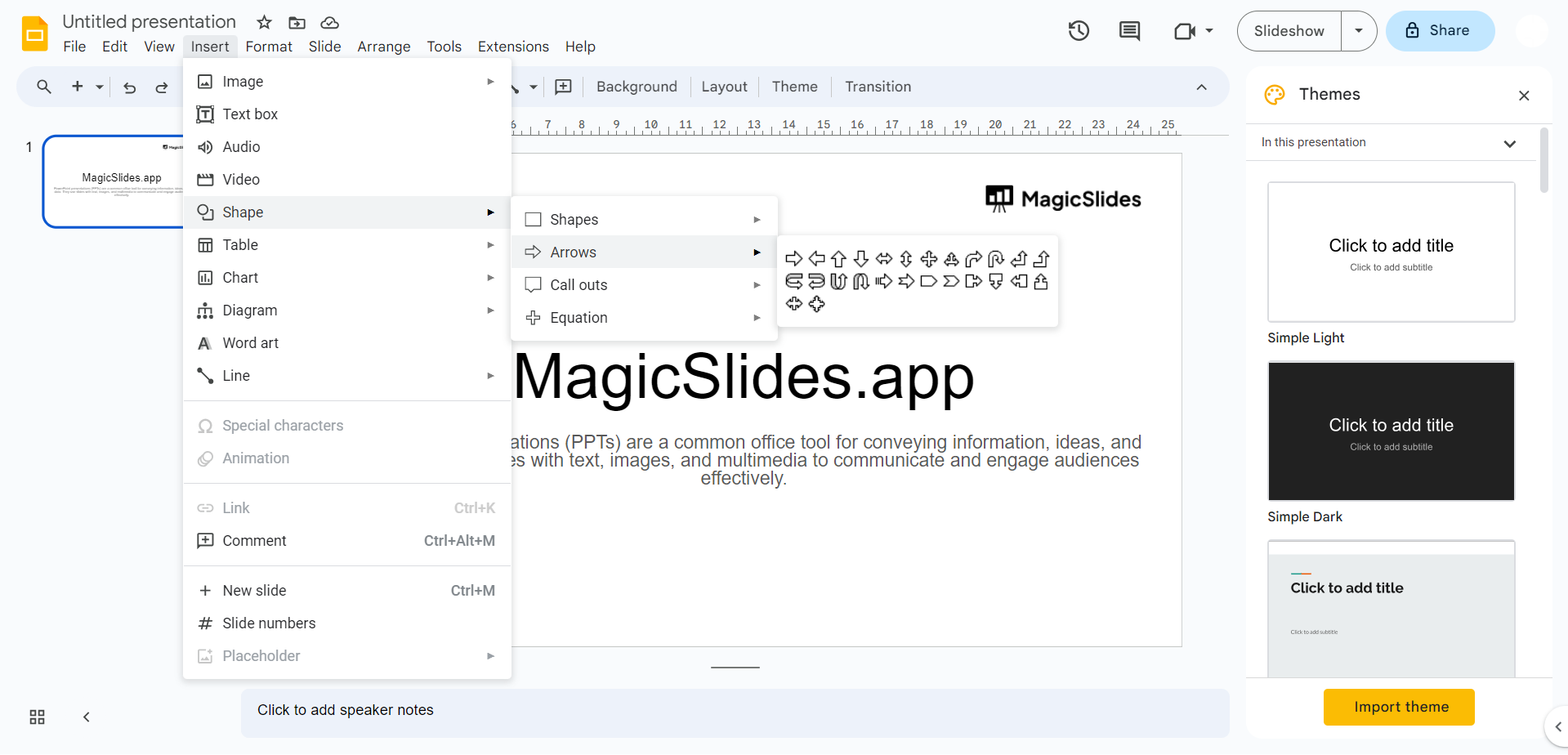
Use Shapes and Text Boxes:
- Insert shapes or text boxes around key points.
- Adjust the shape's fill color and line color to make it visually distinct.
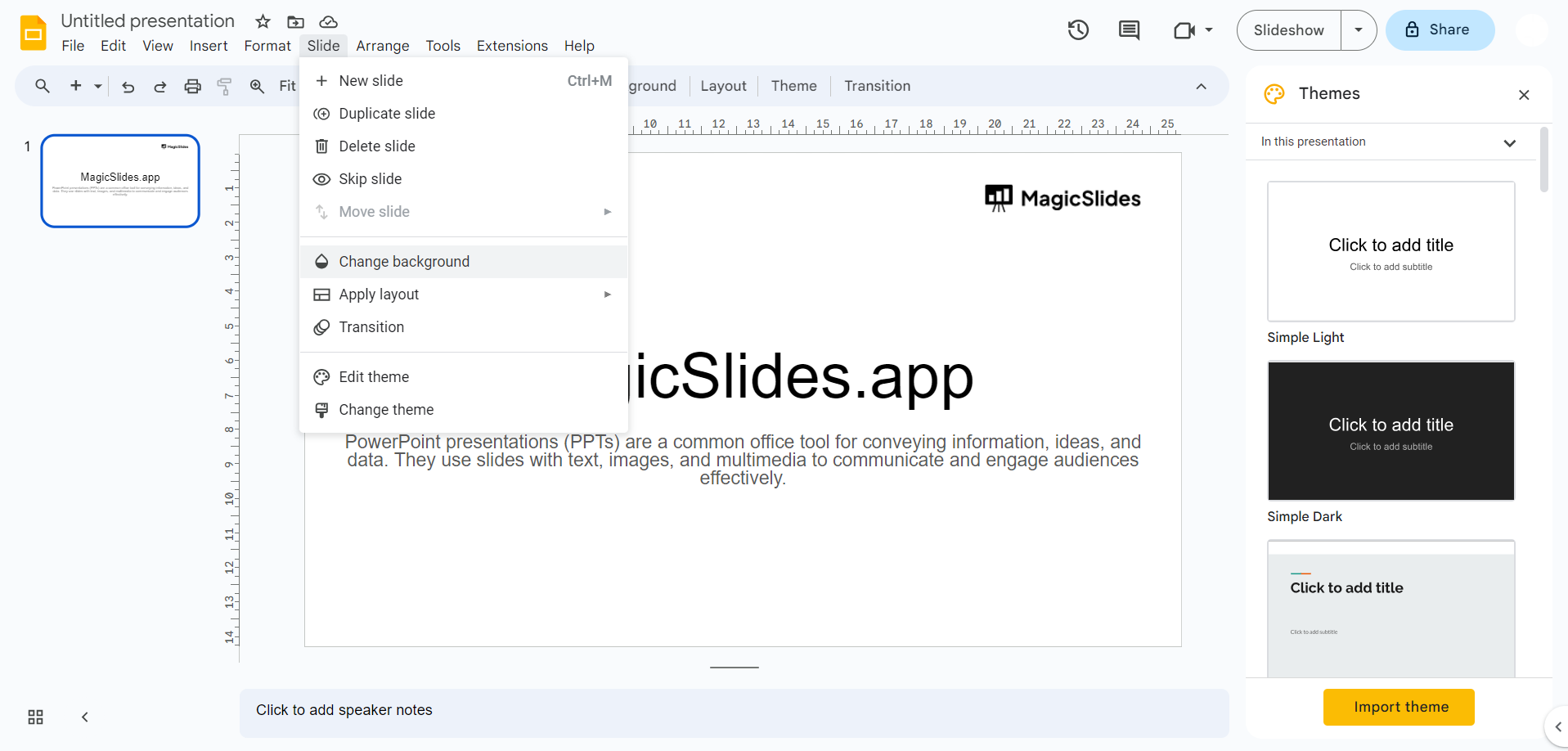
Change Background Color:
- For key points on a slide, consider changing the slide's background color to draw attention.
Insert Icons or Symbols:
- Add icons or symbols next to key points to reinforce their importance.
Add Images:
- Use images or graphics to complement and highlight key points.

Utilize Slide Layouts:
- Choose slide layouts that emphasize content, such as a title and content layout for clear separation.
Remember that effective highlighting should not overwhelm the audience. Use these techniques judiciously to draw attention to the most critical information and maintain a clean and professional presentation.
Leave a Reply