Step 1: Open the Presentation:
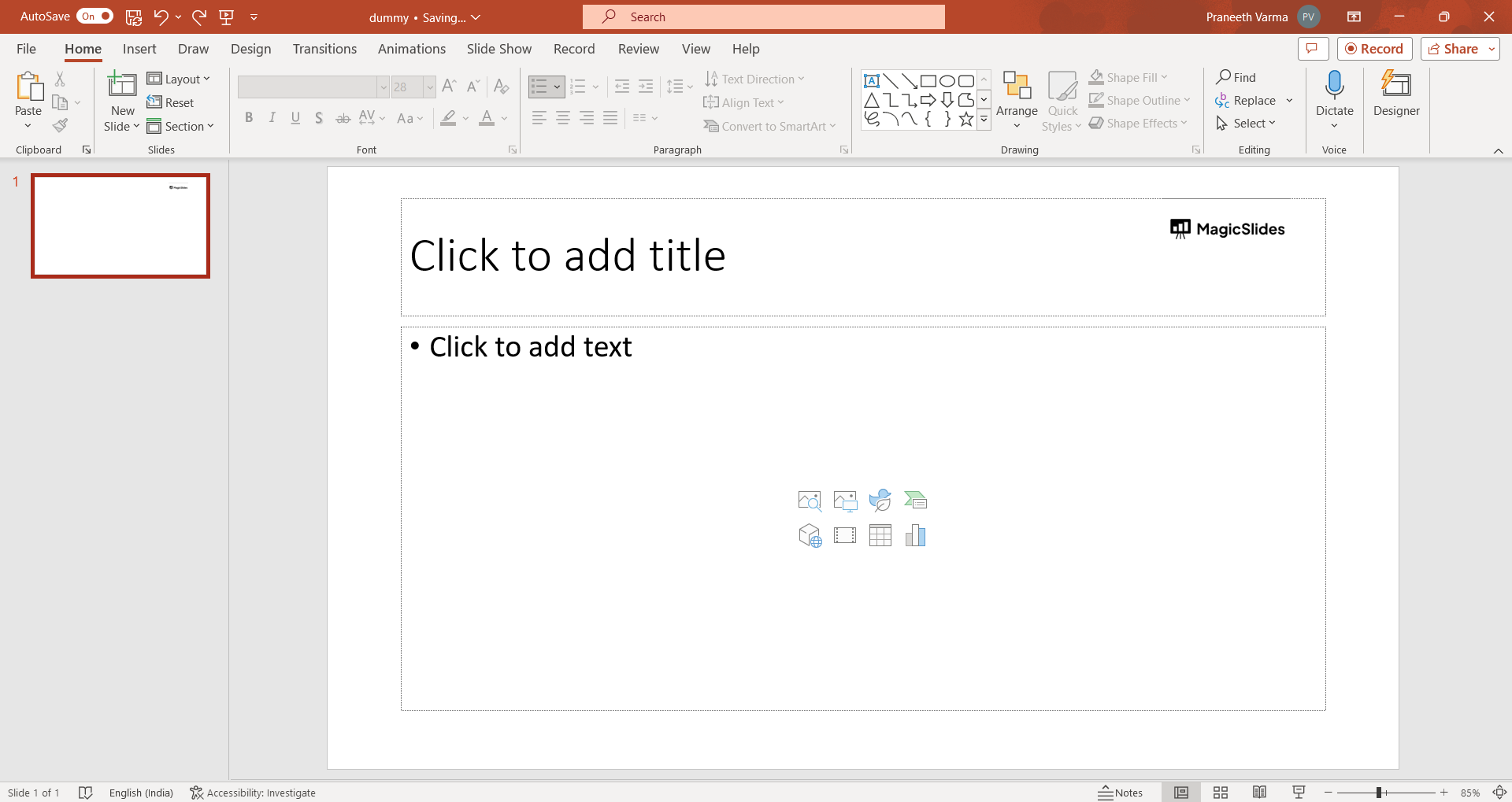
- Launch Microsoft PowerPoint and open the presentation that contains the slide you want to duplicate.
Step 2: Select the Slide:
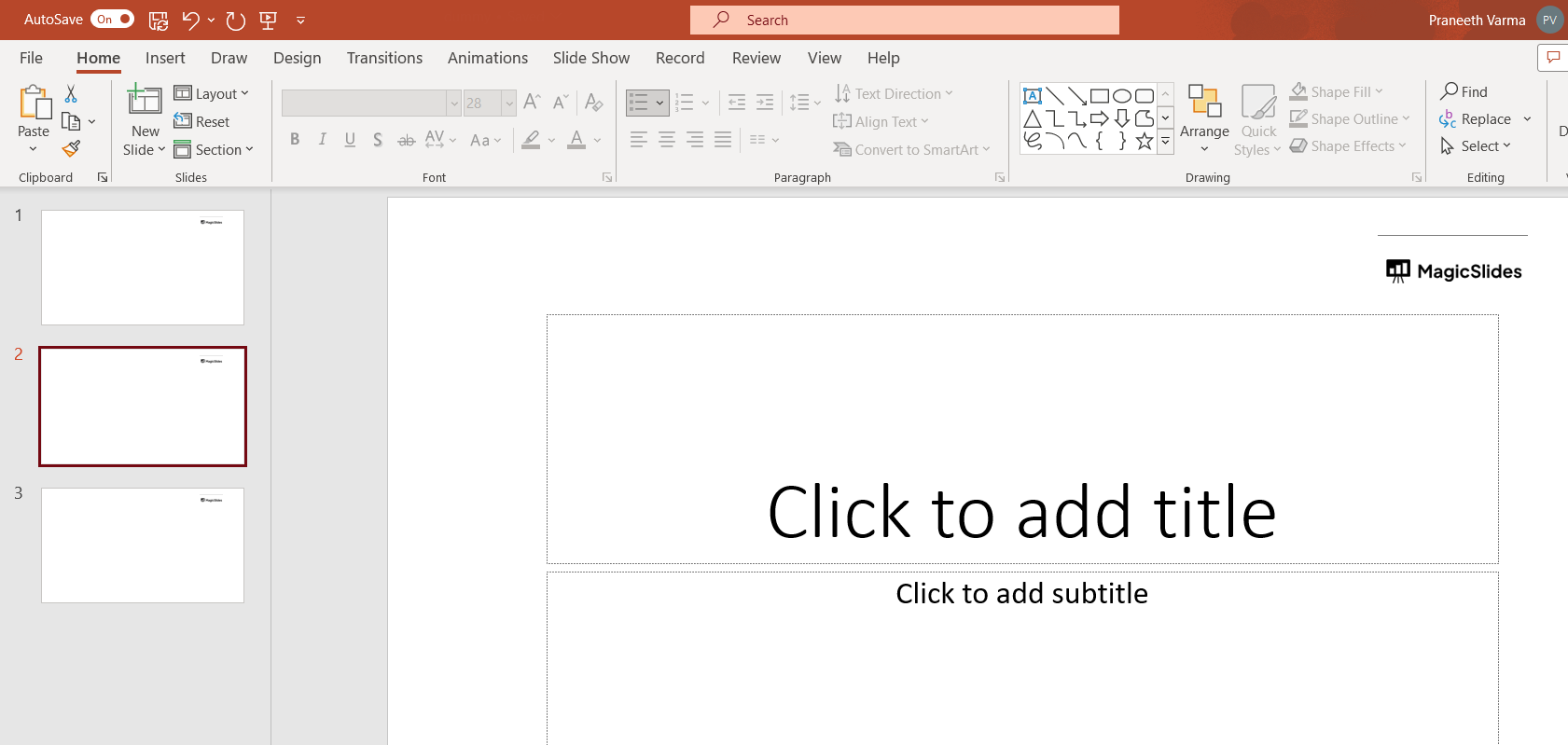
- In the slide sorter view or the normal view, click on the thumbnail of the slide you want to duplicate. This will select the slide.
Step 3: Duplicate the Slide:
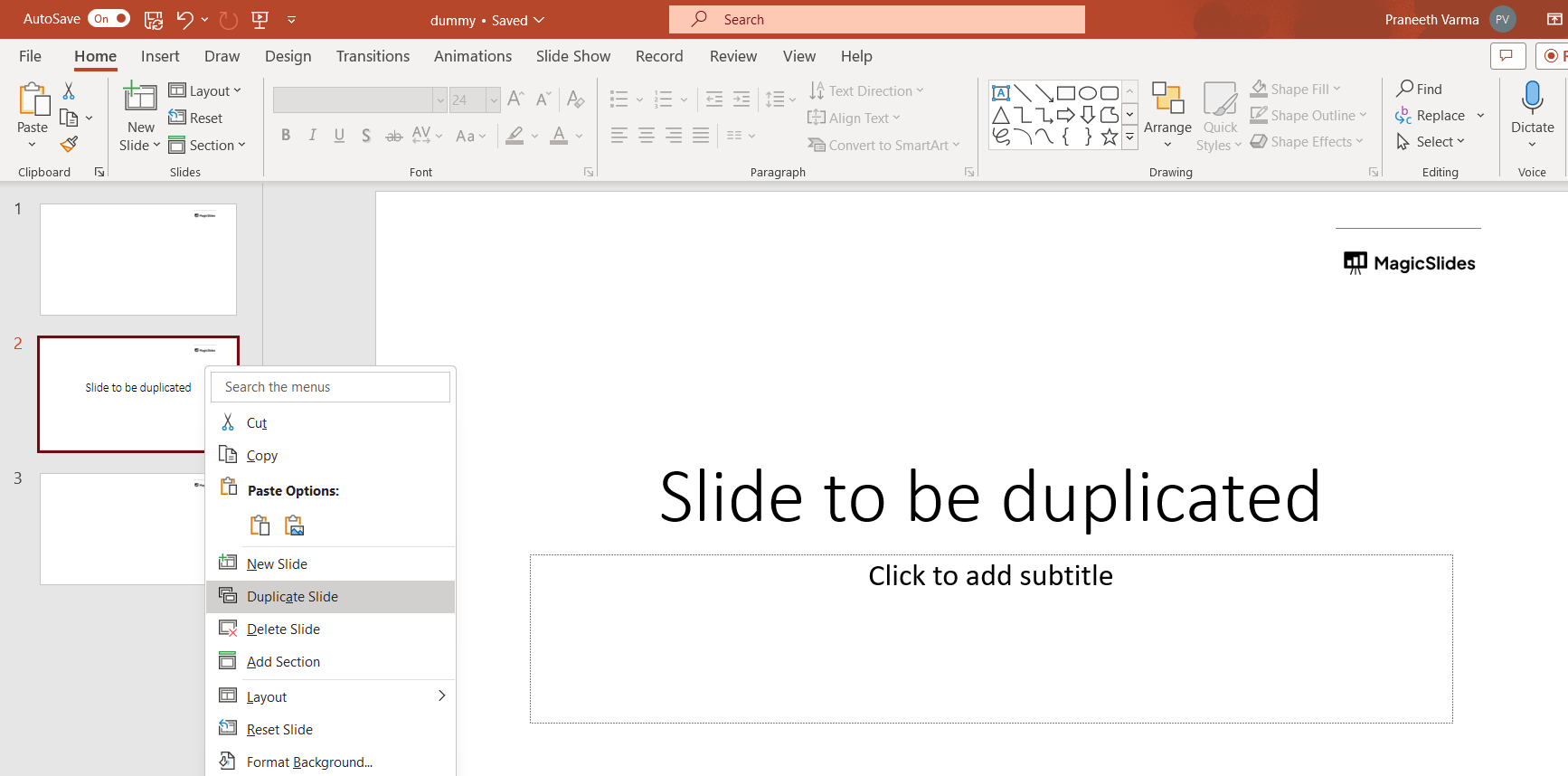
- With the slide selected, you have a few options to duplicate it:
- Press
Ctrl+D(Windows) orCommand+D(Mac) on your keyboard. - Right-click on the selected slide and choose "Duplicate Slide" from the context menu.
- Go to the "Home" tab in the ribbon, click on the "New Slide" dropdown arrow, and choose "Duplicate Selected Slides."
- Press
Step 4: Adjust the Duplicated Slide (Optional):
- The duplicated slide will appear right after the original slide. You can now edit the content on the duplicated slide as needed.
Step 4: Repeat for Additional Duplicates (Optional):
- If you need to duplicate multiple slides, repeat the above steps for each slide you want to duplicate.
Step 5: Save Your Presentation:
- After you've duplicated the slides, remember to save your presentation to keep the changes.
Leave a Reply