Step 1: Export from Canva:
- Open your design in Canva.
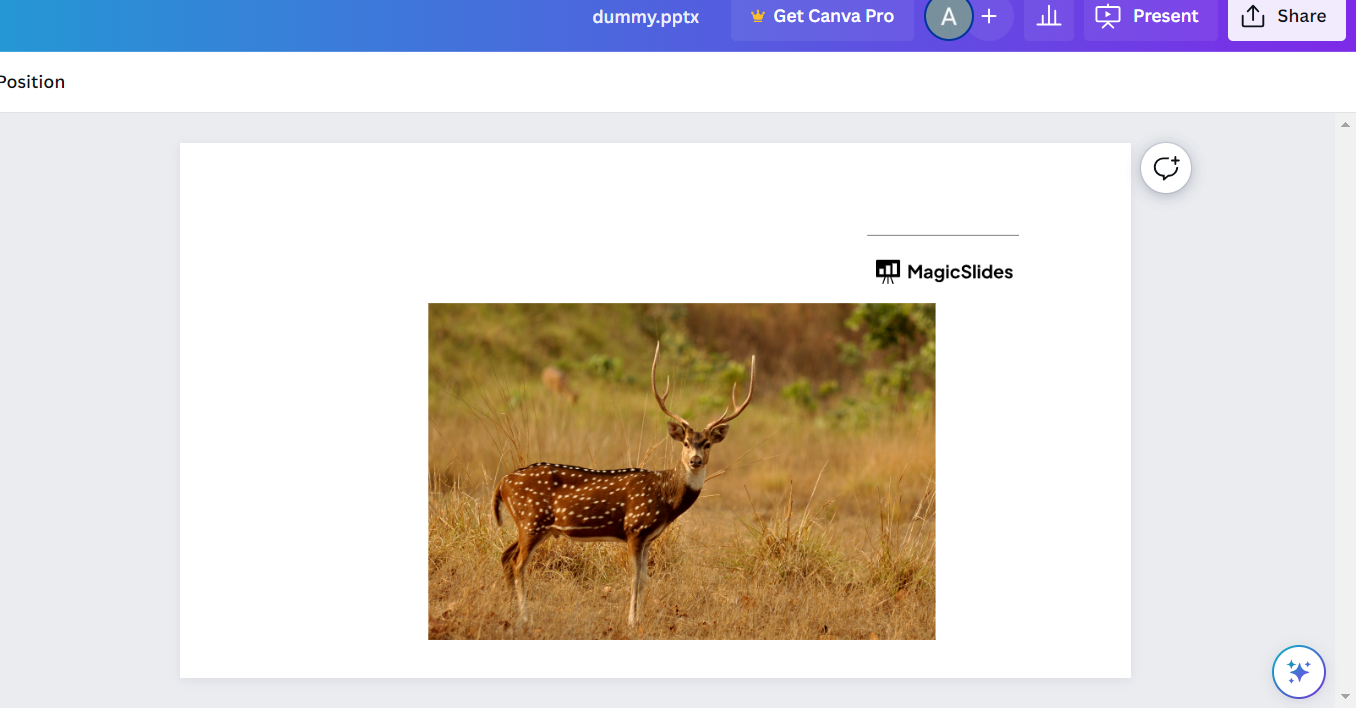
- Click on the "File" menu and select "Download."
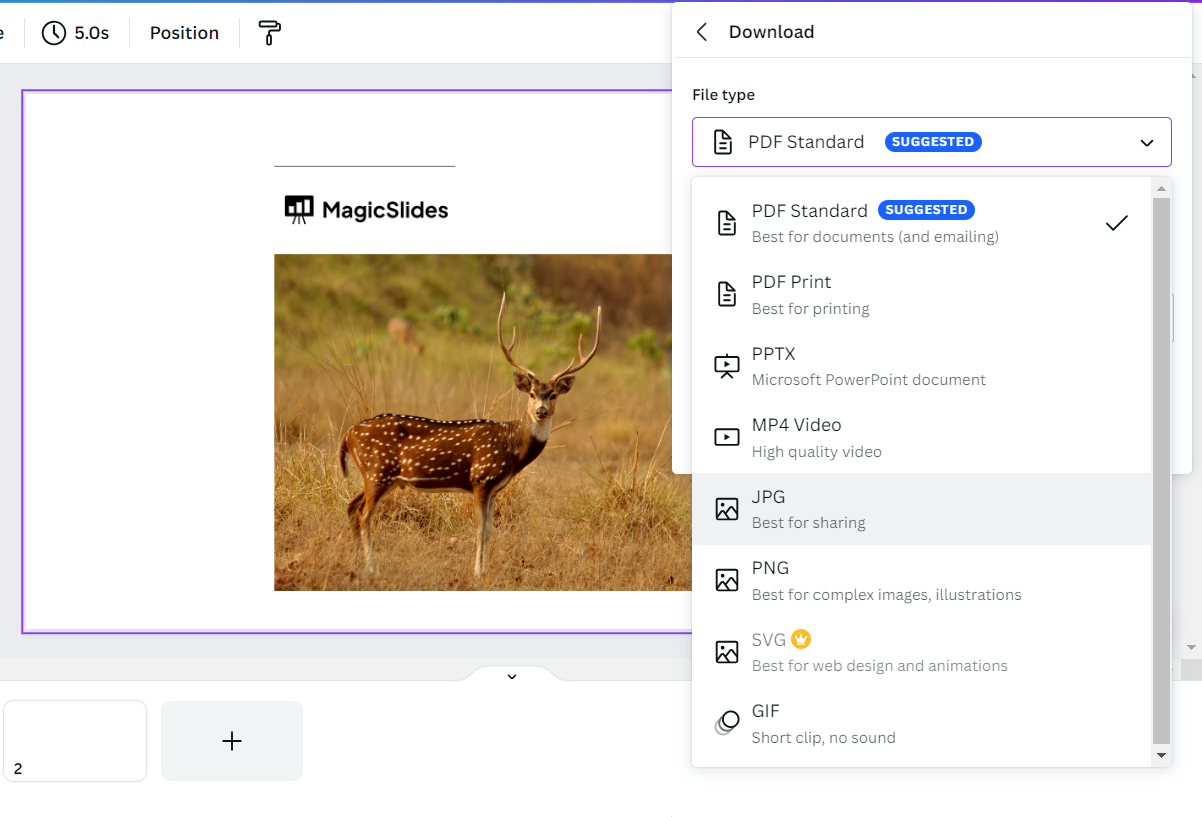
- Choose the appropriate file format for your Google Slides presentation. PDF and PNG formats are commonly used for this purpose.
Step 2: Optional step– Prepare Images :
- If you exported as a PDF, you might need to convert the PDF slides into images before importing them into Google Slides. You can use online tools or software to convert PDF pages into images.
Step 3: Import into Google Slides:
- Click on the "+ New" button and select "Google Slides" from the dropdown menu.
- In the Google Slides interface, click on "File" and then select "Import slides."
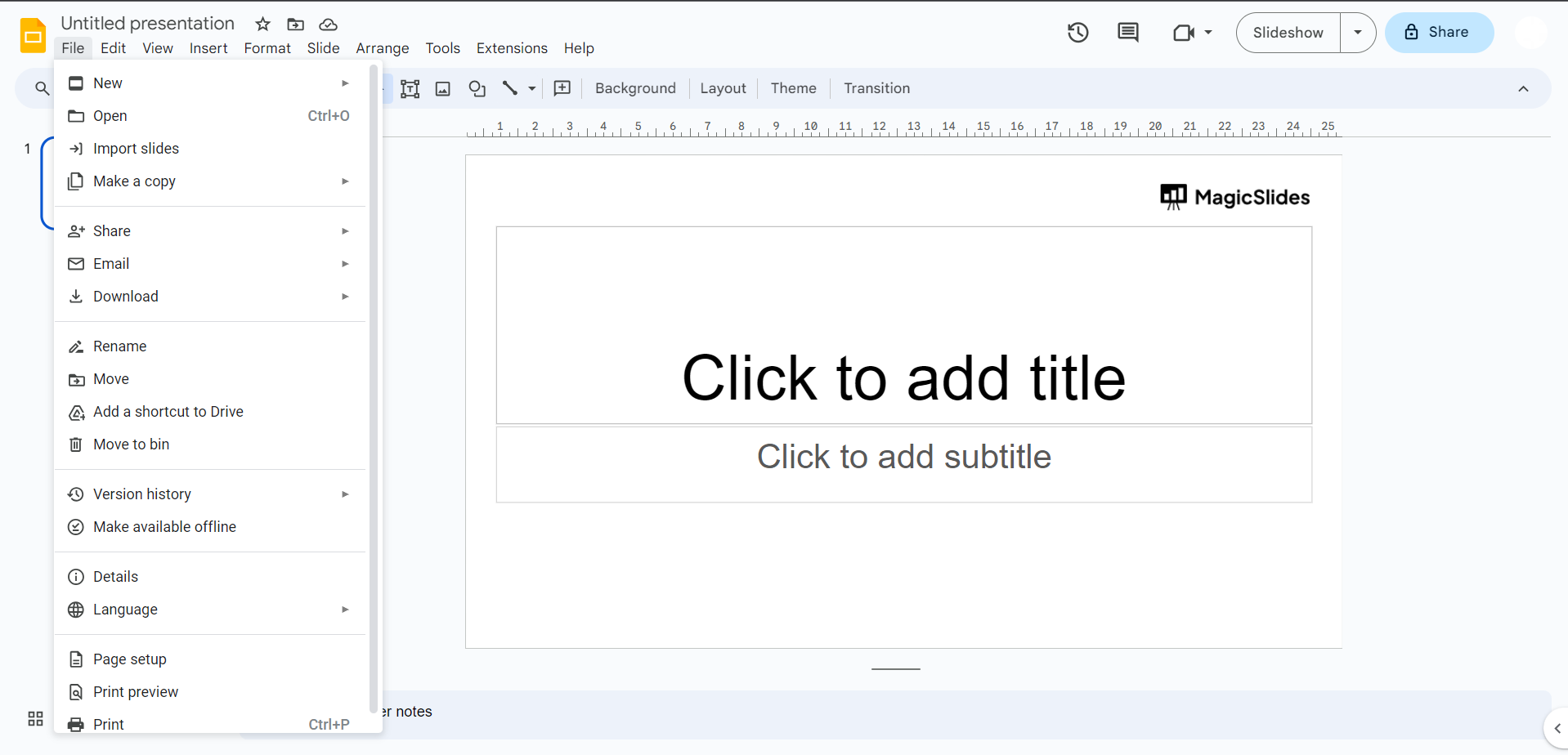
- Choose the image files you exported from Canva or the PDF slides you converted to images.
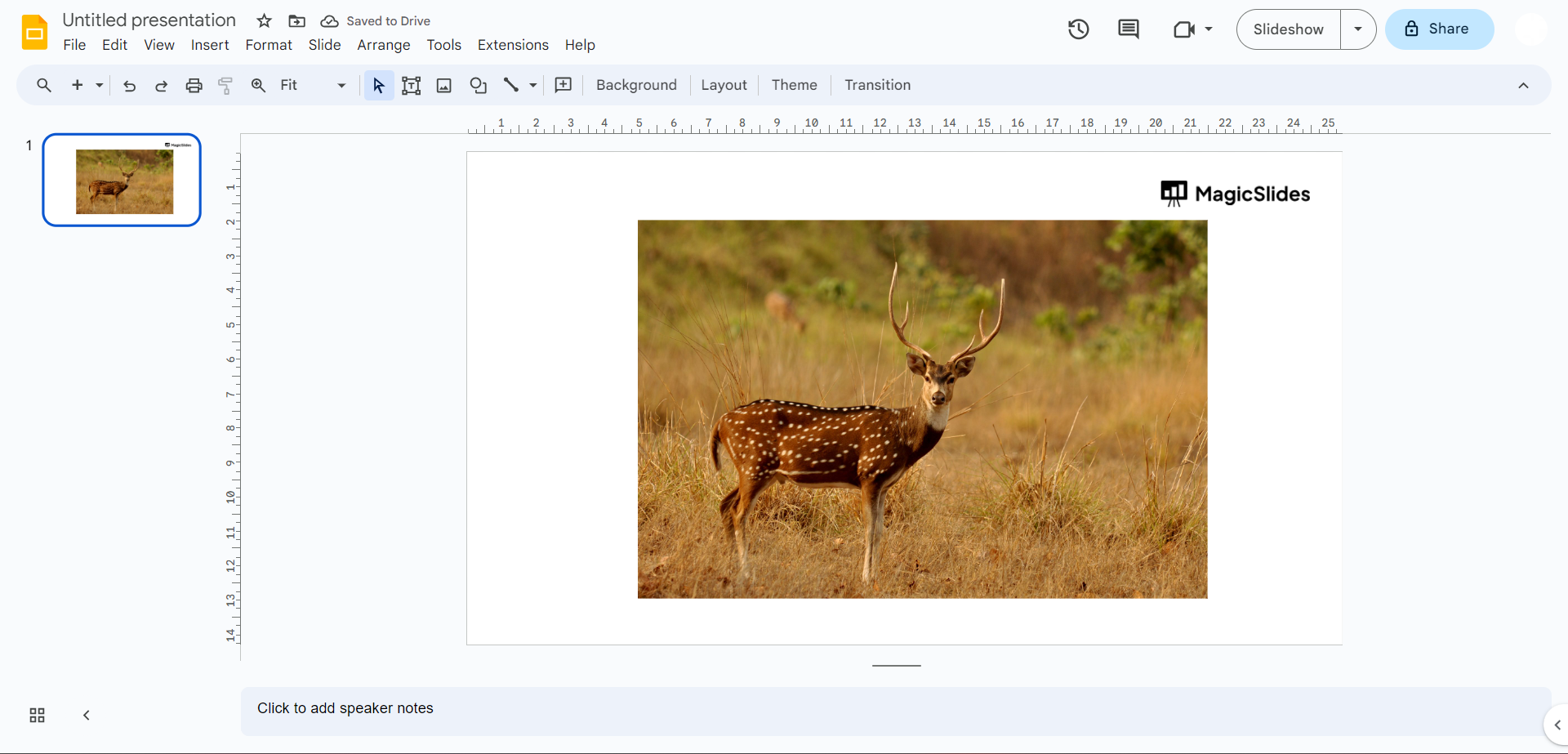
- Google Slides will import these images as slides into your presentation.
Step 4: Adjust and Edit:
- After importing, you might need to adjust the layout, text, and formatting of the imported slides to make them fit well within Google Slides' framework.
Leave a Reply