Adding a footer in PowerPoint allows you to display consistent information at the bottom of each slide, such as slide numbers, dates, or your organization's name. Here's how you can add a footer in PowerPoint:
Step 1: Open PowerPoint: Launch Microsoft PowerPoint and open the presentation in which you want to add a footer.
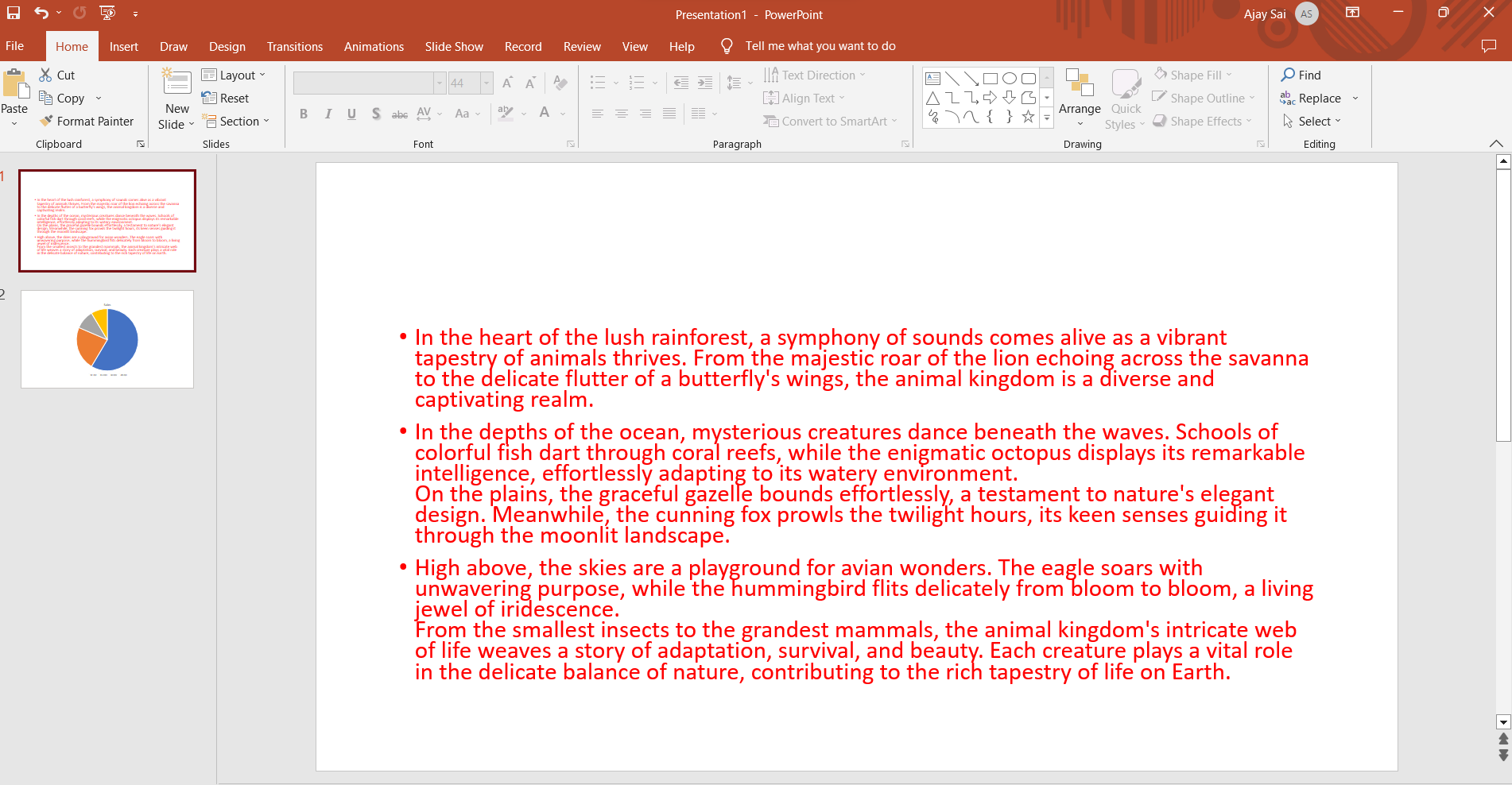
Step 2: View Tab: Click on the "View" tab in the top menu. This tab contains options related to the visual display of your slides.
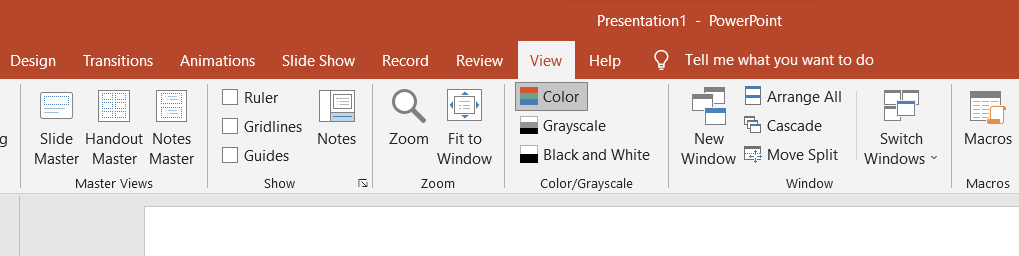
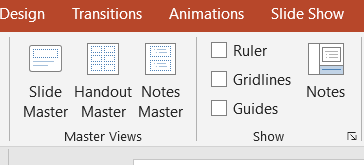
Step 3: Slide Master: In the "View" tab, locate and click on the "Slide Master" button. This will open the Slide Master view, which allows you to edit the master slide layout.
Step 4: Slide Master Pane: On the left side of the window, you'll see the Slide Master pane, displaying various slide layouts.
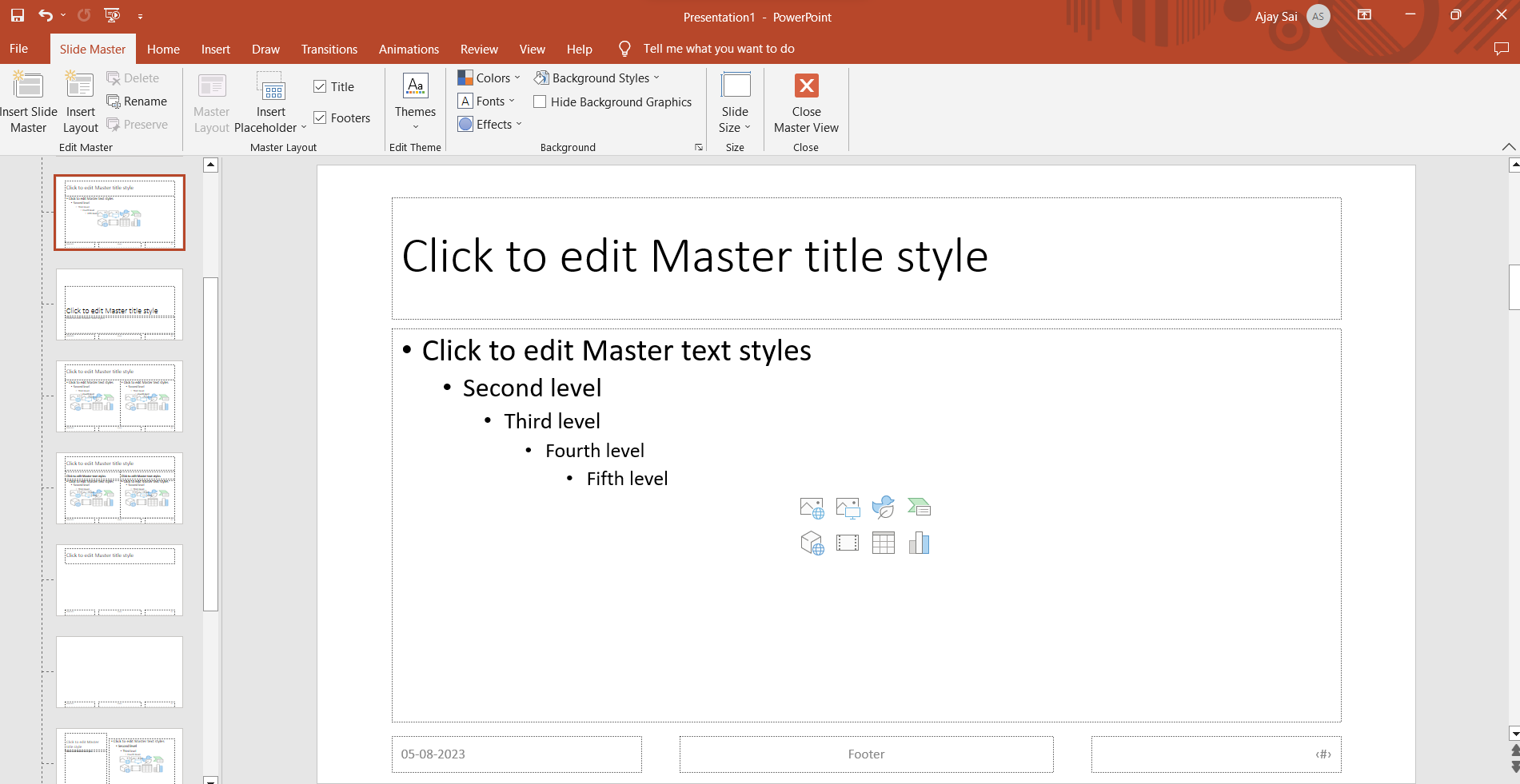
Step 5: Edit Master Layout: Click on the top-most slide thumbnail in the Slide Master pane. This is the master slide layout that affects all slide layouts in your presentation.
Step 6: Insert Footer: In the "Slide Master" tab that appears at the top, click on the "Insert Placeholder" dropdown menu. Choose "Footer." A placeholder for the footer will appear on the slide layout.

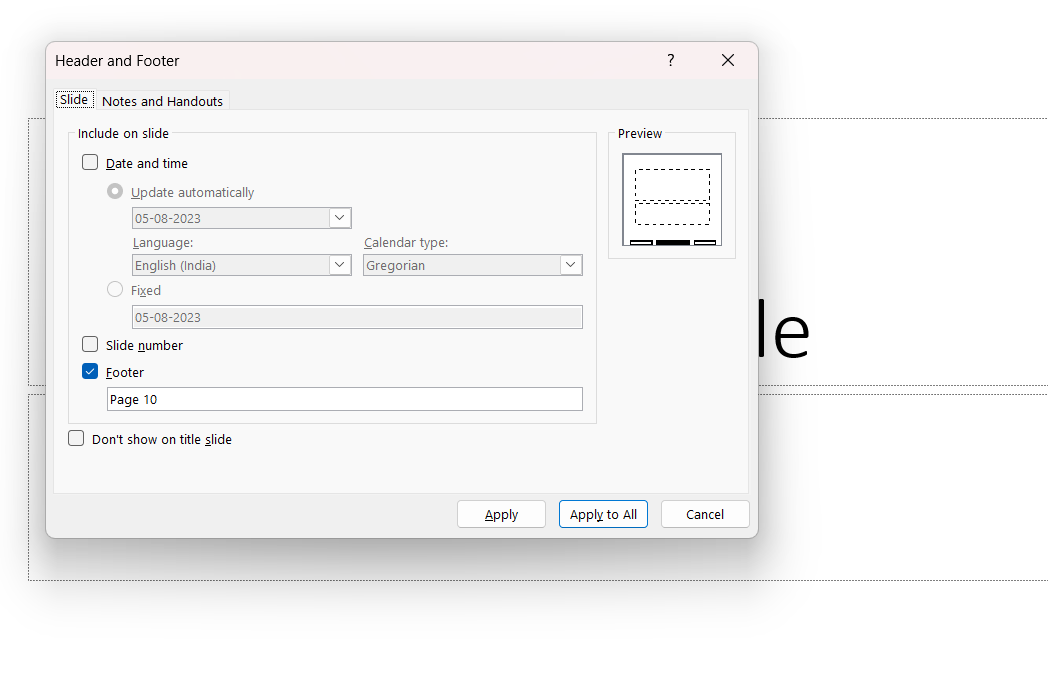
Step 7: Edit Footer Content: Click on the footer placeholder to select it. You can now type in the desired text, such as slide numbers, dates, or text.
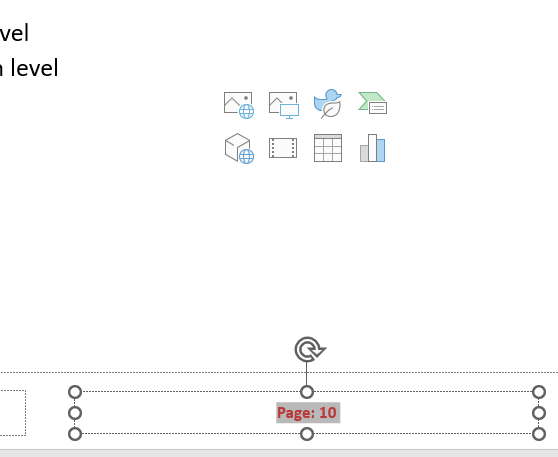
Step 8: Format Footer (Optional): Use the formatting options in the "Slide Master" tab to customize the appearance of the footer, such as font style, size, color, and alignment.
Step 9: Close Slide Master: When you're done editing the footer, click the "Close Master View" button in the Slide Master tab. This will take you back to your regular presentation view.
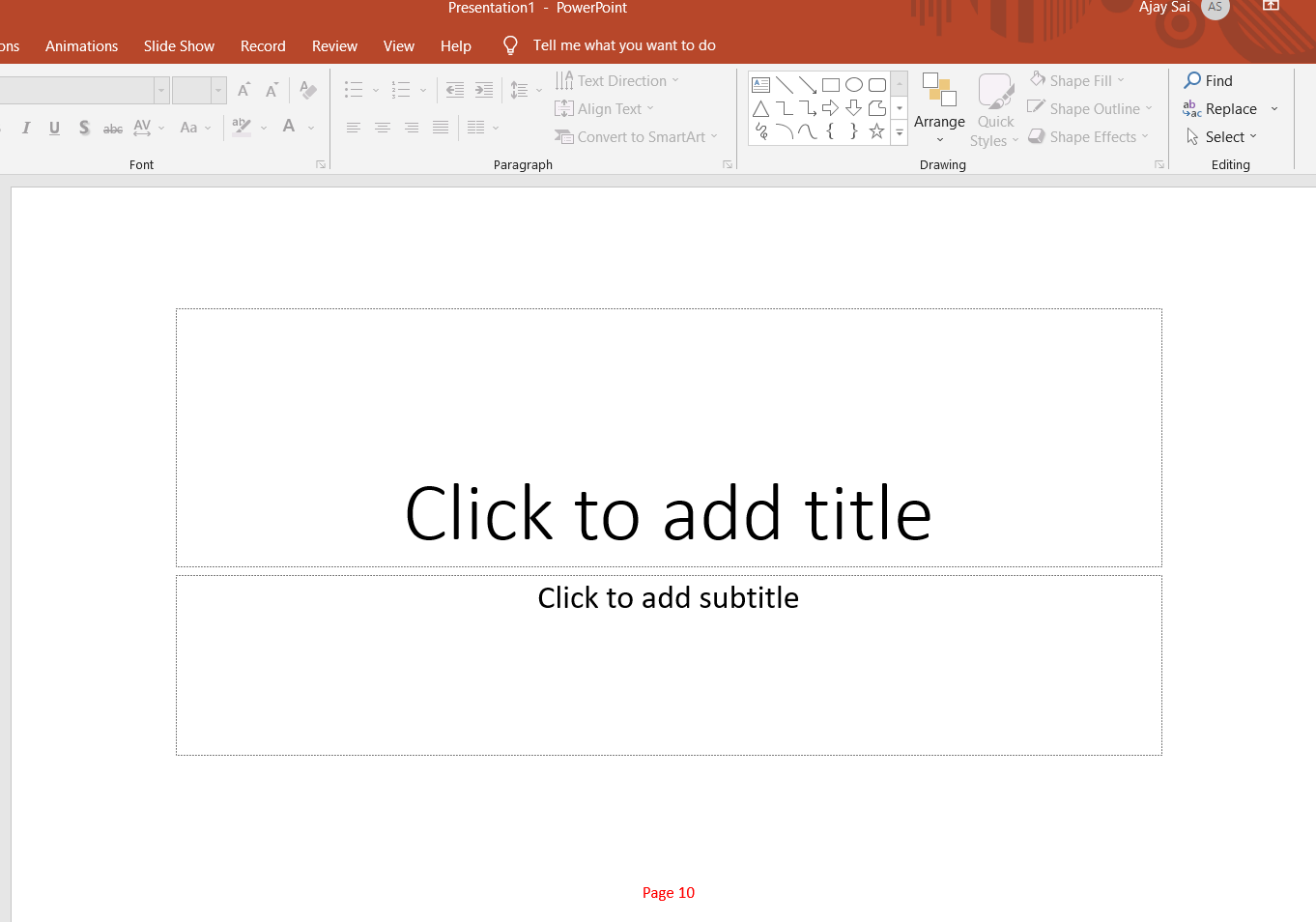
Step 10: Apply Footer to Slides: The footer you added in the Slide Master will now be applied to all slides in your presentation. You can see it at the bottom of each slide.
Step 11: Save: Remember to save your presentation after making changes in a desired location of your personal computer.
By adding a footer in PowerPoint, you can ensure a consistent and professional look across all slides, and you won't need to manually add the same information to each slide individually.
Navigate the day with the precision of AI programming
Leave a Reply