Turning a square picture into a round shape in PowerPoint is a useful technique when you want to enhance the visual appeal of your slides.
This effect is often used for profile images, logos, or any other images where a circular design is more attractive.
Follow this step-by-step guide to easily transform a square picture into a round shape using PowerPoint.
How to Make a Square Picture Round in PowerPoint: A Step-by-Step Guide
Step 1: Open Your PowerPoint Presentation
Open PowerPoint and navigate to the slide where you want to insert the image.
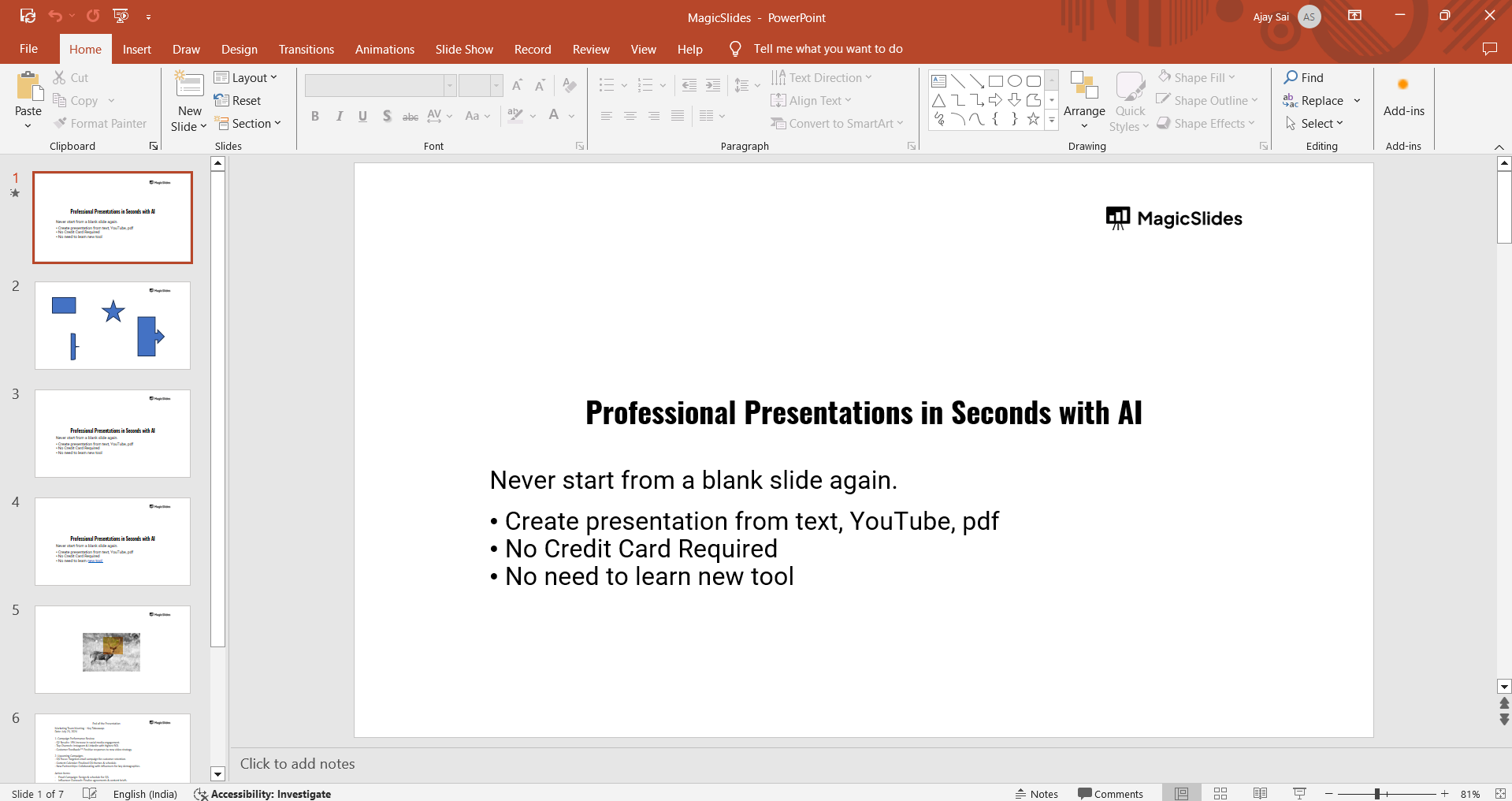
If you haven’t inserted the image yet, go to the “Insert” tab and click on “Pictures” to upload your square image.
Step 2: Insert the Square Image
Once you have inserted the square image into the slide, you can resize it by clicking and dragging the corners of the image.
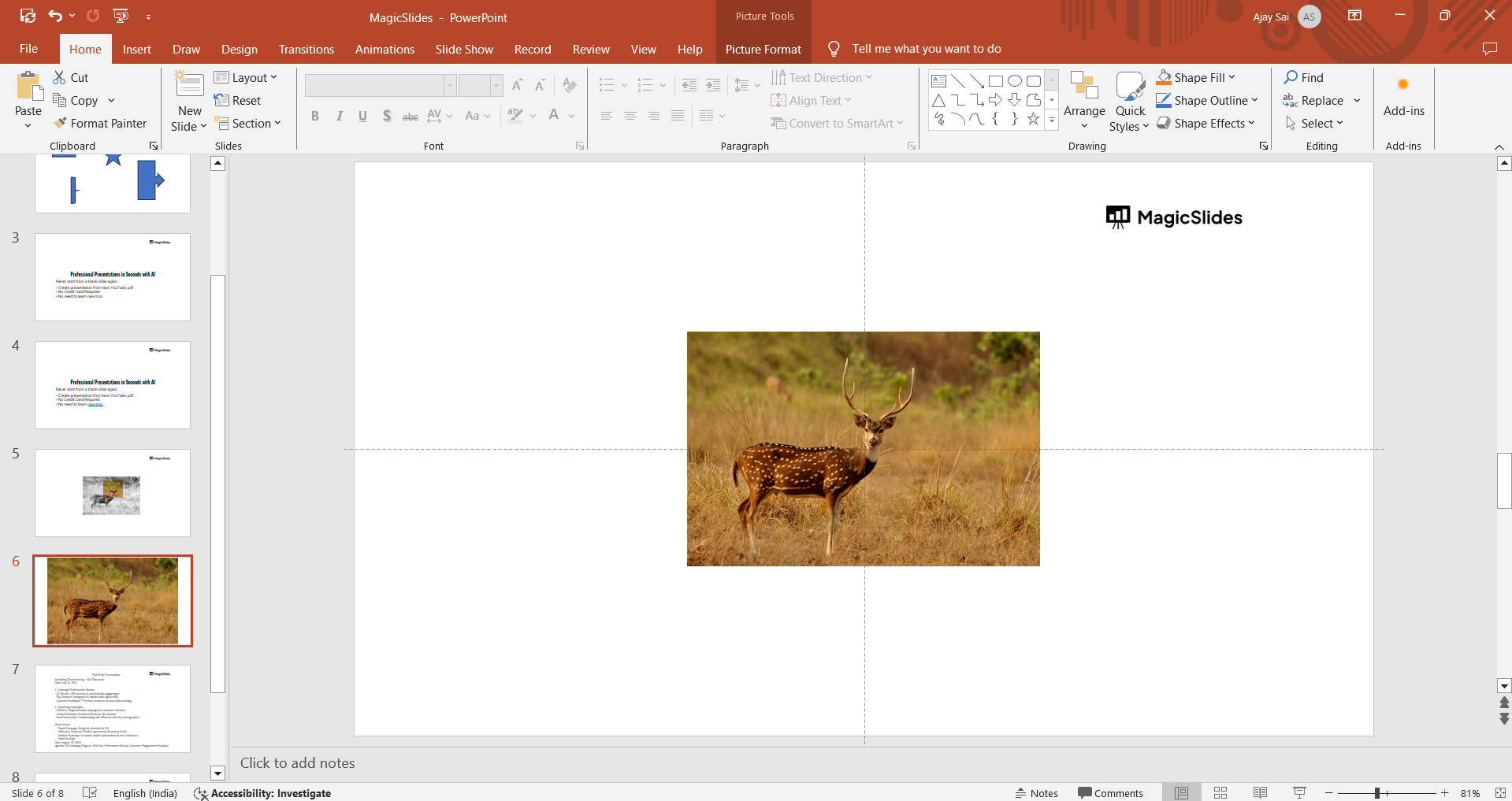
Make sure the image is selected by clicking on it so that you can access the formatting options.
Step 3: Go to the "Picture Format" Tab
With the image selected, go to the “Picture Format” tab on the top toolbar.
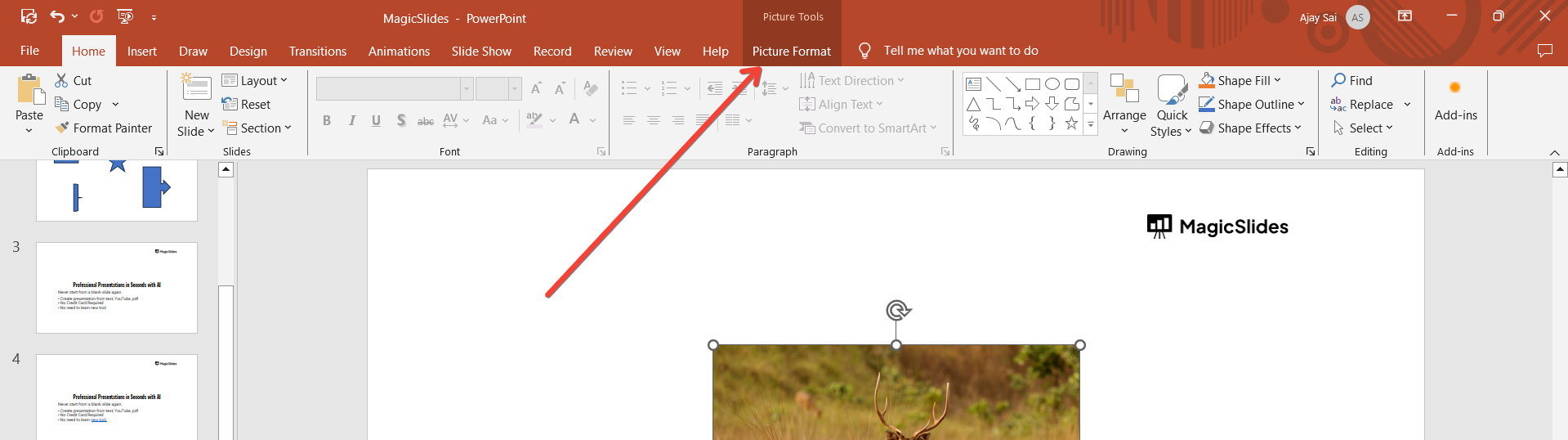
In this tab, you will find various options to edit your image, including cropping it to different shapes.
Step 4: Use the "Crop to Shape" Option
In the “Picture Format” tab, click on the “Crop” dropdown button in the "Size" group.
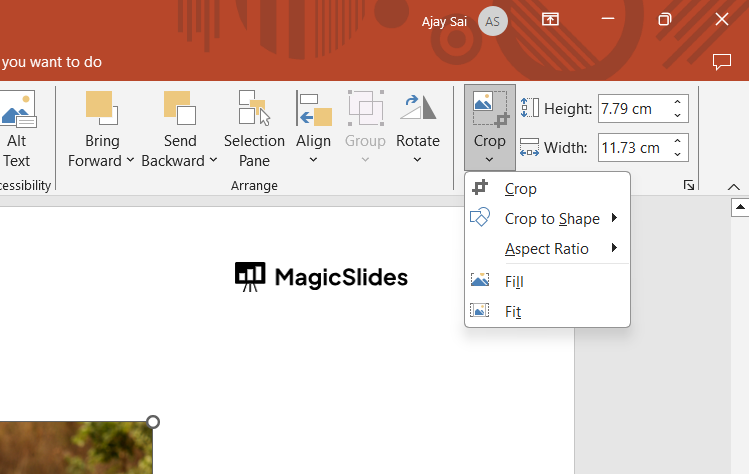
From the dropdown menu, choose “Crop to Shape,” and a variety of shape options will appear.
Under the "Basic Shapes" section, select the circle (often referred to as the "Oval" shape).
Step 5: Adjust the Image to Fit the Circle
After applying the circular crop, your image might still appear as an oval if it was not a perfect square.
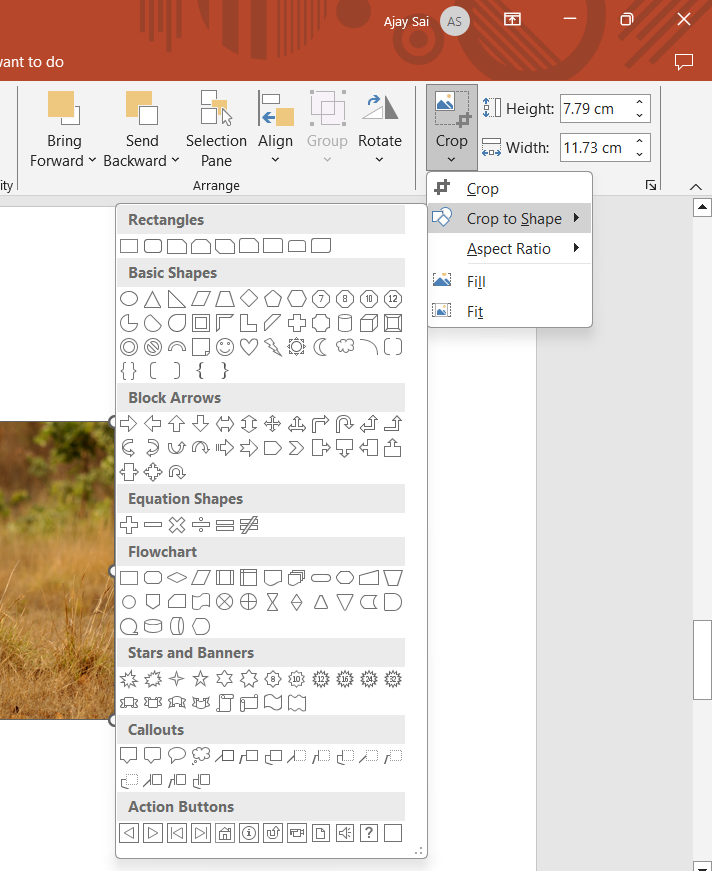
To make the picture perfectly round, go back to the “Crop” button, click on it again, and choose “Aspect Ratio.”
Select the “1:1” ratio, which forces the image into a perfect circle. Adjust the position of the image within the circle by dragging it within the crop box.
Step 6: Finalize and Save the Round Image
Once you’re satisfied with the round shape, click outside the image to apply the changes. You can resize or reposition the circular image as needed.
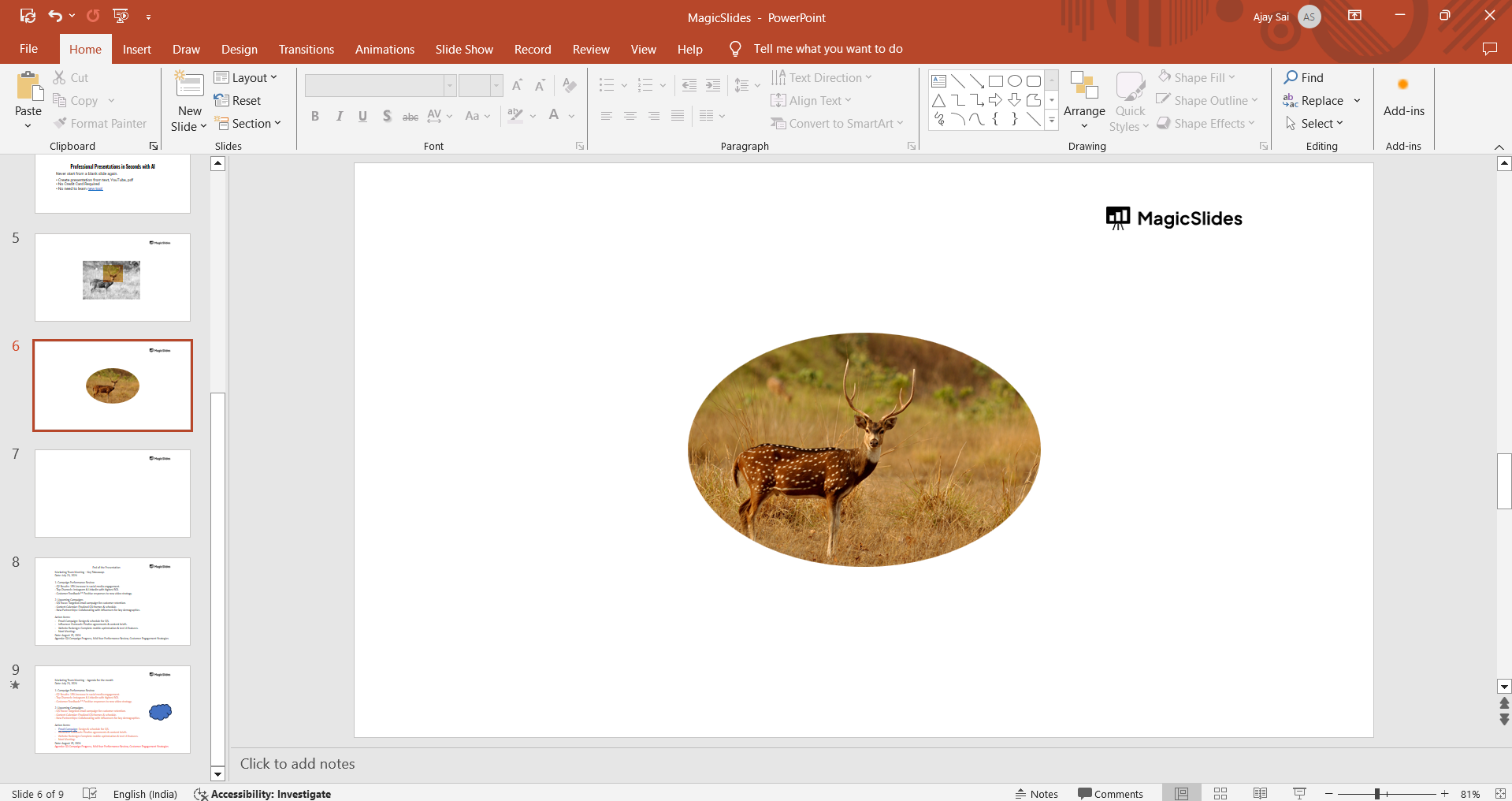
Your square image is now perfectly rounded and ready to be used in your presentation.
Now that you've made a square picture round in PowerPoint, save time by using Format Painter in PowerPoint to apply formatting quickly across multiple slides.
Conclusion
Transforming a square picture into a round shape in PowerPoint is quick and easy with the “Crop to Shape” feature.
This simple method allows you to add a polished, professional look to your images, helping them fit seamlessly into your slides.
Whether you’re working on a personal presentation or a business project, this technique can enhance the overall aesthetic of your PowerPoint slides.
FAQs can take you forward!
Can I make any image round in PowerPoint?
Yes, any image can be cropped into a round shape using the "Crop to Shape" feature.
Will cropping to a circle distort my image?
No, applying a 1:1 aspect ratio ensures the image maintains its proportions without distortion.
Can I adjust the position of the image within the circle?
Yes, you can reposition the image within the circular crop by dragging it inside the crop box.
Leave a Reply