In this guide, we'll unravel the simplicity behind integrating the captivating the cut transition in PowerPoint. Elevate your slides and captivate your audience with a touch of fluidity and style. we'll guide you through a clever combination of duplicating slides, making modifications, and applying smooth transitions. Transform your static presentations into dynamic narratives with a simulated cut effect that keeps your audience engaged and visually intrigued.
How to create a cut transition in PowerPoint
Open your PowerPoint application:
Launch the PowerPoint application and open the presentation you want to enhance with a cut transition.
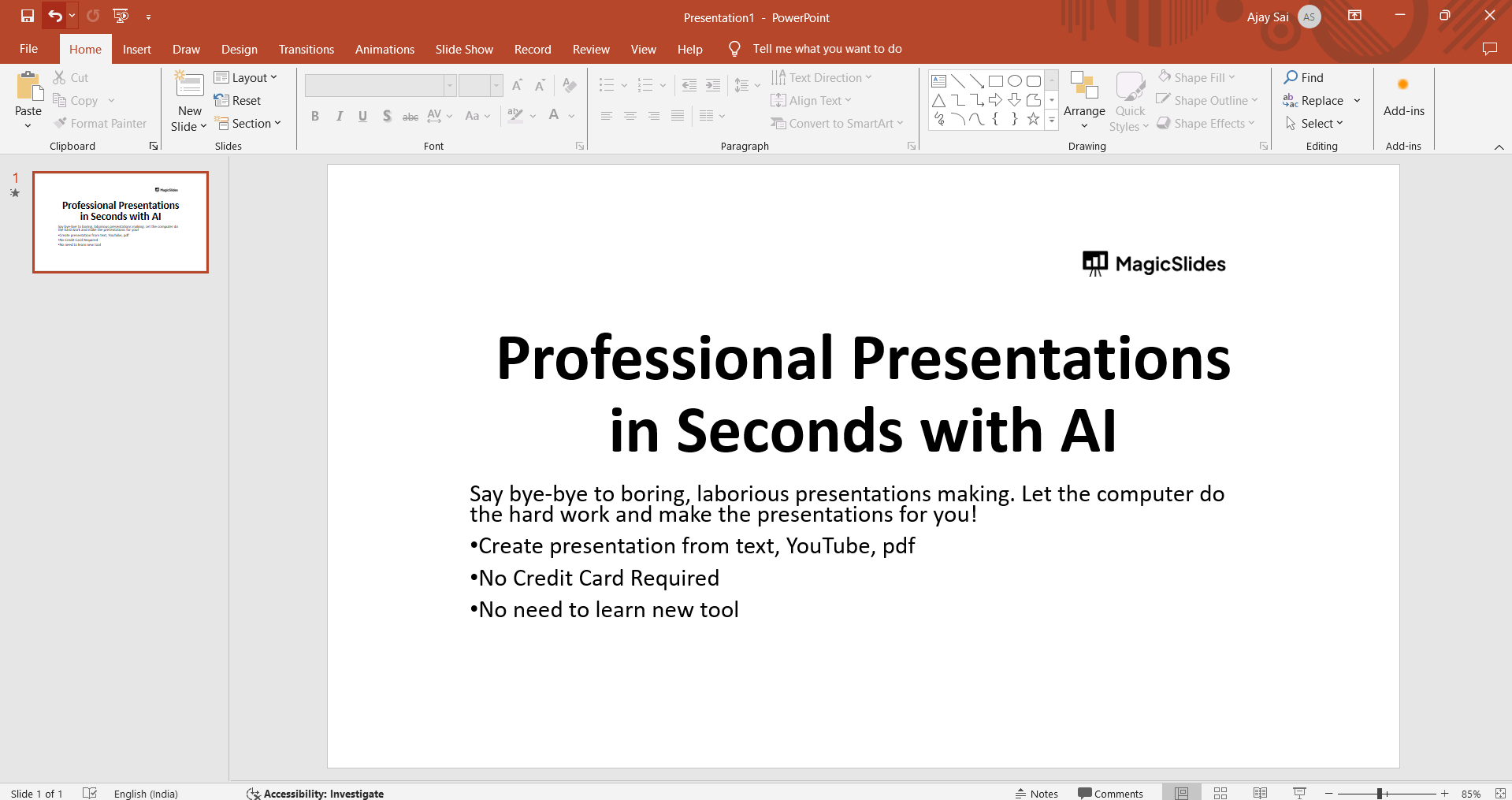
Select a Slide:
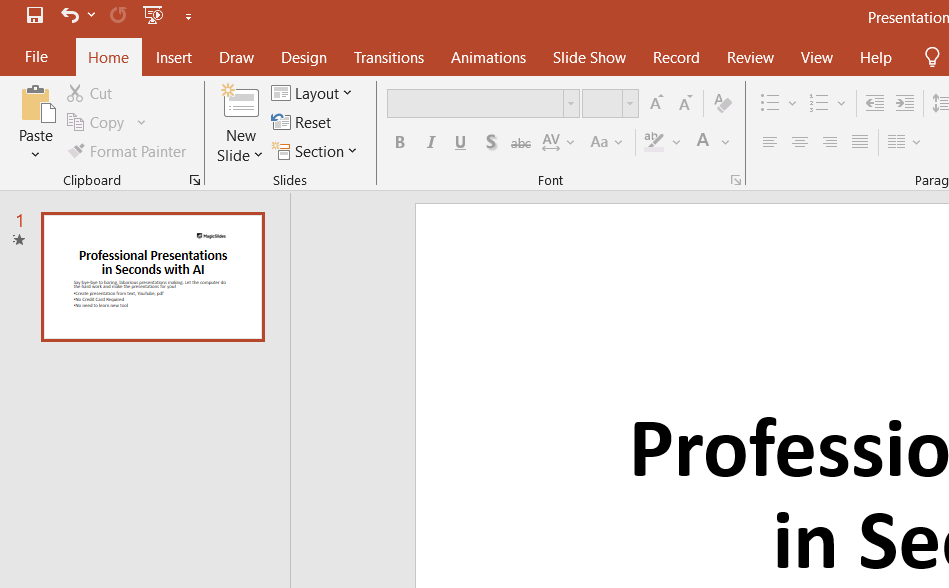
Navigate to the slide where you want to apply the cut transition. Click on the slide in the left-hand navigation pane.
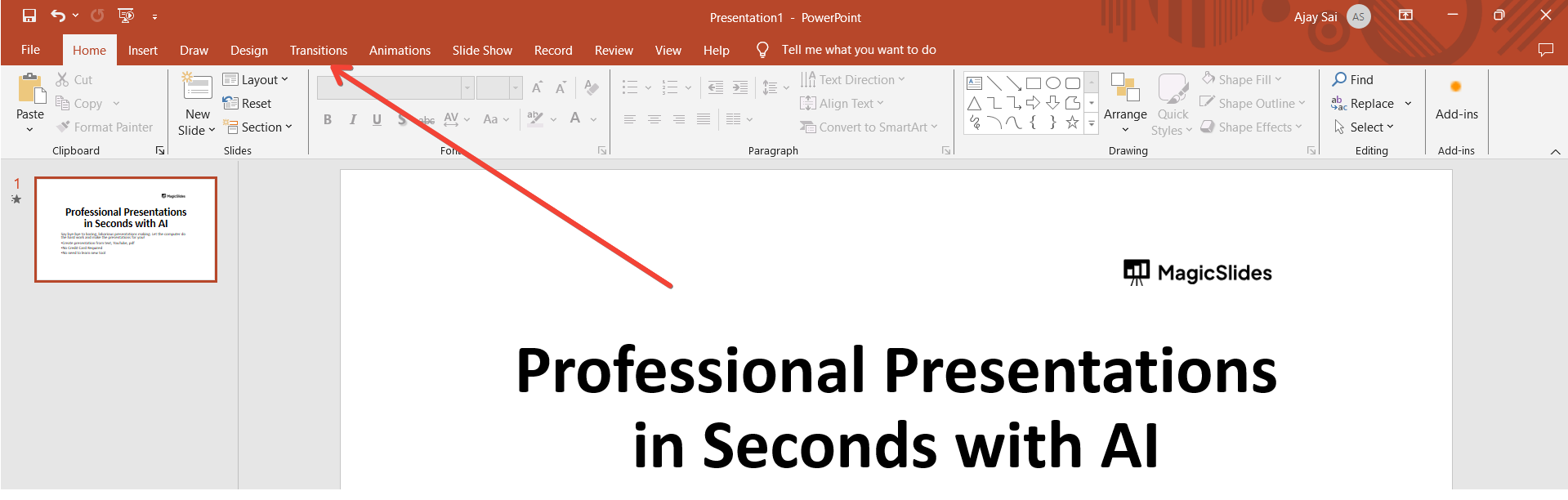
Go to Transitions Tab:
Click on the "Transitions" tab in the PowerPoint ribbon at the top of the screen.
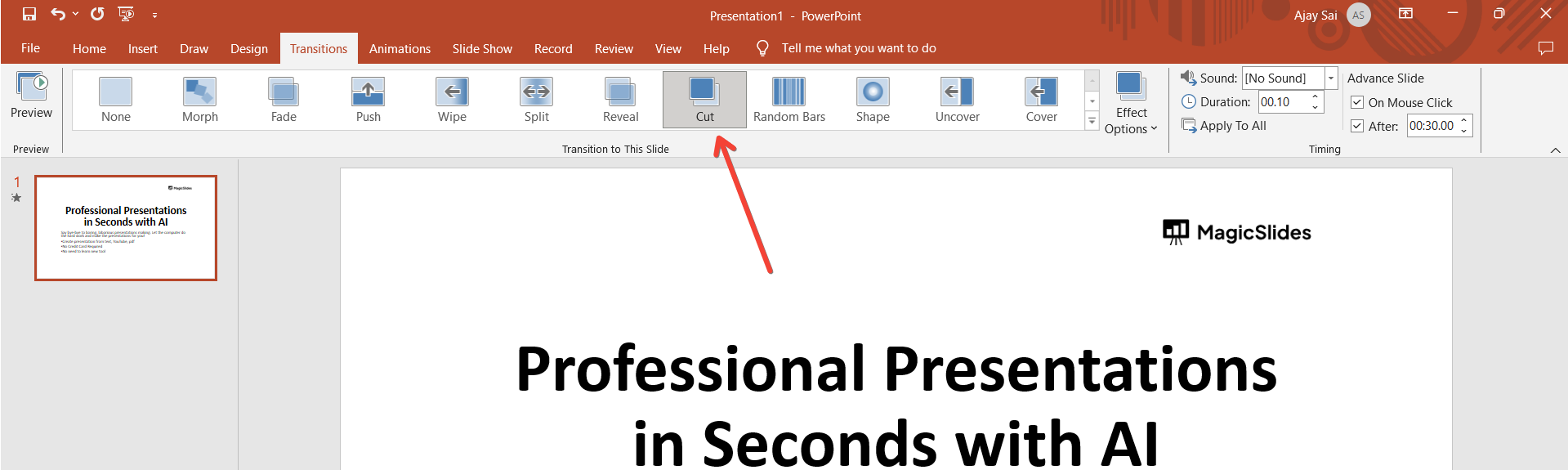
Choose cut Transition:
In the Transitions tab, locate the "cut" transition option. Click on it to apply the effect to the selected slide.
Adjust Transition Options (Optional):
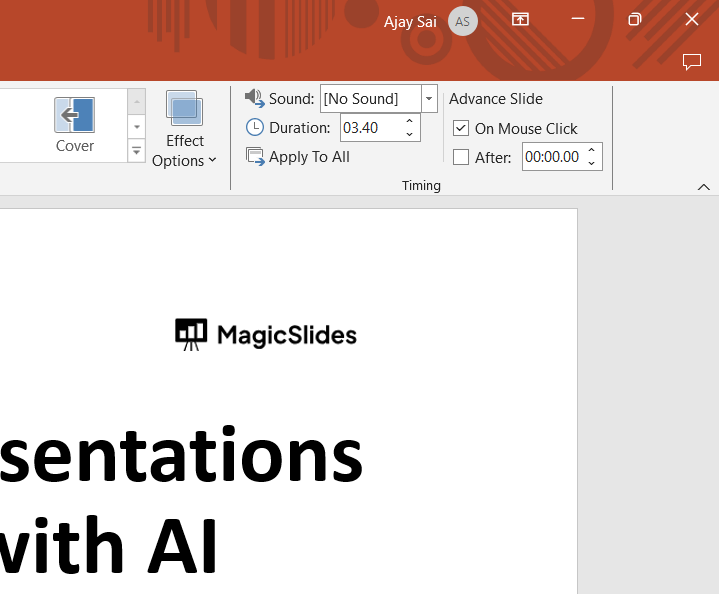
Customize the cut transition by adjusting optional settings like direction, duration, or sound. Explore the "Effect Options" in the Transitions tab for more control.
Preview the Transition:
Before finalizing, use the "Preview" button to see how the cut transition looks on your slide. Make any necessary adjustments.
Save Your Presentation:
After perfecting your cut transition, don't forget to save your presentation to preserve the effects.
Conclusion:
By embracing the technique of simulating a "Cut" transition in PowerPoint, you've added a cinematic touch to your slides. This workaround allows you to introduce visual breaks, keeping your audience's attention and providing a unique storytelling element. As you experiment with duplicating, modifying, and transitioning, you redefine the boundaries of PowerPoint, turning each slide into a canvas for dynamic narratives. Create Aesthetic Presentations by slightly tweaking the design
Frequently Asked Questions:
Can I use the simulated "Cut" transition in all versions of PowerPoint?
Yes, this workaround is applicable across various PowerPoint versions, offering versatility in presentation design.
Are there limitations to simulating a "Cut" transition compared to built-in transitions?
While effective, simulated cuts may lack the precision of built-in transitions and require manual adjustments.
Can I apply this technique for multiple cuts in a single presentation?
Absolutely, duplicate and modify slides to simulate multiple cuts, enhancing the visual narrative dynamically.
Leave a Reply