Step 1: Create Duplicate Slides: Duplicate your entire presentation to create multiple copies of the same slides. You can do this by right-clicking on a slide in the slide sorter on the left side of the Google Slides interface and selecting "Duplicate slide." Repeat this for all the slides in your presentation.
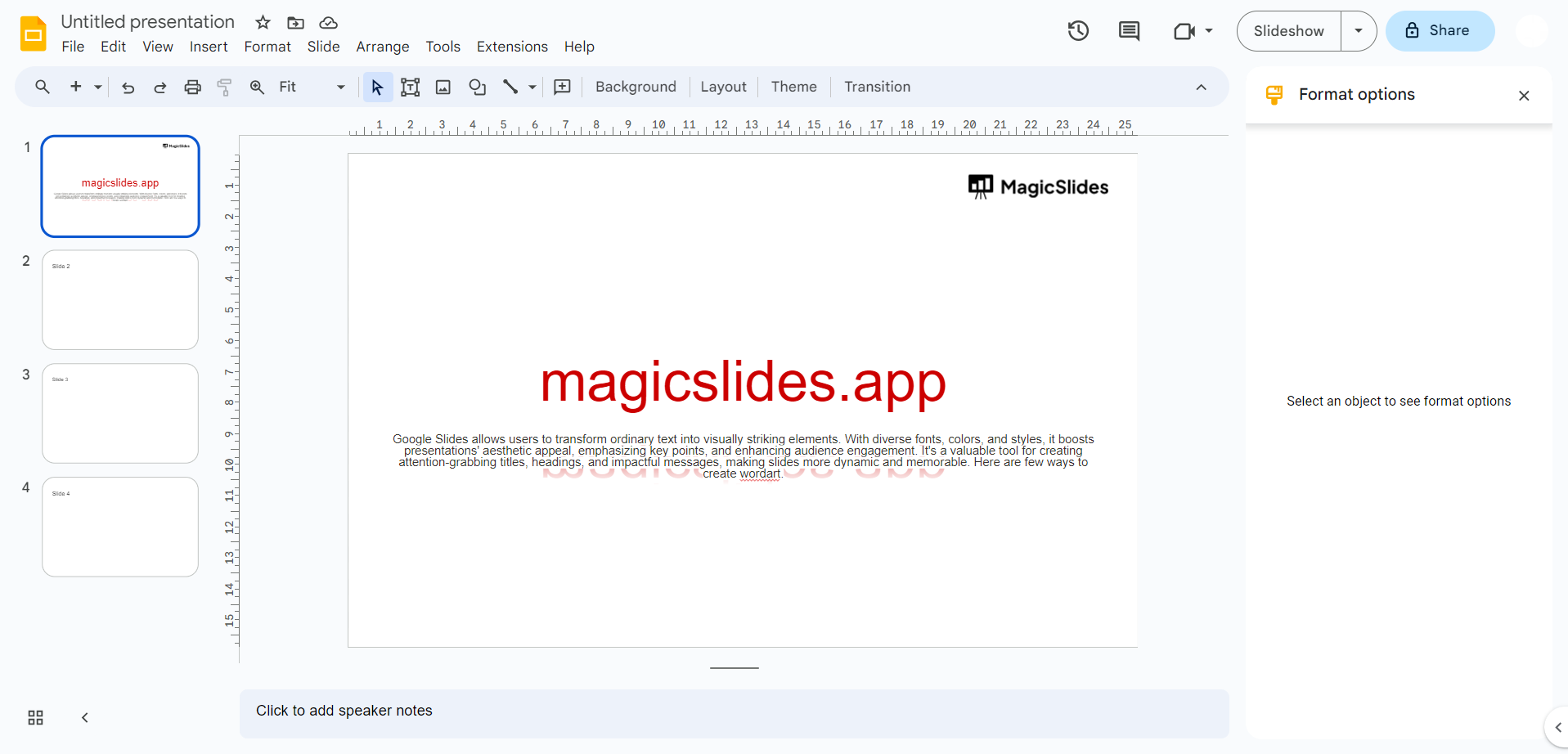
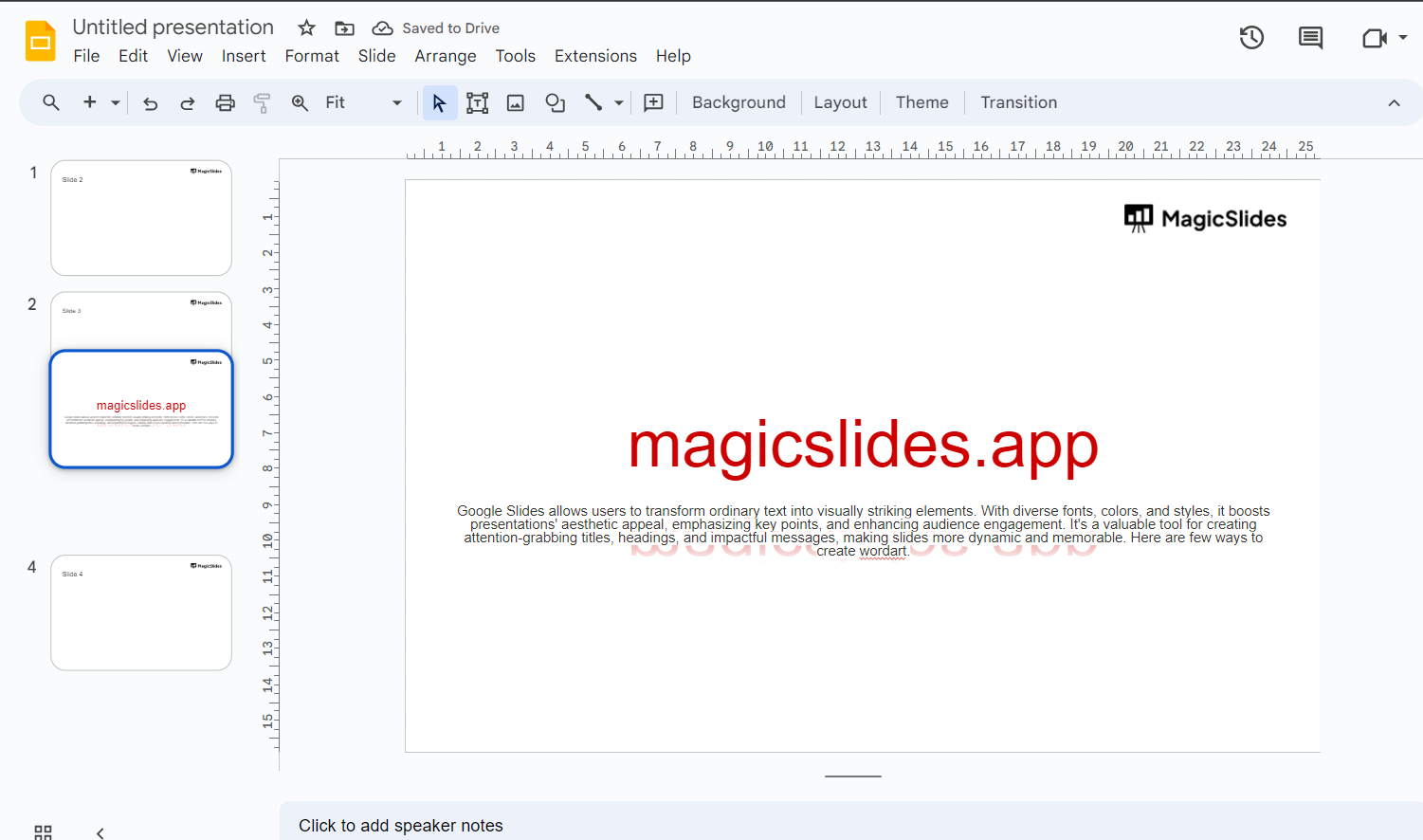
Step 2: Rearrange Slides: Now that you have duplicated slides, you'll need to rearrange them to create a continuous loop. The last slide in your presentation should link back to the first slide to create the loop. Here's how you can do it:
- Click and drag the last slide and move it to the position immediately after the first slide.
Step 3: Set Slide Transitions:
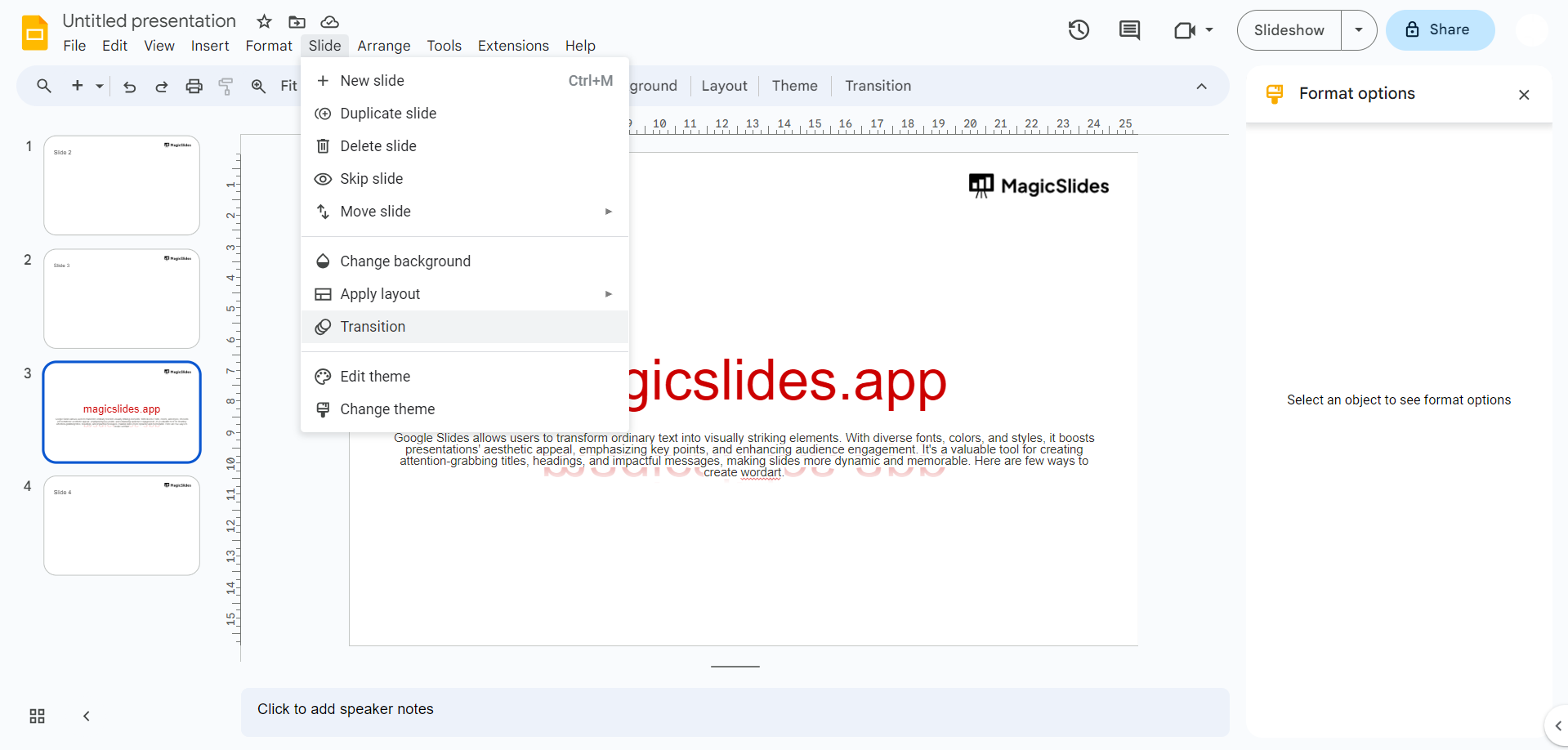
- Click on the first slide.
- Go to the "Slide" menu.
- Select "Transition."
Step 4: Configure Slide Transition Options:
- In the "Transition" pane on the right side of the screen, choose a transition effect (e.g., "Fade").
- Set the transition duration (e.g., 1 second).
- Under "Advance slide," select "Automatically."
- Set the time duration for how long each slide should be displayed (e.g., 5 seconds). This is the time each slide will be visible before transitioning to the next one.
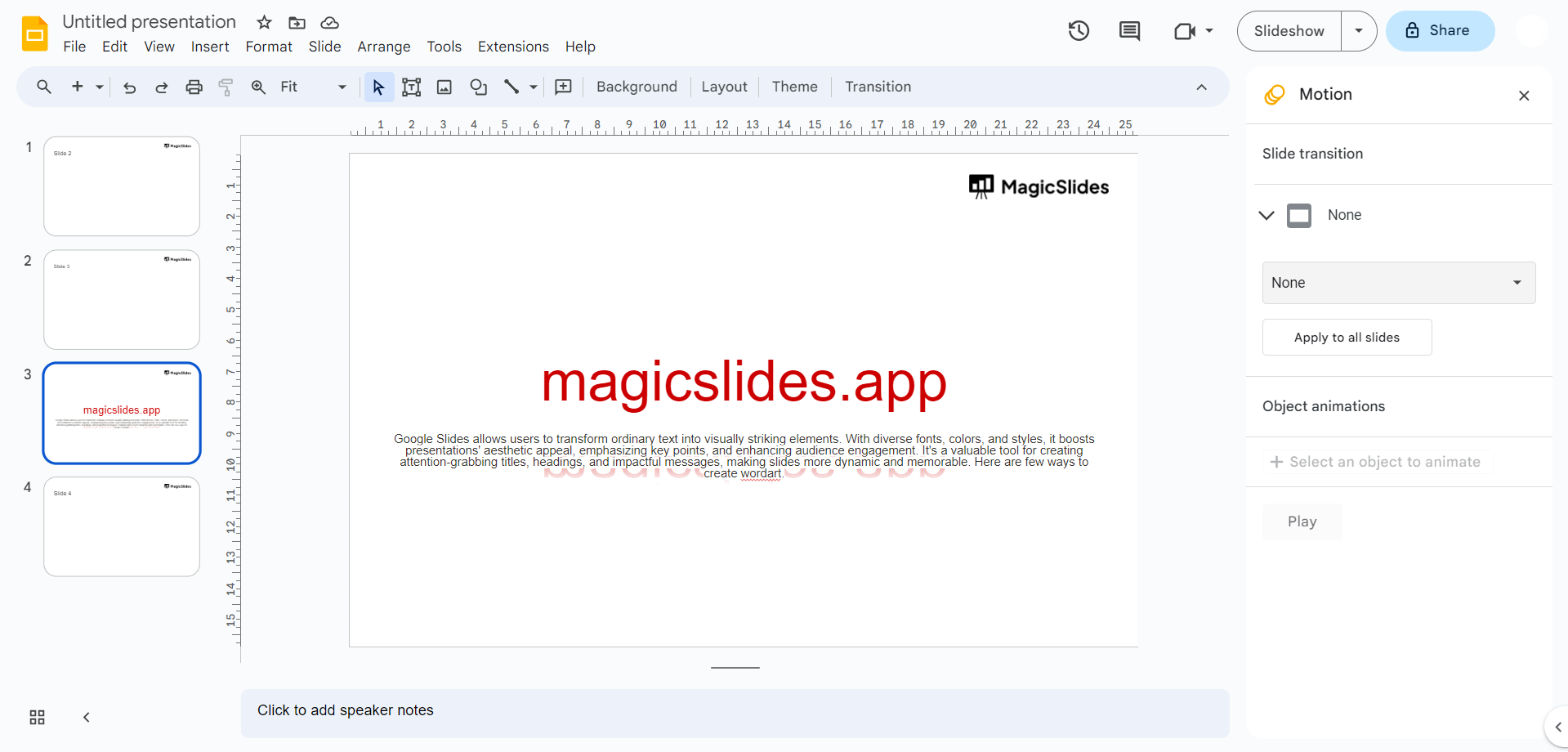
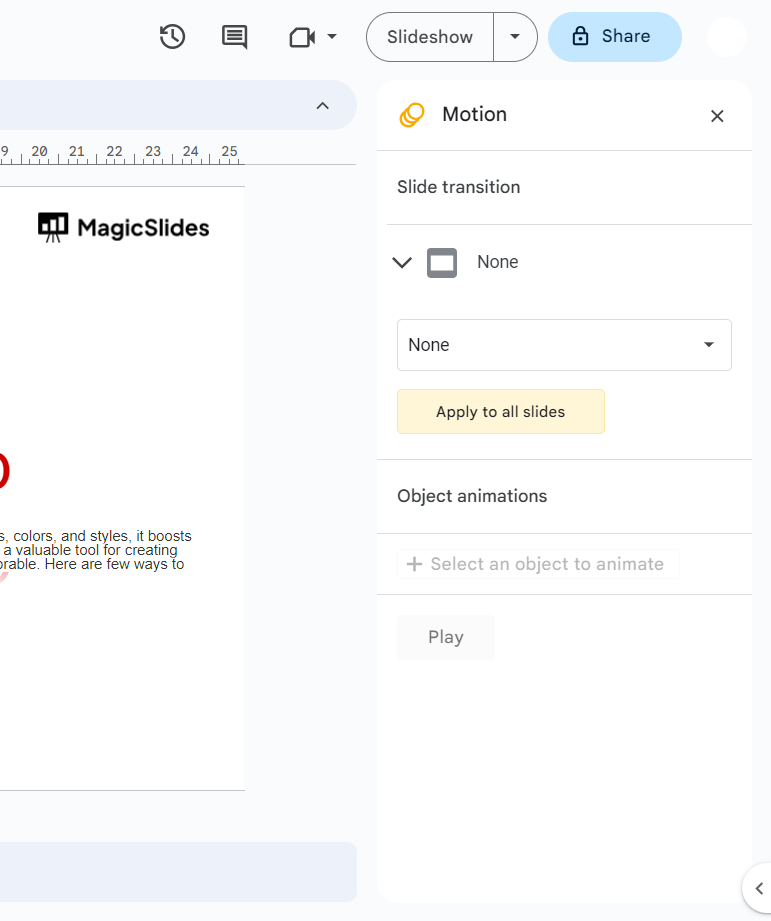
Step 5: Apply Transition to All Slides:
- Click the "Apply to all slides" button at the top of the "Transition" pane. This will apply the same transition settings to all slides in your presentation.
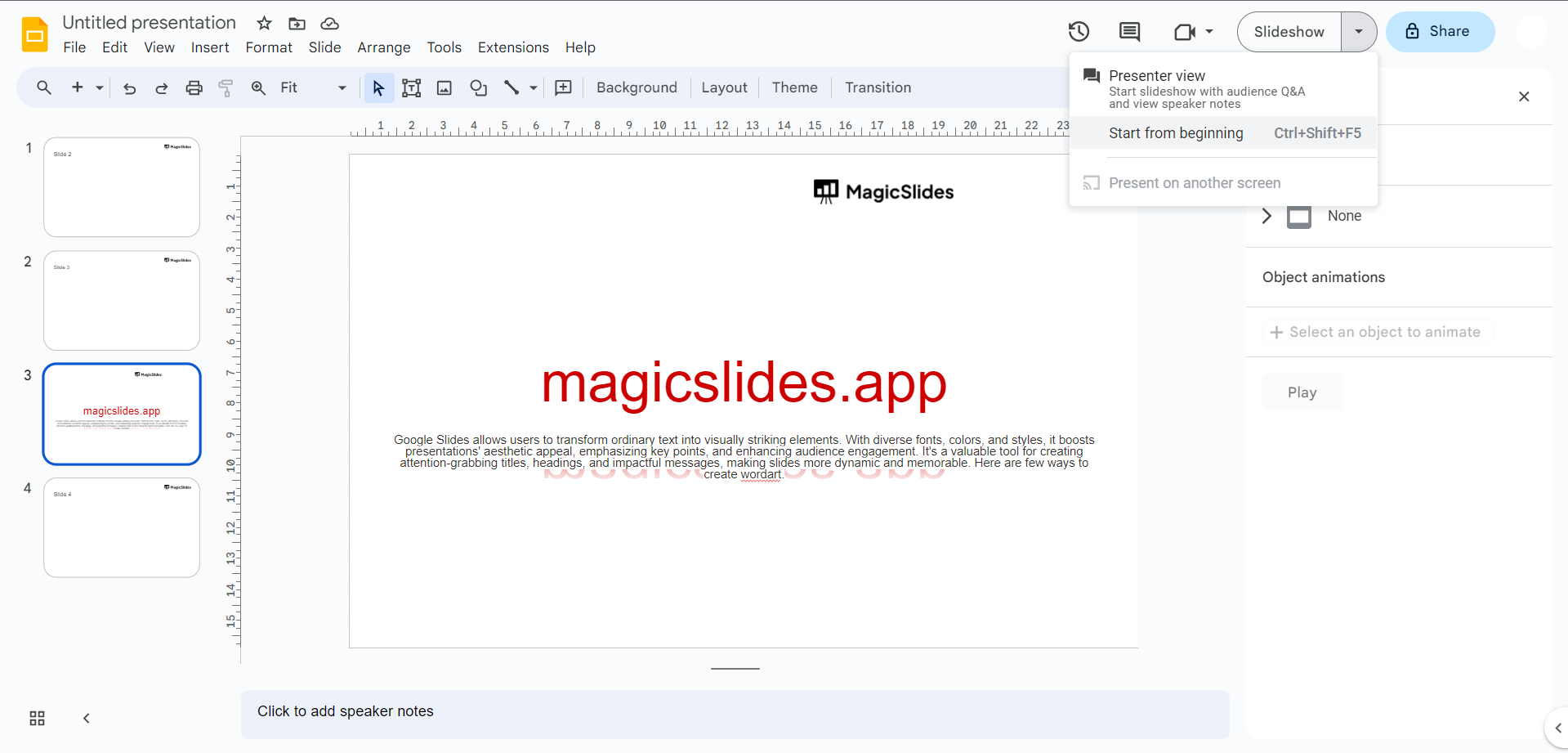
Step 6: Start the Presentation:
- Go to the "Present" button in the top-right corner and click it to start the presentation.
Leave a Reply