Perfect vertical text centering in Google Slides is paramount for a polished presentation. This meticulous alignment ensures a balanced and professional aesthetic, capturing the audience's attention. By mastering these techniques, you elevate the overall visual appeal, contributing to a more impactful and engaging presentation.
Achieving perfect text alignment is crucial for a visually appealing presentation in Google Slides. Here's an in-depth guide on how to vertically center text on a page:
How to vertically center text on page in Google Slides
Open Google Slides Application:
Launch Google Slides and access the presentation you're working on or create a new one.
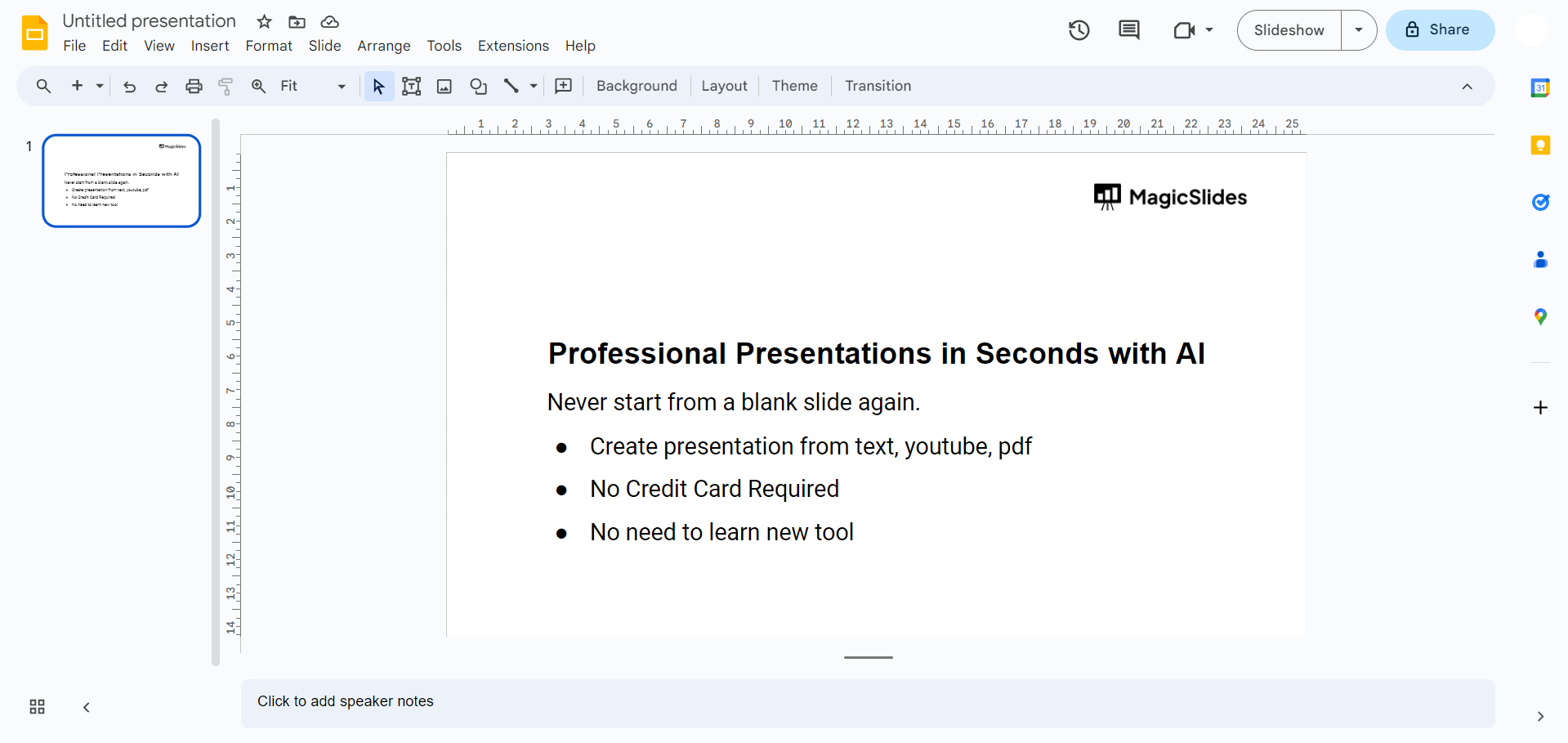
Select the Text Box:
Click on the text box containing the text you want to vertically center. If you haven't inserted text yet, create a text box and enter your content.
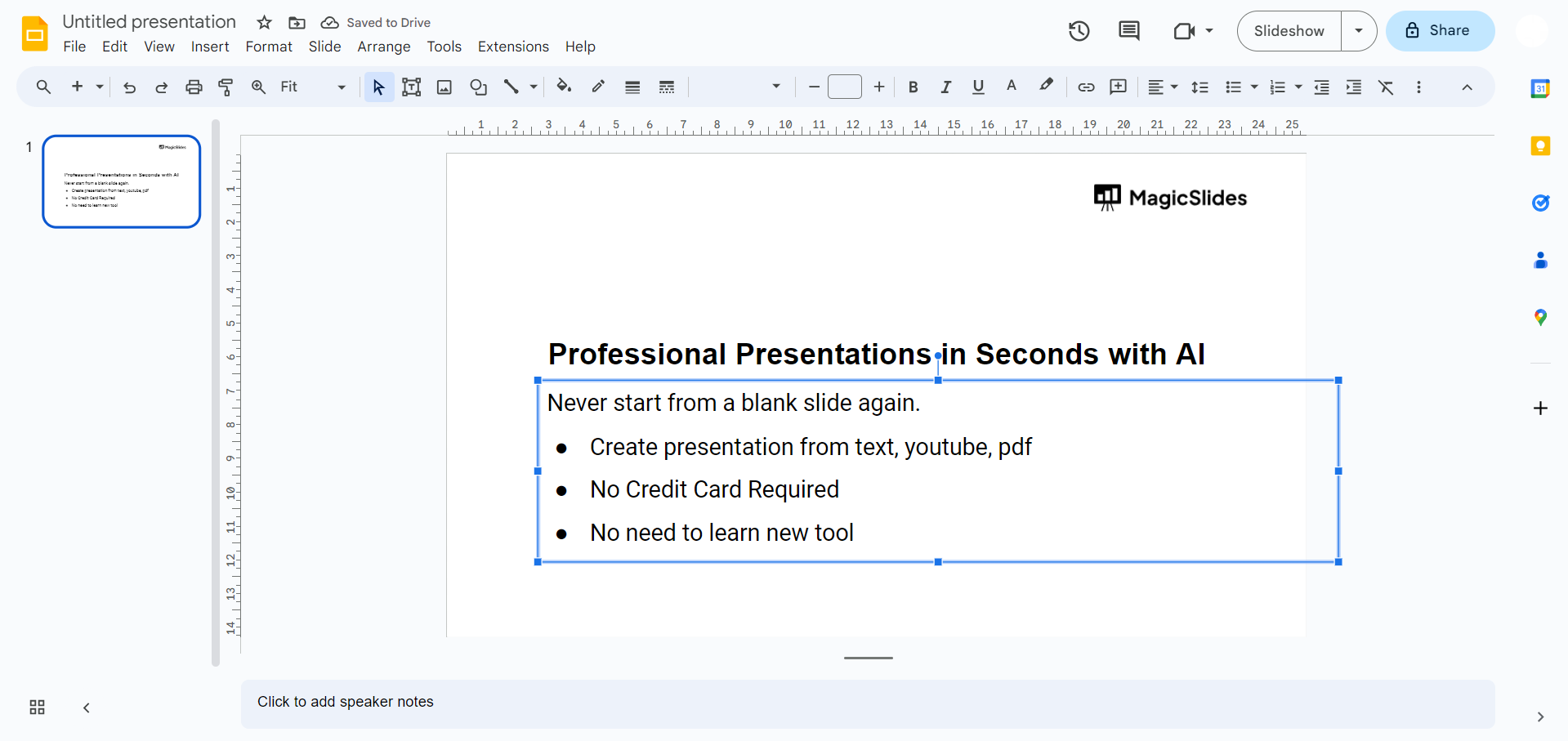
Access the Position Options:
With the text box selected, navigate to the top menu and click on "Format." This menu houses various formatting options for elements in your presentation.
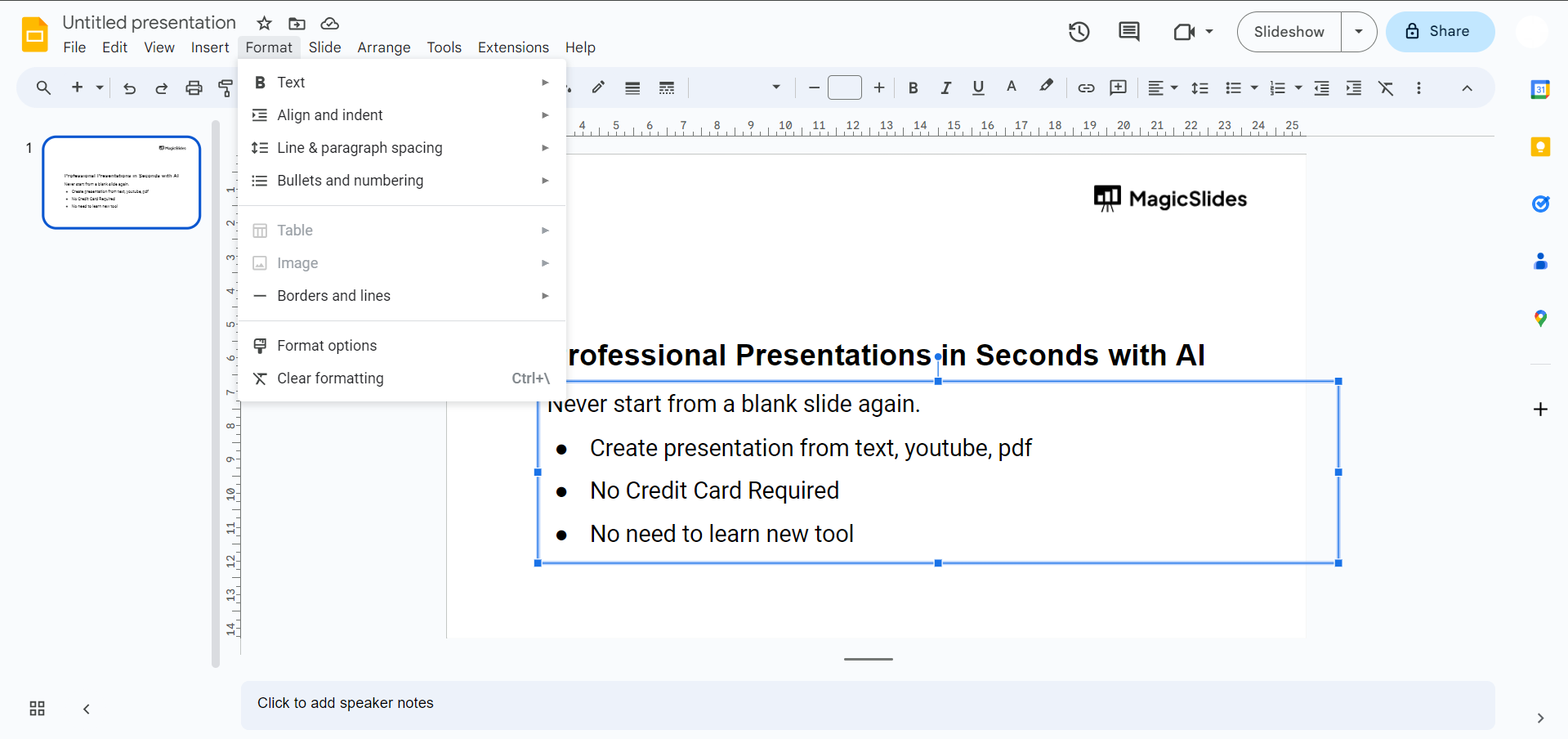
Choose Align and Center:
Within the "Format" menu, locate the "Align" option. Hover over it to reveal a submenu, and then select "Center." This action aligns the text both horizontally and vertically within the text box.
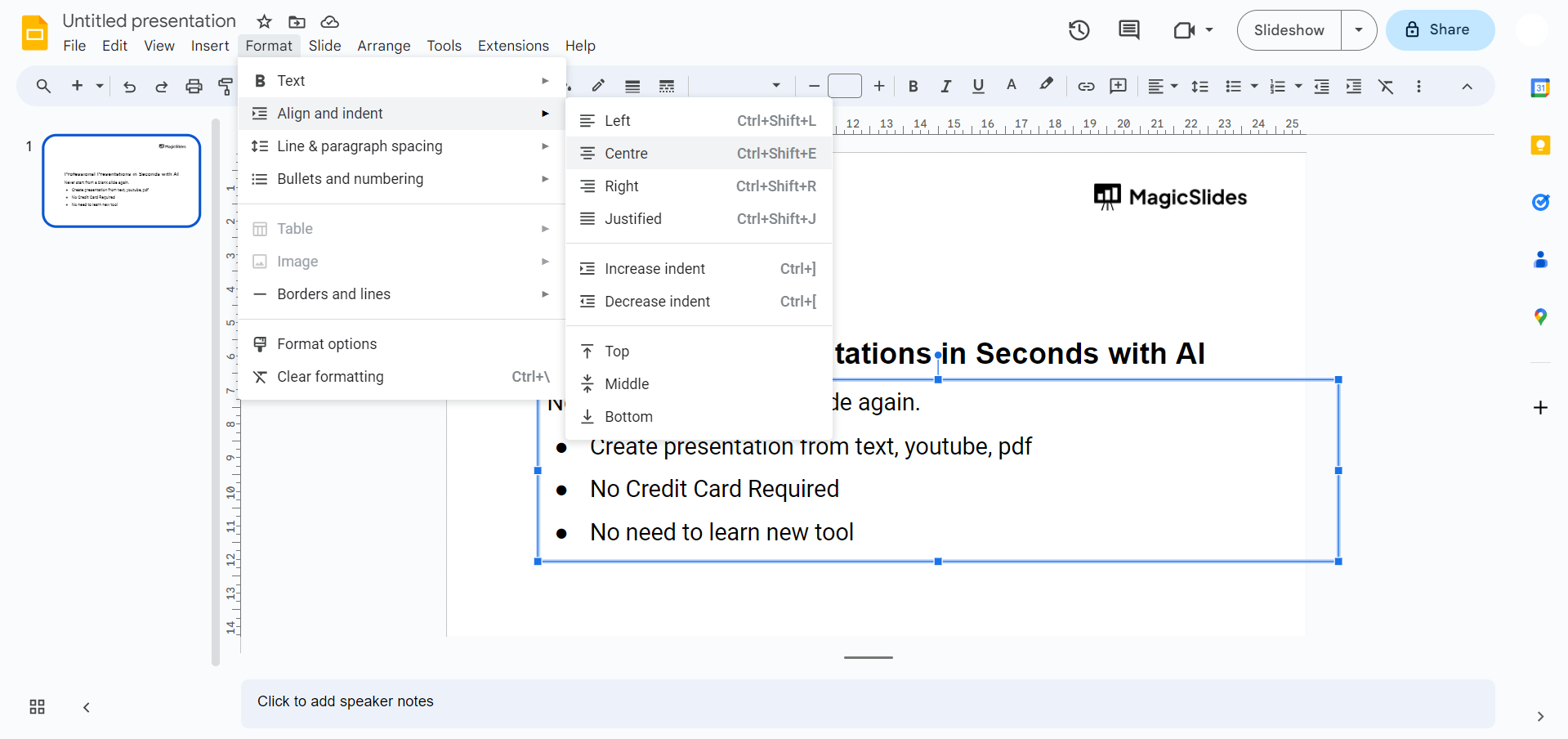
Verify Vertical Centering:
Ensure that the text is now vertically centered within the text box. Adjustments made through the "Align" options should have effectively centered the text both horizontally and vertically.
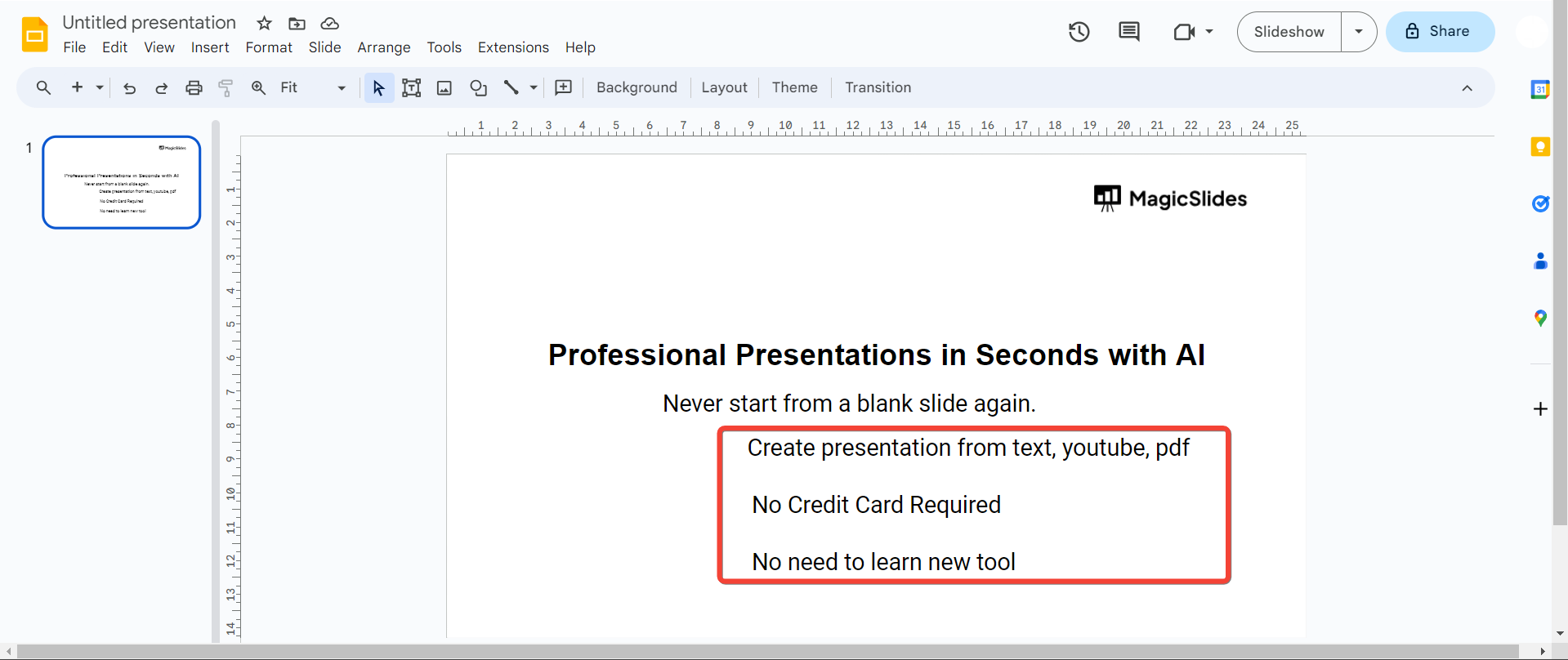
Fine-Tune Using Guides:
For precise adjustments, leverage the alignment guides. Click and drag the text box until it snaps to the vertical center guide. This ensures pixel-perfect alignment for a polished look.
Check Across Slides:
If your presentation spans multiple slides, repeat the vertical centering process for each text box. Consistency is key for a professional and cohesive design.
Conclusion:
Mastering the art of vertically centering text in Google Slides not only enhances the visual appeal of your slides but also ensures a professional and polished presentation. By following these detailed steps, you empower yourself to create visually balanced and aesthetically pleasing content, capturing your audience's attention effectively.
Frequently Asked Questions:
Why is vertical centering important in Google Slides?
Vertical centering ensures balanced text placement, enhancing visual appeal and maintaining a professional presentation.
Can I center text across multiple slides simultaneously?
Unfortunately, Google Slides doesn't offer a universal setting; center text individually on each slide.
Are there shortcuts for vertical centering in Google Slides?
Google Slides doesn't have direct shortcuts; use alignment options under the "Format" menu for precision.
Does vertical centering work for all types of text elements?
Yes, whether it's a single text box or multiple, the alignment options apply universally.
Leave a Reply