Need to convert a PDF into Google Slides for editing or presenting? Since Google Slides cannot directly edit PDF files, you’ll need to convert the document into a compatible presentation format first. In this guide, you’ll learn multiple ways to convert PDF to Google Slides, including the fastest AI-powered method using MagicSlides, along with free alternatives and troubleshooting tips.
Can Google Slides Open PDF Files Directly?
Many users assume they can upload a PDF file directly into Google Slides and begin editing it. However, Google Slides does not support direct PDF editing.
While you can insert individual PDF pages as images, the content inside the PDF cannot be edited like a normal presentation. To make changes to text, images, or layouts, you must first convert the PDF into a presentation format such as PPTX.
Once converted, the presentation can be uploaded to Google Drive and opened in Google Slides for editing, collaboration, and sharing.
Why Convert PDF to Google Slides?
Converting a PDF to Google Slides is useful in many situations, especially when you need to present or modify the content inside a PDF file.
Here are some common reasons people convert PDFs into Google Slides presentations:
- Edit content easily: PDFs are usually static files, but converting them into slides allows you to modify text, images, and layout.
- Create presentations quickly: Many reports or documents in PDF format can be turned into presentations without recreating slides manually.
- Collaborate with teams: Google Slides allows multiple users to edit and comment on presentations in real time.
- Present documents professionally: Converting PDFs into slides helps structure the content better for meetings or classes.
- Access anywhere: Google Slides presentations can be opened and edited from any device with internet access.
Best Ways to Convert PDF to Google Slides
There are several ways to convert a PDF into an editable Google Slides presentation. The right method depends on your needs, the complexity of the document, and how much editing you plan to do afterward.
| Method | Best For | Editing Support | Ease of Use |
|---|---|---|---|
| MagicSlides | Fast AI-powered conversion | Full | Easy |
| Adobe Acrobat | Professional documents | Full | Medium |
| Google Drive OCR | Text extraction | Partial | Medium |
| Manual Recreation | Custom presentations | Full | Difficult |
For most users, an AI-powered converter like MagicSlides is the fastest option because it automatically transforms PDF pages into editable presentation slides while preserving formatting.
Quick Answer: How to Convert PDF to Google Slides in 5 Easy Steps
Check out the five quick steps below to perform this task effortlessly using AI:-
- Step 1. Visit PPT to Google Slides tool.
- Step 2. Upload the PDF File.
- Step 3. Initiate the Conversion.
- Step 4. Download or Open in Google Drive.
- Step 5. Open the Converted File in Google Slides.
This process allows you to transform a static PDF into a fully editable presentation in just a few seconds. Now, let’s discuss them in detail in the coming section.
Create Presentations Faster with MagicSlides
MagicSlides offers several AI tools that help you create presentations instantly, including:
- AI PPT Maker – Generate presentations automatically.
- Text to PPT – Convert written content into slides.
- Topic to PPT – Turn any topic into a presentation.
- YouTube to PPT – Convert videos into slides.
- URL to PPT – Convert any link to slides,
These tools help students, educators, and professionals create high-quality presentations in seconds.
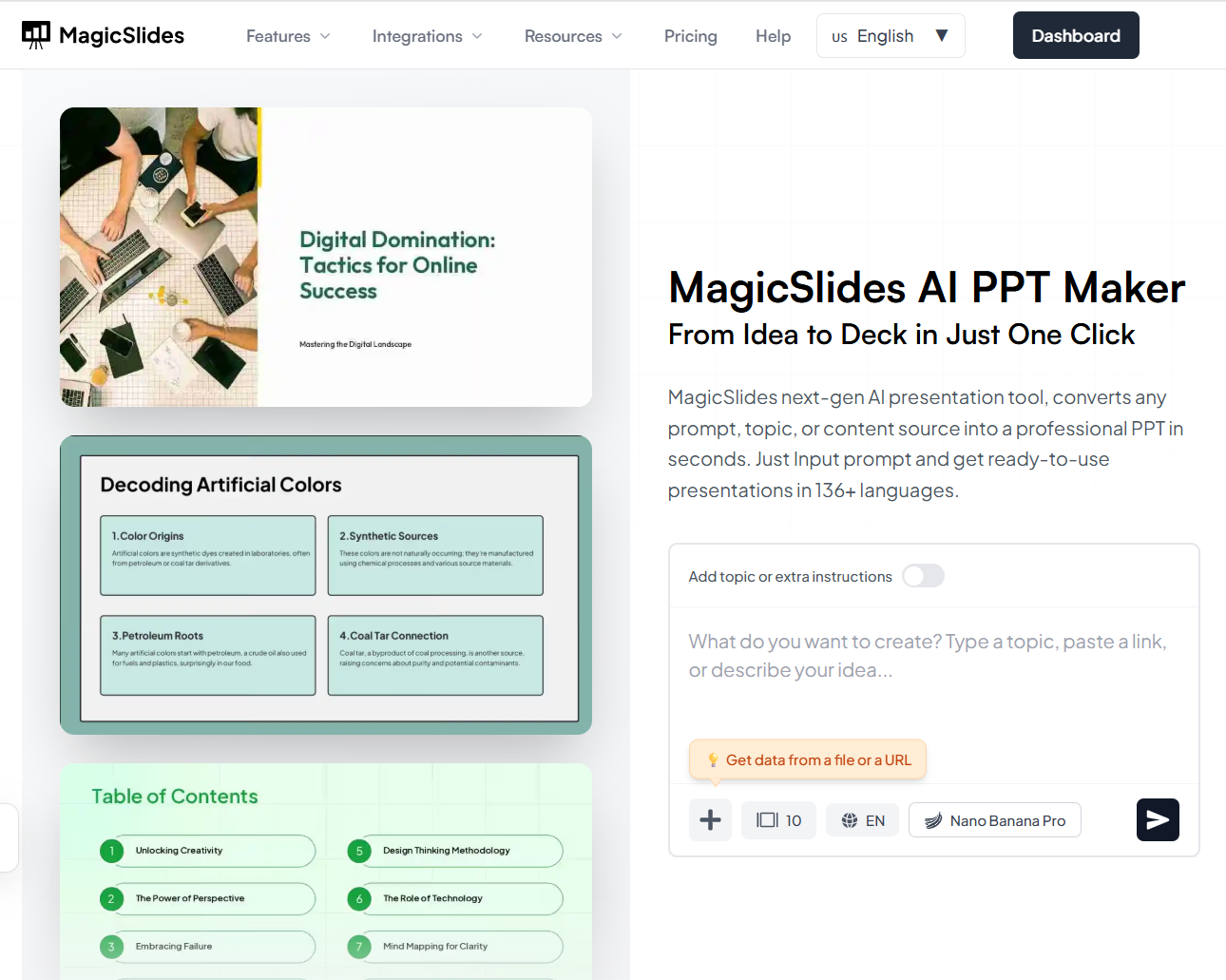
Step 1. Open the PDF to Google Slides Converter
Begin by opening PDF to PPT convertor in your web browser. If you don’t have an account, you need to sign up for one.
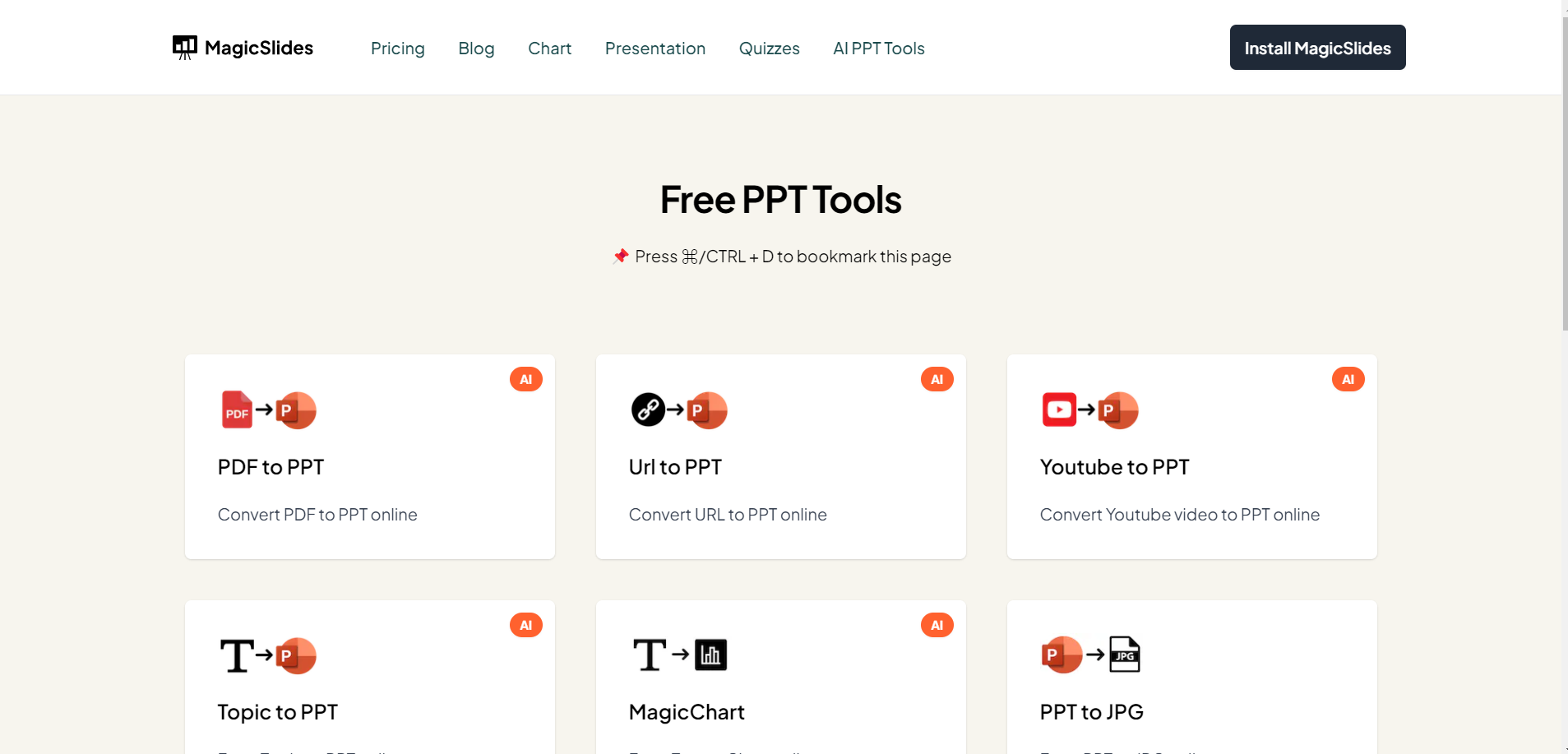
Step 2. Upload Your PDF File
Once on the webpage, locate and select the PDF file you wish to convert to Google Slides. You can usually do this by clicking on an “Upload” or “Select File” button.
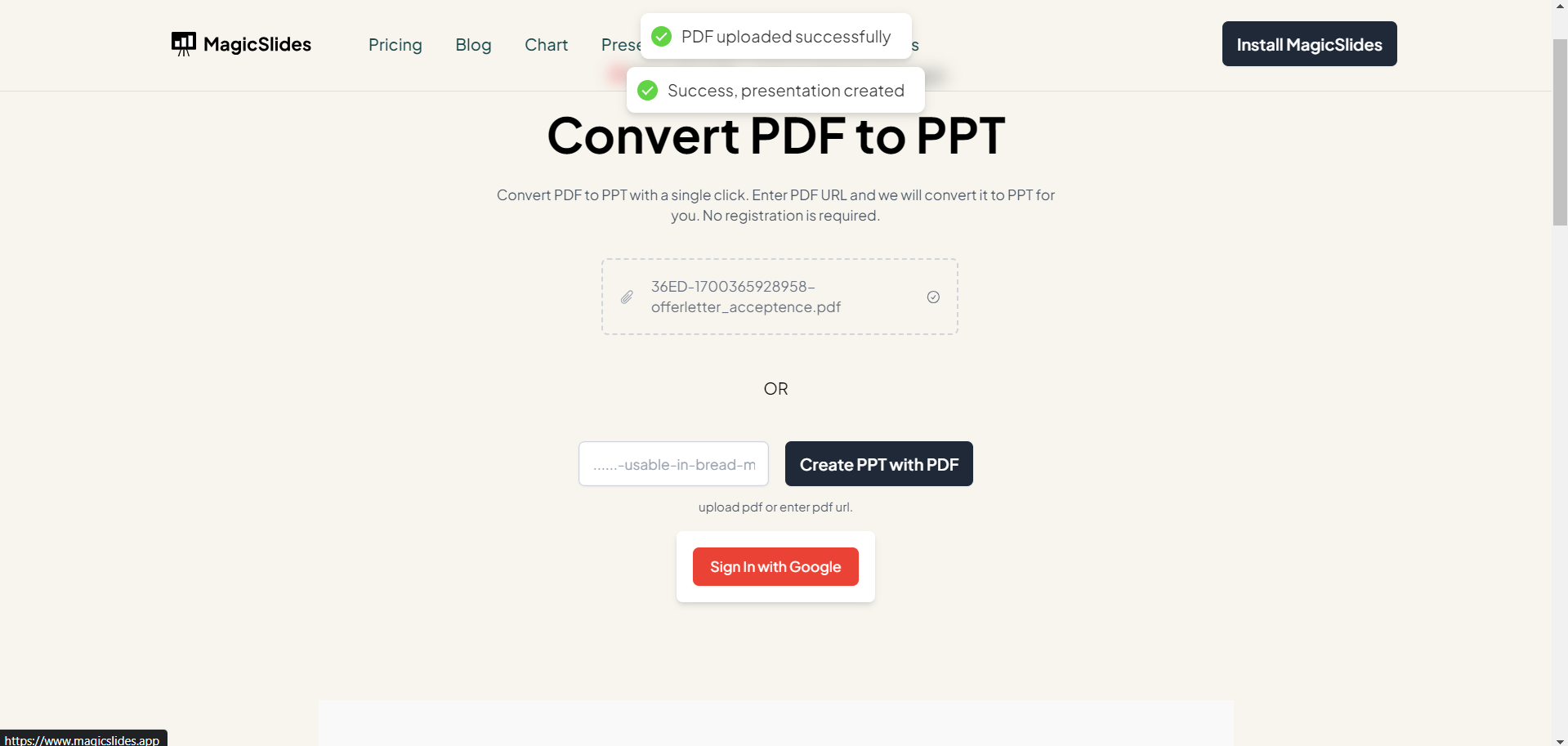
Step 3. Initiate the PDF to Google Slides Conversion
Click on the “Convert” button to start the conversion process. MagicSlides.app will begin converting your PDF into the chosen presentation format.
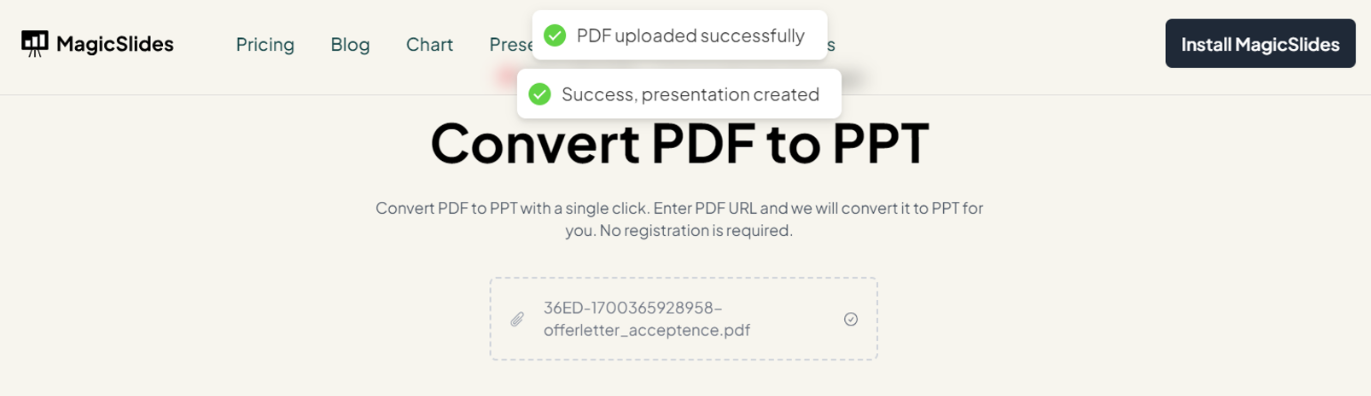
Step 4. Download or Open in Google Drive
Once the conversion is complete, you will be notified about the download to your local system.
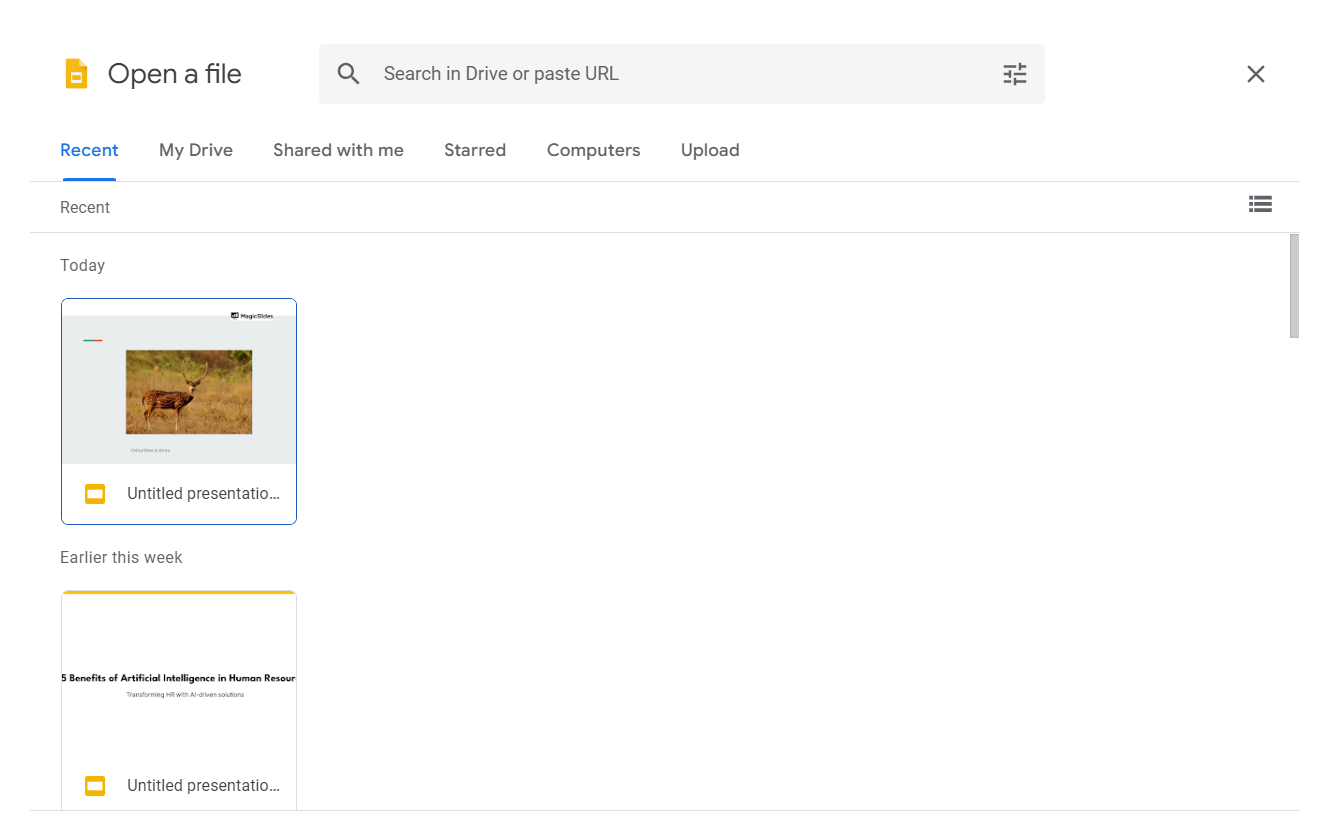
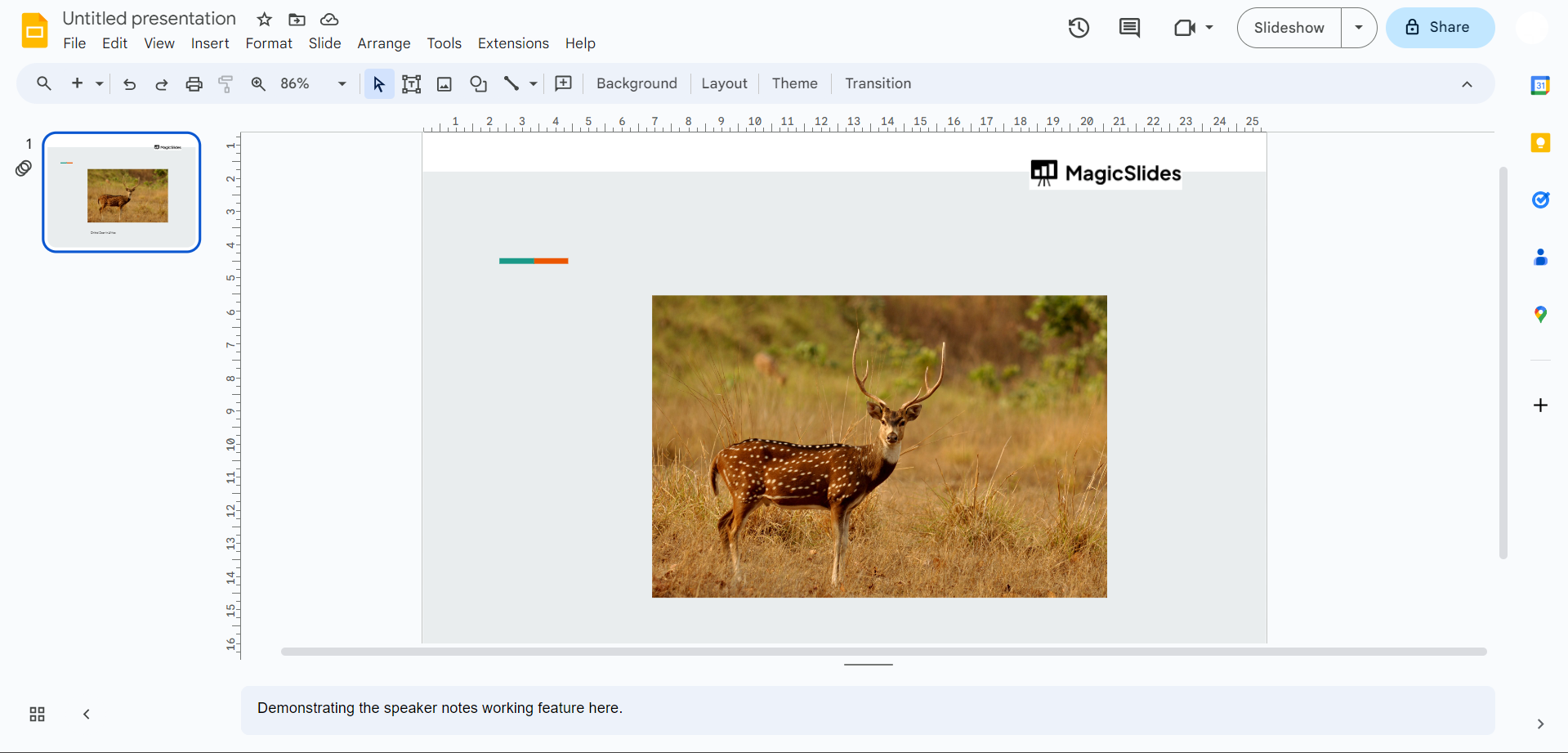
Step 5. Open the Converted File in Google Slides
Navigate to Google Drive, locate the converted file, and open it using Google Slides. You can now edit, present, or share the file as needed.
Method 2: Convert PDF to Google Slides Using Adobe Acrobat
Adobe Acrobat provides a reliable way to convert PDF documents into PowerPoint presentations that can later be opened in Google Slides.
- Step 1. Launch Adobe Acrobat and open the PDF file you want to convert.
- Step 2. Select Export PDF from the tools menu and choose Microsoft PowerPoint Presentation (.pptx) as the export format.
- Step 3. Choose a location on your computer and save the converted PowerPoint file.
- Step 4. Open Google Drive and upload the newly created PPTX file.
- Step 5. Right-click the uploaded file and select Open With → Google Slides. The presentation will now be editable online.
This method works particularly well for business reports, proposals, and presentation-style PDFs.
Method 3: Convert PDF to Google Slides for Free Using Google Drive
If you only need to extract content from a PDF and do not require perfect formatting, Google Drive offers a free alternative.
- Step 1. Log in to your Google account and upload the PDF file to Google Drive.
- Step 2. Right-click the PDF and choose Open With → Google Docs. Google’s OCR technology will attempt to extract the text from the PDF.
- Step 3. Review the extracted content and copy the text, images, and data you want to use.
- Step 4. Open Google Slides and create a new presentation.
- Step 5. Paste the extracted content into slides and adjust the layout as needed.
Although this method is free, it often requires manual formatting and may not preserve the original design accurately.
Conclusion
Converting a PDF to Google Slides makes it easier to edit, present, collaborate, and share content online. While Google Slides cannot directly edit PDF files, you can quickly transform PDFs into editable presentations using tools like MagicSlides, Adobe Acrobat, or Google Drive OCR.
For users looking for the fastest and most accurate solution, MagicSlides simplifies the entire process by automatically converting PDF documents into presentation slides while preserving content and formatting. This eliminates the need to recreate slides manually and helps save valuable time.
Whether you’re a student, teacher, business professional, or content creator, choosing the right PDF-to-Google Slides conversion method can significantly improve your productivity and presentation workflow. Try the method that best fits your needs and start turning static PDFs into engaging, editable Google Slides presentations in minutes.
Frequently Asked Questions
Q1. Can I convert a PDF to Google Slides without losing formatting?
Most modern conversion tools preserve the majority of formatting elements, including text, images, and layouts. However, highly complex documents may still require minor adjustments.
Q2. What is the best PDF to Google Slides converter?
The best converter depends on your requirements. AI-powered tools such as MagicSlides are popular because they automate the conversion process and produce editable presentations quickly.
Q3. Can scanned PDFs be converted to Google Slides?
Yes. Scanned PDFs can be converted using OCR technology, which extracts text from images and converts it into editable content.
Q4. Is PDF to Google Slides conversion free?
Some online converters offer free plans with limitations. Premium tools often provide better formatting accuracy and faster processing.
Q5. Can I convert PDF to Google Slides on mobile devices?
Yes. Most cloud-based PDF conversion tools work on smartphones and tablets, allowing you to upload, convert, and edit presentations from any device.
Leave a Reply