Sharing Google Forms responses efficiently is crucial for collaboration and analysis. Whether for team projects, event planning, or academic research, this guide outlines the step-by-step process to effortlessly share and manage your collected data.
How to share Google forms responses
Open Google Forms:
Start by opening Google Forms and accessing the form for which you want to share responses.
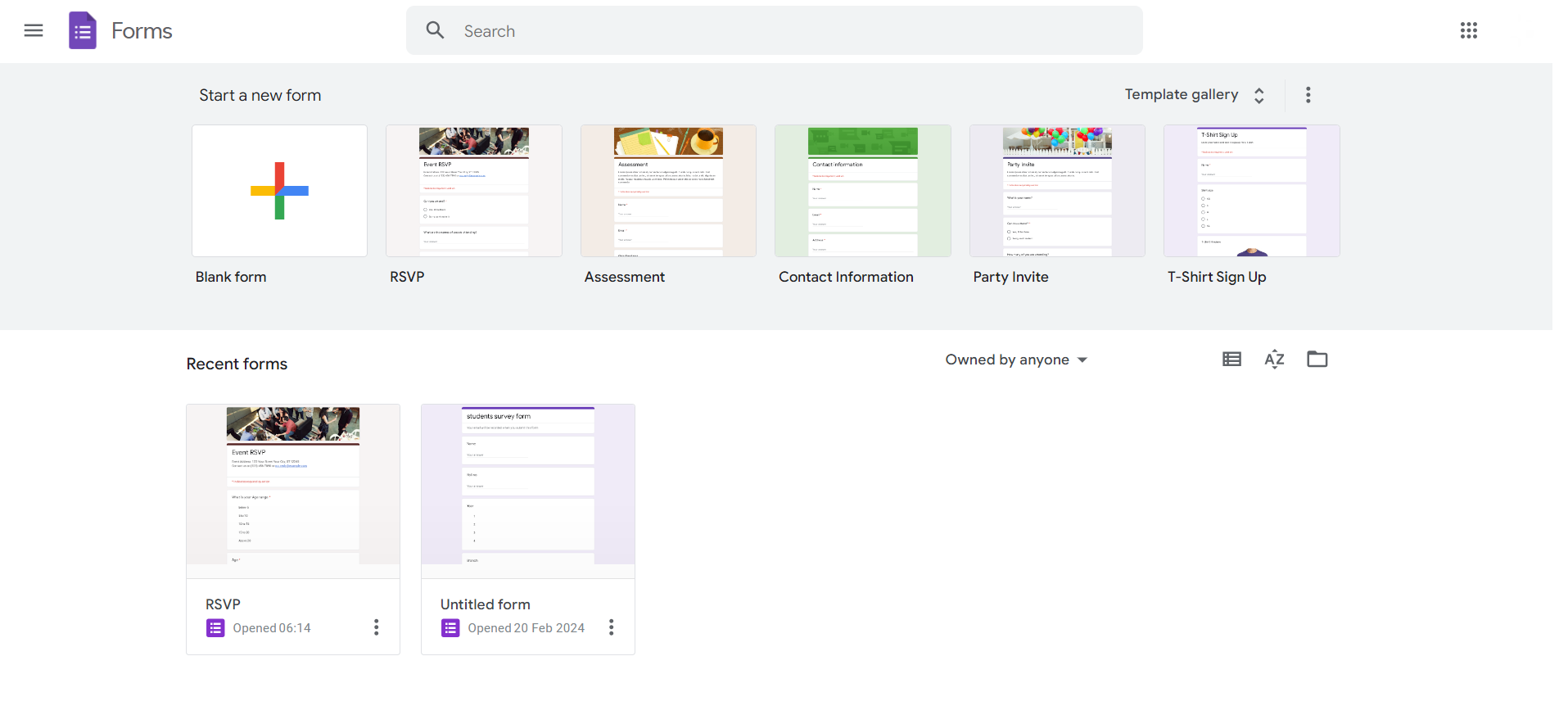
Navigate to Responses:
Click on the "Responses" tab at the top of the form. Select "Summary" for an overview or "Individual" for detailed responses.
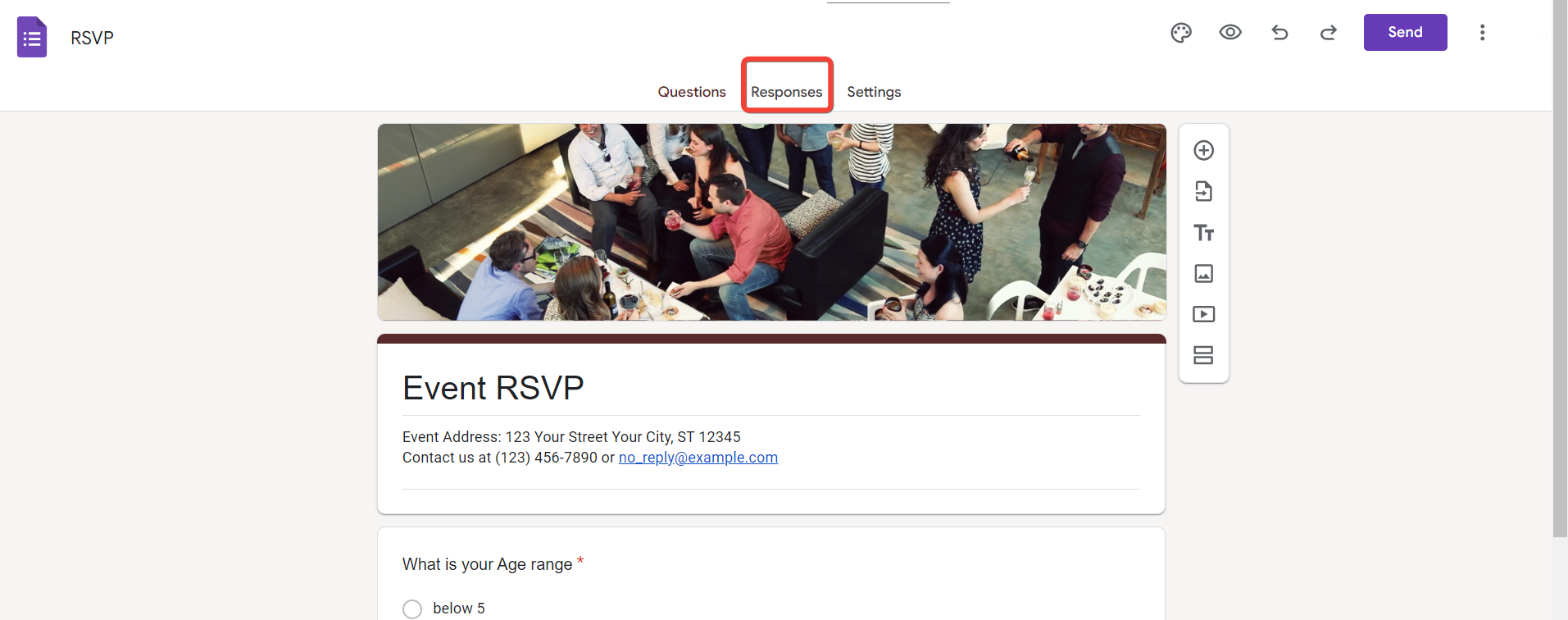
Access Response Settings:
In the top-right corner, click on the green Sheets icon. Choose either "Create a new spreadsheet" or "Select existing spreadsheet" to store your responses.
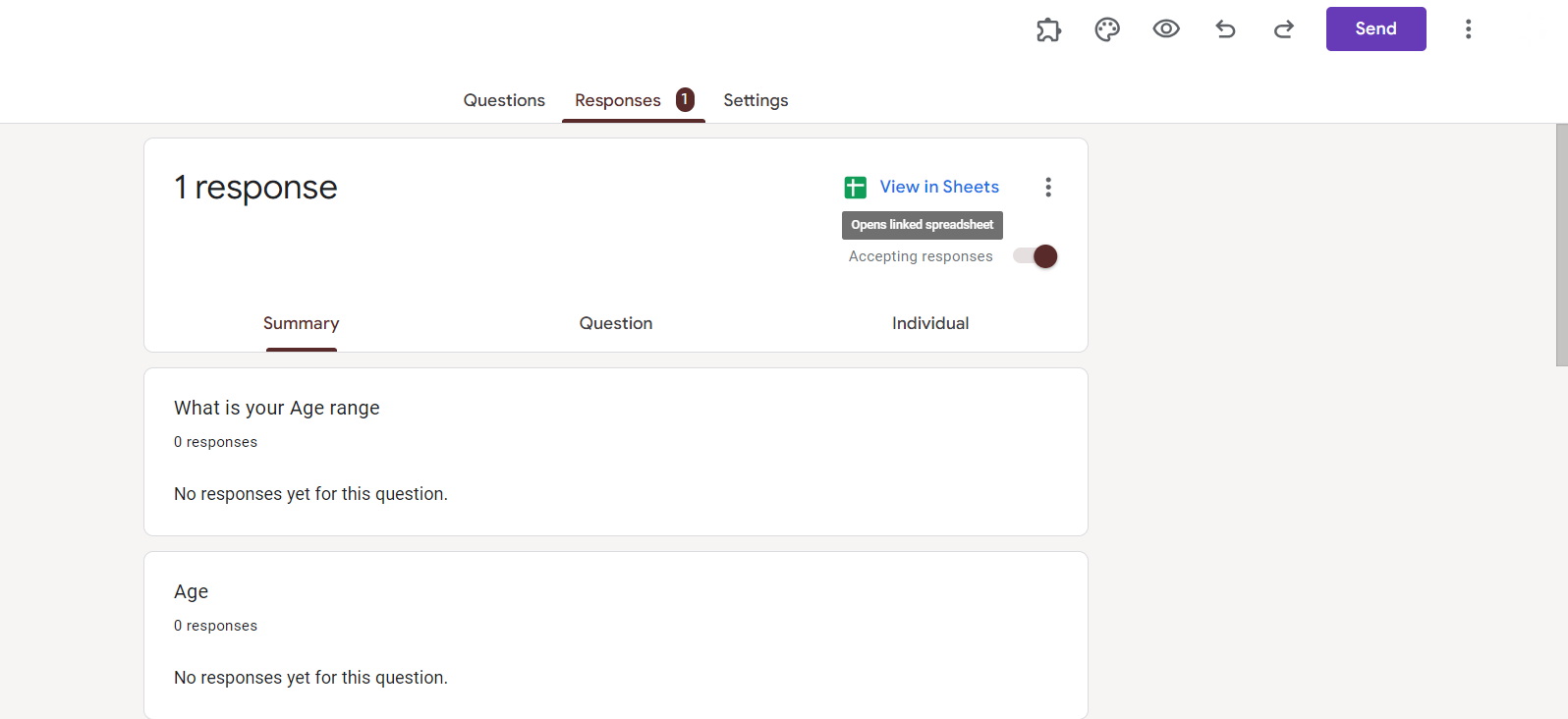
Open Google Sheets:
If you chose to create a new spreadsheet, open the created Google Sheets document. If you selected an existing one, navigate to that spreadsheet.

Share Google Sheets Document:
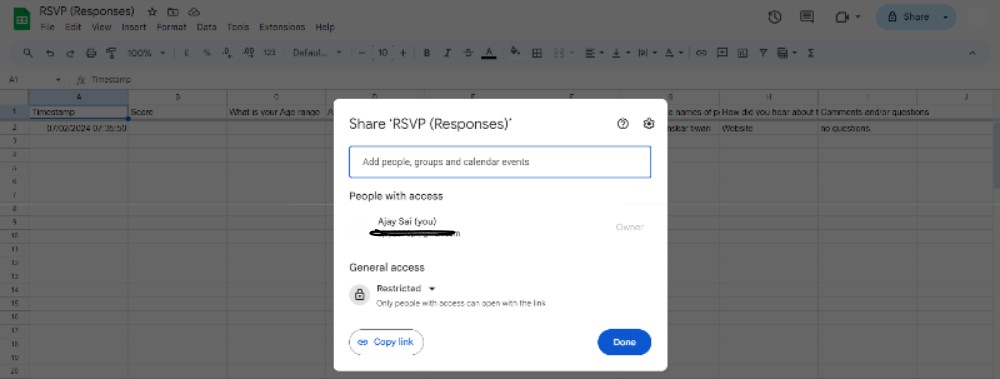
In Google Sheets, click on the "Share" button in the top-right corner. Enter the email addresses of collaborators or generate a shareable link with specified permissions.
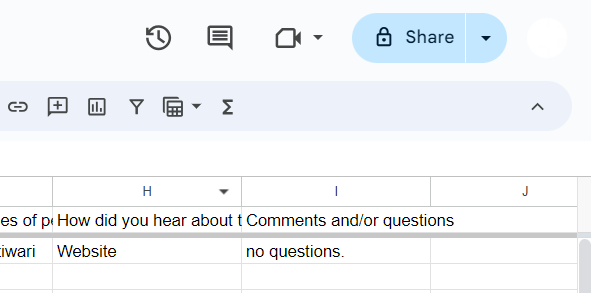
Choose Share Settings:
Determine whether collaborators can edit, comment, or only view the responses. Adjust settings according to the level of access you want to provide.
Email Collaborators (Optional):
If you entered email addresses, collaborators will receive an email notification. If using a shareable link, you can share it through email, messaging apps, or project management tools.
Monitor Real-Time Responses:
Collaborators can access and contribute to the shared Google Sheets document in real-time. Changes made by one person are instantly visible to others.
Conclusion:
Efficiently sharing Google Forms responses streamlines collaboration and ensures a seamless analysis process. Whether you're working on a group project, organizing an event, or conducting research, this step-by-step guide simplifies the process, allowing you to focus on deriving insights from your collected data. Enhance your team's productivity with a hassle-free approach to sharing and managing Google Forms responses.
Frequently Asked Questions:
Can I limit who can access and edit the shared Google Sheets document for Form responses?
Yes, you have control over permissions. Choose from edit, comment, or view-only access for collaborators.
Can collaborators see responses in real-time as they are submitted to the Google Form?
Yes, real-time collaboration is a key feature. Collaborators can view and edit responses instantly.
What happens if I update the original Google Form after sharing responses in Google Sheets?
Updates to the form won't affect existing responses. New responses will reflect any form changes.
Is there a limit to the number of collaborators I can share Google Forms responses with?
Google Sheets has a generous collaboration capacity, allowing multiple users to access and contribute simultaneously.
Leave a Reply