Google Docs makes collaboration easy with its Suggesting mode, often referred to as “track changes” in Google Docs. While this feature is useful for reviewing edits and feedback, there are times when you may want to turn off track changes to finalize your document or work without recording suggestions.
In this step-by-step guide, you’ll learn how to turn off track changes in Google Docs, switch from Suggesting mode to Editing mode, manage document edits, and remove suggestions efficiently.
Understanding Track Changes in Google Docs
Before we dive into the steps for turning off track changes, it’s essential to understand what this feature does. When track changes is enabled, any edits made to the document are highlighted, and suggestions are recorded. This is particularly useful in collaborative settings, as it allows authors to review changes before accepting or rejecting them.
However, once you are ready to finalize your document or prefer a cleaner view without the clutter of suggestions and edits, turning off track changes is necessary.
Steps to Turn Off Track Changes in Google Docs
Step 1: Open Your Document
Start by opening the Google Docs document in which you want to turn off track changes.
Step 2: Access the Suggesting Mode
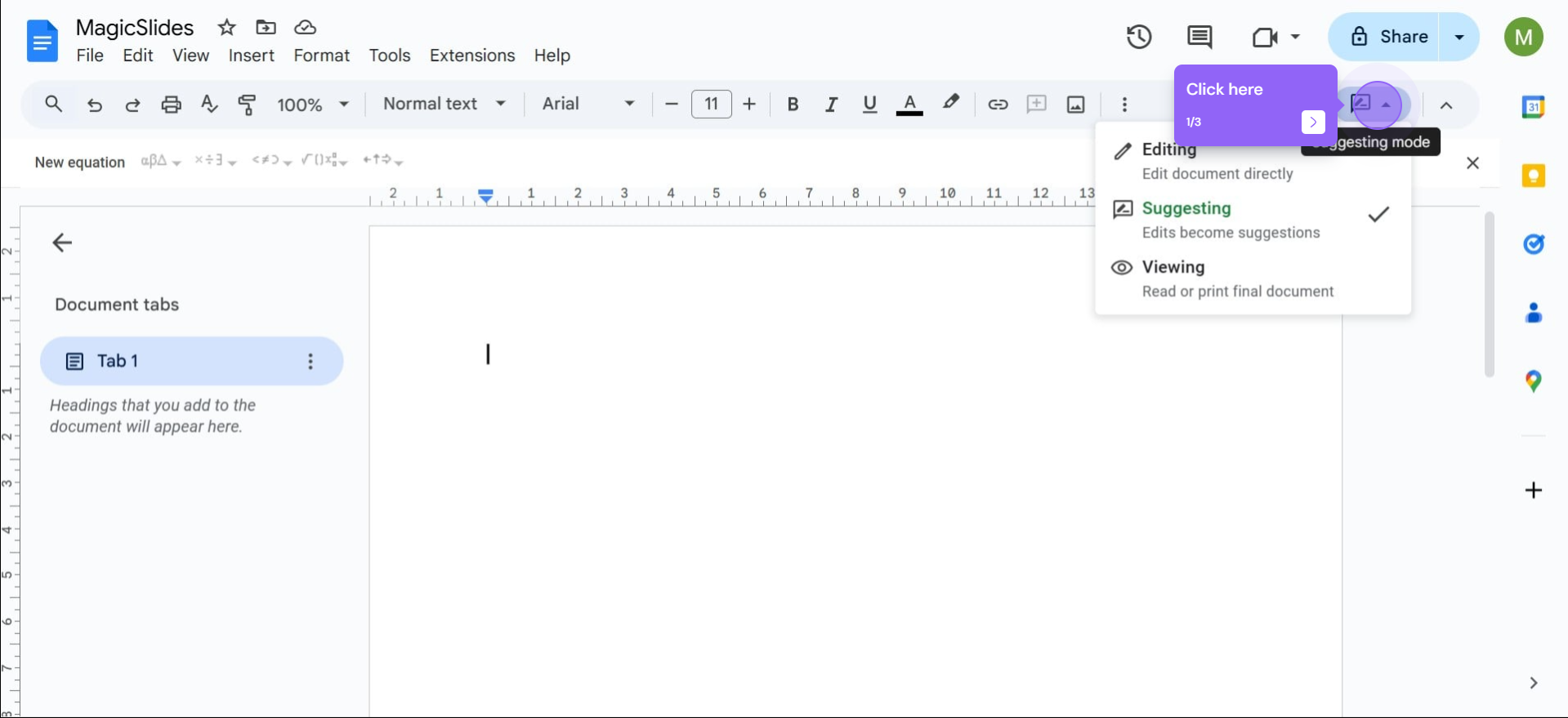
If track changes are currently enabled, your document is likely in “Suggesting” mode. To check this, look at the top right of the document window. You will see a pencil icon or the words “Editing” or “Suggesting.”
Step 3: Change from Suggesting to Editing Mode
- Click on the pencil icon or the mode indicator (it may show “Suggesting”).
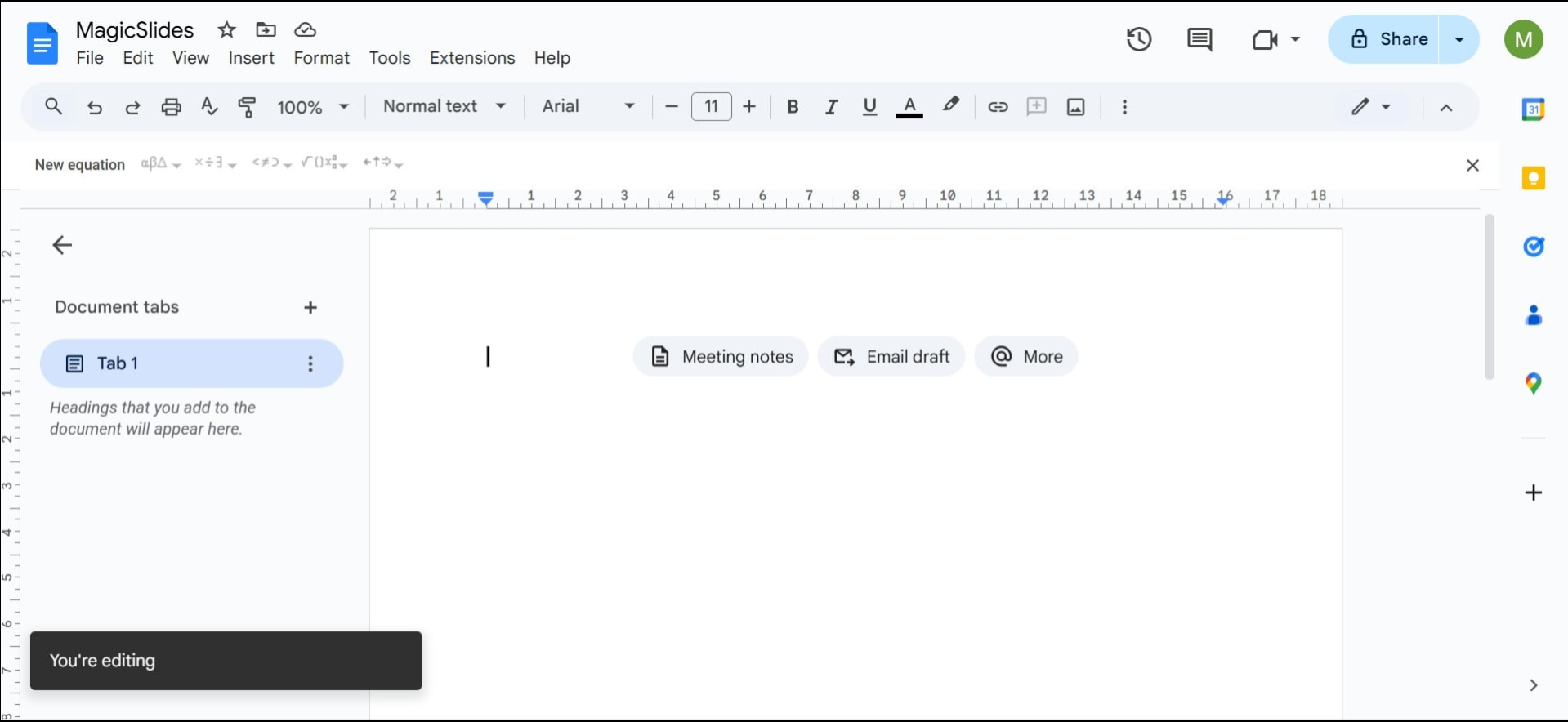
- From the dropdown menu, select “Editing.” This will turn off the track changes feature, and all edits will be made directly to the document without being tracked as suggestions.
Step 4: Review and Accept/Reject Suggestions (if needed)
If you want to finalize the document, you may want to review the suggestions made while track changes was enabled.
- Review Changes: Click on each suggestion to see what was changed. You can accept or reject these changes individually.
- Accept All Changes: To accept all changes at once, click on File, select Version history, and then choose See version history. From there, you can restore a version that reflects all accepted changes.
Step 5: Finalize Your Document
After turning off track changes and reviewing suggestions, ensure that your document is saved. Google Docs automatically saves changes, so you can rest assured that your work is secure.
Additional Tips for Managing Edits in Google Docs
- Use Comments for Feedback: Instead of relying solely on track changes, consider using comments for feedback. Comments can be added by highlighting text and clicking on the comment icon in the toolbar. This allows for discussions without altering the original text.
- Collaborative Settings: If you’re collaborating with others, consider setting permissions to control who can edit the document. To do this, click on the “Share” button in the upper right corner and adjust the settings as needed.
- Version History: Google Docs maintains a detailed version history of your document. To access this, go to File > Version history > See version history. This feature allows you to view previous versions of the document and restore them if necessary.
- Use the “Clear Formatting” Tool: If you’ve made multiple changes and want to reset the formatting, use the “Clear formatting” option in the Format menu. This will remove all styles, links, and formatting from the selected text.
Create Professional Documents and Presentations Faster with MagicSlides
Managing edits and collaboration in Google Docs is important, but creating polished documents and presentations from scratch can still take time. Tools like MagicSlides, an AI Presentation Maker, help simplify the process by generating professional presentations, organizing content, and turning ideas into visually engaging slides within minutes.

Whether you’re preparing a business proposal, project report, meeting presentation, or academic assignment, AI-powered tools can improve productivity and help you create high-quality content faster.
Conclusion
Turning off track changes in Google Docs is a straightforward process that can enhance your document’s readability and finalization. By following the steps outlined above, you can easily transition from suggesting edits to a clean editing mode.
Additionally, utilizing comments, version history, and collaborative settings can further streamline your document management.
Whether you’re working on a team project or polishing a personal document, understanding how to manage track changes effectively will enhance your productivity in Google Docs. Happy writing!
Frequently Asked Questions
Q1. How do I turn off suggestions in Google Docs?
To turn off suggestions in Google Docs, click the mode dropdown in the top-right corner and switch from “Suggesting” to “Editing.”
Q2. Is Suggesting mode the same as track changes?
Yes, Suggesting mode in Google Docs works similarly to the Track Changes feature in Microsoft Word.
Q3. Can I accept all suggestions at once in Google Docs?
Yes, you can review suggestions individually or use version history and document review tools to finalize changes more efficiently.
Q4. Does Google Docs save edit history?
Yes, Google Docs automatically stores version history, allowing you to restore previous versions of your document anytime.
Leave a Reply